
How to Create PDF from Clipboard
Can you convert to PDF from a clipboard? What is the process and what tools do you need in order to do this? That’s what this article talks about.
 100% Secure |
 Powered by AI
 Home
>
Create PDFs on Mac
> How to Create PDF from Clipboard
Home
>
Create PDFs on Mac
> How to Create PDF from Clipboard
Need to turn copied text or an image into a PDF? The easiest solution is to convert clipboard to PDF using a PDF editor like Wondershare PDFelement - PDF Editor Wondershare PDFelement Wondershare PDFelement. Instead of pasting your content into another document first, the software can create a PDF directly from whatever is stored in your clipboard, including text, screenshots, or images.
In this guide, you'll learn how to create a PDF from clipboard content step-by-step and anything you may want to know about converting clipboard text or image to PDF.




Part 1. Why Convert Clipboard to PDF?
Creating a PDF from clipboard content is useful in many everyday situations. Here are some common use cases:
Save Web Content Quickly
If you find important information on a website, you can copy the text and instantly save it as a PDF for later reading.
Turn Screenshots into Documents
Screenshots copied to the clipboard can be quickly turned into PDFs for reports, tutorials, or documentation.
Preserve Formatting
PDF files keep the layout consistent across devices, which makes them ideal for sharing.
Create Quick Notes
Students, researchers, and office workers often copy notes or references and save them as PDFs.
In short, clipboard to PDF conversion is a fast way to capture and organize information.
Part 2. How to Convert Clipboard to PDF
When it comes to creating a PDF from clipboard content, Wondershare PDFelement is one of the easiest tools to use.
PDFelement is an all-in-one PDF editor that allows users to create PDFs, edit and annotate documents, convert files to other formats, sign and protect PDF documents, and much more.
It allows you to create PDF files in various ways:
- Create PDF from clipboard: Turn copied text and images in clipboard to PDF.
- Create PDF from any file: Convert various files, including .doc, .xls, .ppt, .jpg, and more, into PDFs.
- Create PDF from scanner: Turn paper documents into digital PDF files quickly.
- Create PDF from iPhone images: If you are a Mac user, PDFelement allows you to sync photos captured on your iPhone and create PDF from the images.
PDFelement is available on Windows, macOS, iOS, and Android, making it accessible across multiple devices.
Step 1: Copy the Content to Clipboard
First, copy any content from the web or a document to your clipboard using Ctrl + C (Windows) or Cmd + C (Mac). This can include:
- Text from a website
- A screenshot image
- Content from another document
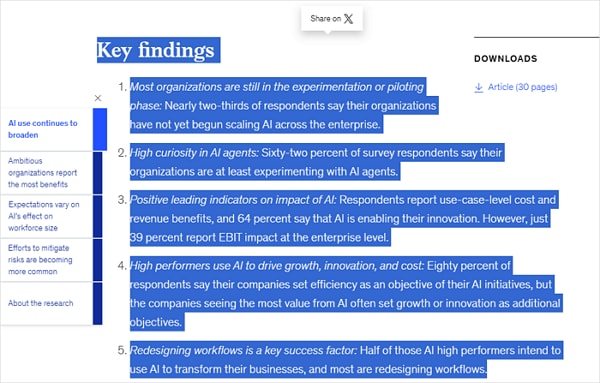
Step 2: Create PDF from Clipboard
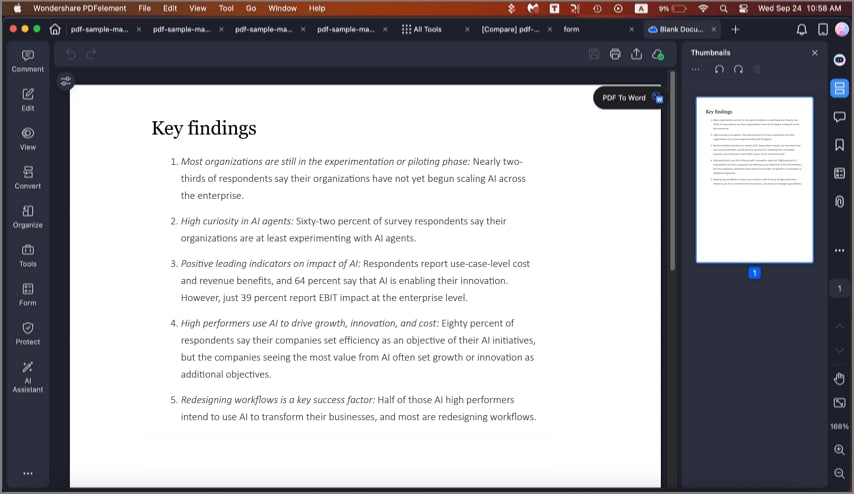
Launch PDFelement. Go to File → New and select PDF from Clipboard. That's it. PDFelement will convert your clipboard contents into a PDF file and display it on your screen.
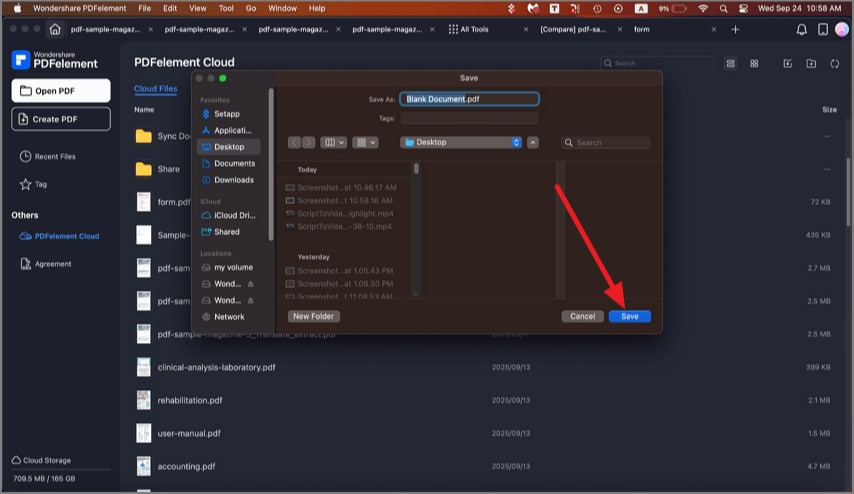
You can now save the file by going to File → Save As… and assigning a different name to the file before saving it.
As you can see, the overall process is extremely simple and can be executed in just a few seconds. You will now be able to add new content to this PDF file using the Add button for that content type.
Verdict: This is the simplest way to turn your clipboard content into a PDF file.
Part 3. How to Save Clipboard to PDF Manually
If you don't want to install additional software, you can still convert the clipboard to PDF using the built-in document editors on your computer. The process involves pasting the clipboard content into a document editor and then saving or exporting it as a PDF. While it takes a few extra steps, it works well for quick, one-time tasks.
Step 1: Copy the Content to Your Clipboard
Highlight the text, image, or screenshot you want to save and press Ctrl + C (Windows) or Cmd + C (Mac) to copy it.
Step 2: Open a Document Editor
Launch a built-in editor such as Microsoft Word, or Apple Pages on Mac.
Step 3: Paste the Clipboard Content
Press Ctrl + V or Cmd + V to paste the copied content into the document. Adjust formatting if needed.
Step 4: Save or Export as PDF
Go to File → Save As or Export, then choose PDF as the file format.
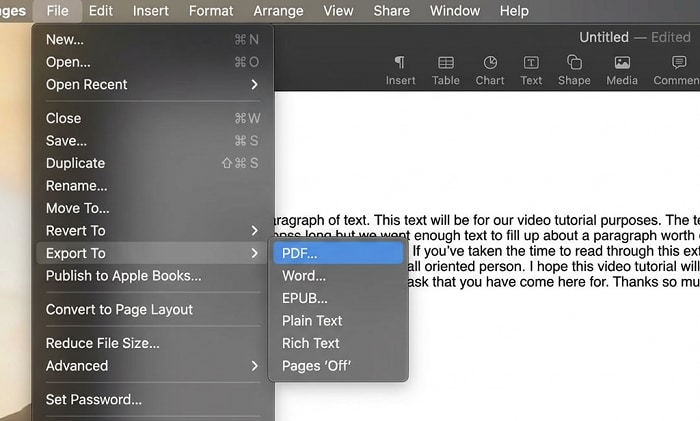
Verdict: This method works for simple tasks, but it requires multiple steps. Dedicated tools like PDFelement provide a faster clipboard to PDF workflow.
Which is the Best Solution to Clipboard to PDF?
|
Solution
|
Manual Process
|
|
|---|---|---|
| Time Taken | 2-3 seconds | 50-60 seconds |
| Formatting | Retain formatting | Lose formatting |
| PDF Editing | Edit, merge/split, convert PDFs | ❌ No |
Part 4. Tips for Creating PDF from Clipboard Content
While this process can be done for any type of content that can be copied to the clipboard, you should also keep these other tips in mind:
Tip 1: Since your clipboard can only contain one copied item, try copying content together instead of as separate elements. For instance, if there is an image and some associated text, select and copy both instead of one at a time. You can create a PDF from this and have both content items added to the file simultaneously.
Tip 2: Save the file to a local location so you can access it later when you need to. You can add more content later on using the Add Text or Add Image process we showed above.
Tip 3: Another great idea would be to copy the entire contents of a document or webpage using the Cmd+A and Cmd+C commands. Your clipboard should be able to hold all the information, and you can paste it in a Word document with the Cmd+V command and create a PDF using the File → Create PDF from File process. You can then choose and delete anything that you don’t want since PDFelement is a full-fledged PDF editor that can control any element in a PDF file.
Tip 4: To preview your clipboard contents on Mac, go to Finder and then go to Edit → Show Clipboard. This will display your clipboard contents in a new window, but it’s merely a preview, not a file in itself.
Tip 5: If you need to copy several items and convert that into PDF, follow the Clipboard to PDF conversion process shown above. After that, copy the next item (for example, text), go back to PDFelement, click the Text Edit icon, place the cursor where you want the text to go, and paste it there using the Cmd+V command. You can do this multiple times to keep adding content to the newly created PDF file.
Tip 6: To add images, save the images as image files and then use the Add Image function in PDFelement to bring them into the document one at a time.
Tip 7: Another way to copy multiple items and create a PDF is to paste each item into a Word file and then convert the file to PDF using the Create PDF function. This uses the File → New → PDF from File functionality, as shown below:
Part 5. Alternative Ways to Capture Content into PDF
Alternative 1: Use a Screenshot Tool
Copying content from the web or an electronic document is often the easiest way to capture content, but you can also use a screenshot tool. This works in pretty much the same way as your clipboard, but you’ll need to paste the content into another file and save it before converting to PDF. The advantage is that you can capture an entire web page this way, and it will have the same layout view because it’s essentially an image. This image file can be converted into a PDF document.
Alternative 2: Scan or Photograph the Content
For paper documents, you can either scan them or take photographs and convert them into editable text using the OCR text recognition feature in PDFelement Pro. OCR is highly accurate and is available for over 20 different languages. The files can be converted into editable or searchable content depending on your requirements.
Frequently Asked Questions
Can I convert clipboard to PDF for free?
Yes. You can do it manually. You should copy text, paste the content in a free document editor and then create PDFs from clipboard content. PDFelement offers a trial version so users can test its features before upgrading.
How to convert Clipboard to PDF online
Copy the text, image, or screenshot you want to convert, open a browser-based editor such as Google Docs or another online document tool, then paste the clipboard content. Once the content appears in the document, go to File → Download → PDF Document (.pdf).
Why does the clipboard only contain one element at a time?
The clipboard on Mac and even Windows is a temporary location to store a certain amount of information. It is primarily intended to support the copy-paste function, and when you copy a second item without pasting the first, the first one gets deleted from the clipboard. More accurately, it gets replaced by the content from the second copy action.
How do I clear my clipboard on a public computer?
On a Mac or any other system, the best way to do this is to select a blank space on a document or some irrelevant content on a website and copy it. This will remove the content from your previous copy action and replace it with the space or irrelevant content. Your copied content is now safe! This is especially useful when you’re copy-pasting usernames or passwords for your online accounts.
Is there a second clipboard in Mac?
Surprisingly, not many people know about this second clipboard. It uses the shortcut keys Cmd+K and Cmd+Y, but it doesn’t work on Google Docs and certain types of apps. It’s not as universal as the traditional Cmd+C and Cmd+V shortcut key combinations but it’s useful in a pinch.
Is there an alternative to the clipboard?
Yes, there is a way to copy text without using the clipboard so it can be pasted elsewhere. They’re called text clippings. Simply select a piece of text from anywhere, then drag it to your desktop or even an app or site that accepts text, and drop it there. If you drop it to your desktop, it creates a text clipping, which is not an actual file and cannot be edited. However, it can be dragged from your desktop into another application and dropped there, where it will appear like magic!
Conclusion
As you can see, PDFelement makes it easy to copy anything to your clipboard and instantly convert it into a PDF file. This gives you the freedom to generate PDFs from practically any online source without any complicated processes or using unsecure online conversion websites. In addition, you get the benefit of having a tool that you can use to edit PDFs, make annotations, sign forms, protect documents, organize files and pages, extract data, convert with OCR, and do all other basic and advanced tasks for your personal, professional, and office needs.
Free Download or Buy PDFelement right now!
Free Download or Buy PDFelement right now!
Try for Free right now!
Try for Free right now!


Audrey Goodwin
chief Editor