

Flashcards are a well-known and effective educational tool. They play a crucial role in both studying and teaching. Have you ever struggled remembering vocabulary words, historical dates, or mathematical formulas? Imagine having a simple method to engage with this material. It will help you retain it through repeated practice.
This article will introduce you to flashcards, define them, and explore their many uses in education. We'll also guide you through the process of making your own flashcards using Wondershare PDFelement's online features, making the process easy and efficient.
In this article
Part 1. What is a Flashcard?
A flashcard is a small learning aid to enhance memory and facilitate learning. In education and self-study, flashcards promote active recall. They also help with repetition and self-testing. The basic flashcard structure is simple. One side has a question, prompt, or term. The other side has the answer or related information. This format allows learners to test their knowledge. They do this by viewing the prompt and trying to recall the answer. Then, they flip the card to check their accuracy. Flashcards are particularly effective in scenarios where memorization and quick recall are essential. They are commonly used for:
- Memorizing Vocabulary: Language learners often use flashcards to practice and remember new words and their meanings.
- Learning Facts: History students might use flashcards to memorize important dates, events, and figures.
- Mastering Formulas: Math and science students can use flashcards to remember key formulas and equations.
- Grasping Concepts: Students in various fields use flashcards. They use them to grasp and remember key concepts and definitions.
Part 2. Types of Flashcards
- Traditional Paper Flashcards: These are physical cards made from paper or cardstock. They are typically written or printed on. They offer the benefit of being tangible and not requiring any electronic device.
- Digital Flashcards: Digital flashcards are electronic. You can get them through apps or software on computers and mobile devices. They are easy to share, can include images and audio, and are portable with the device.
- Interactive Flashcards: Interactive Flashcards have digital flashcards with quizzes, games, and adaptive learning. They are highly engaging, provide immediate feedback, and adapt to the learner’s progress.
Size of a Flashcard
Flashcards are available in various sizes, each suited for different purposes:
- 3 x 5 inches: This small size is easy to carry and handle. It's great for brief information like vocabulary words or short Q&A.
- 4 x 6 inches: Slightly larger than the standard size, this provides more space for detailed information or diagrams. It is suitable for longer definitions and more complex concepts.
- 5 x 8 inches: The largest commonly used size offers ample space for extensive information, diagrams, or complex formulas. It is perfect for comprehensive notes, detailed explanations, or multiple pieces of information.
Dimensions of a Flashcard
Flashcards have dimensions for width and height. You can choose these based on needs and the type of information being studied.
- Small Flashcards (3 x 5 inches) are best for quick facts, short vocabulary words, and simple questions and answers. Their compact size makes them highly portable and easy to manage.
- Medium Flashcards (4 x 6 inches) are suitable for more detailed information, such as longer definitions or small diagrams. This size balances portability and the amount of information that can be included.
- Large Flashcards (5 x 8 inches) are ideal for complex information, detailed notes, many questions and answers, or large diagrams. They provide ample space but are less portable than smaller sizes.
Part 3. Examples of How to Use Flashcards
Here are examples of how flashcards can be used for different subjects:
Language Learning
This flashcard has two sides. One side says "Exquisite" in English, and the other defines it as extremely beautiful and typically delicate. Language learners can use such flashcards to memorize new vocabulary effectively.
Science
This flashcard displays a diagram of a plant cell with labeled organelles on one side and their functions on the other. Biology students can use flashcards like this. They help them understand and memorize cell parts and jobs.
Math
This flashcard exhibits an algebraic equation ("x^2 + 5x + 6 = 0") on one side and its solution ("x = -2 or x = -3") on the reverse side. Math students can use flashcards like this. They use them to practice solving equations and to strengthen algebraic ideas.
History
This flashcard features an image of the Berlin Wall. It also has information about its construction, the division of Germany, and its eventual fall. History students can use flashcards like these to learn about key historical events. They can also learn about their contexts.
Part 4. How to Make a Flashcard?
Flashcards are a versatile tool for learning and can be created using traditional paper methods or digital tools.
Traditional Paper Flashcards:
Here's a step-by-step guide on how to make traditional paper flashcards.
- Gather Supplies: Gather materials such as index cards, pens, markers, and any other decorative supplies you may want to use.
- Select Content: Decide the content you want to include on your flashcards. This could be vocabulary words, equations, historical dates, or any other information you want to memorize.
- Design Layout: On one side of the index card, write or draw the question, prompt, or term. On the other side, write or draw the answer or related information.
- Choose Size and Format: Pick the size based on your content amount. Consider your handling preference. Common sizes include 3x5 inches, 4x6 inches, or 5x8 inches.
- Add decoration (optional): Use markers, stickers, or pens to decorate your flashcards. This will make them visually appealing. This can help make studying more enjoyable and engaging.
Digital Flashcards:
Here's a step-by-step guide on how to make digital flashcards.
- Select a Platform: Choose a digital flashcard platform or app that suits your needs. Popular choice is Wondershare PDFelement.
- Create an Account (if necessary): If necessary, sign up for an account on the chosen platform. This will allow you to save and access your flashcards across multiple devices.
- Input Content: Enter the content you want to include on your flashcards into the digital platform. You can do this manually or by importing existing study materials.
- Design Layout: You can customize your flashcards' layout by picking fonts, colors, and formatting. Some platforms may also allow you to add images or audio recordings.
- Choose Size and Format: Digital flashcards are not a fixed size, but you can customize the display to suit your preferences.
- Review and Test: Use the digital flashcards to review the content often. Test yourself using features like self-quizzing and spaced repetition.
Part 5. How can Wondershare PDFelement facilitate the making of a flashcard?
Creating flashcards manually can be time-consuming, especially when you need to work through lengthy textbooks, lecture notes, or PDF study materials. Wondershare PDFelement makes the process easier with its AI-powered flashcard generator. Instead of creating each question and answer from scratch, you can upload your study materials and let AI identify key concepts and turn them into ready-to-review flashcards.
Whether you are preparing for an exam, learning a new language, or reviewing professional materials, PDFelement helps you turn existing PDFs into structured flashcards with less manual effort. Here’s how to create flashcards with PDFelement:


 G2 Rating: 4.5/5 |
 100% Secure
How to Use:
Step 1. Create a New Space in PDFelement
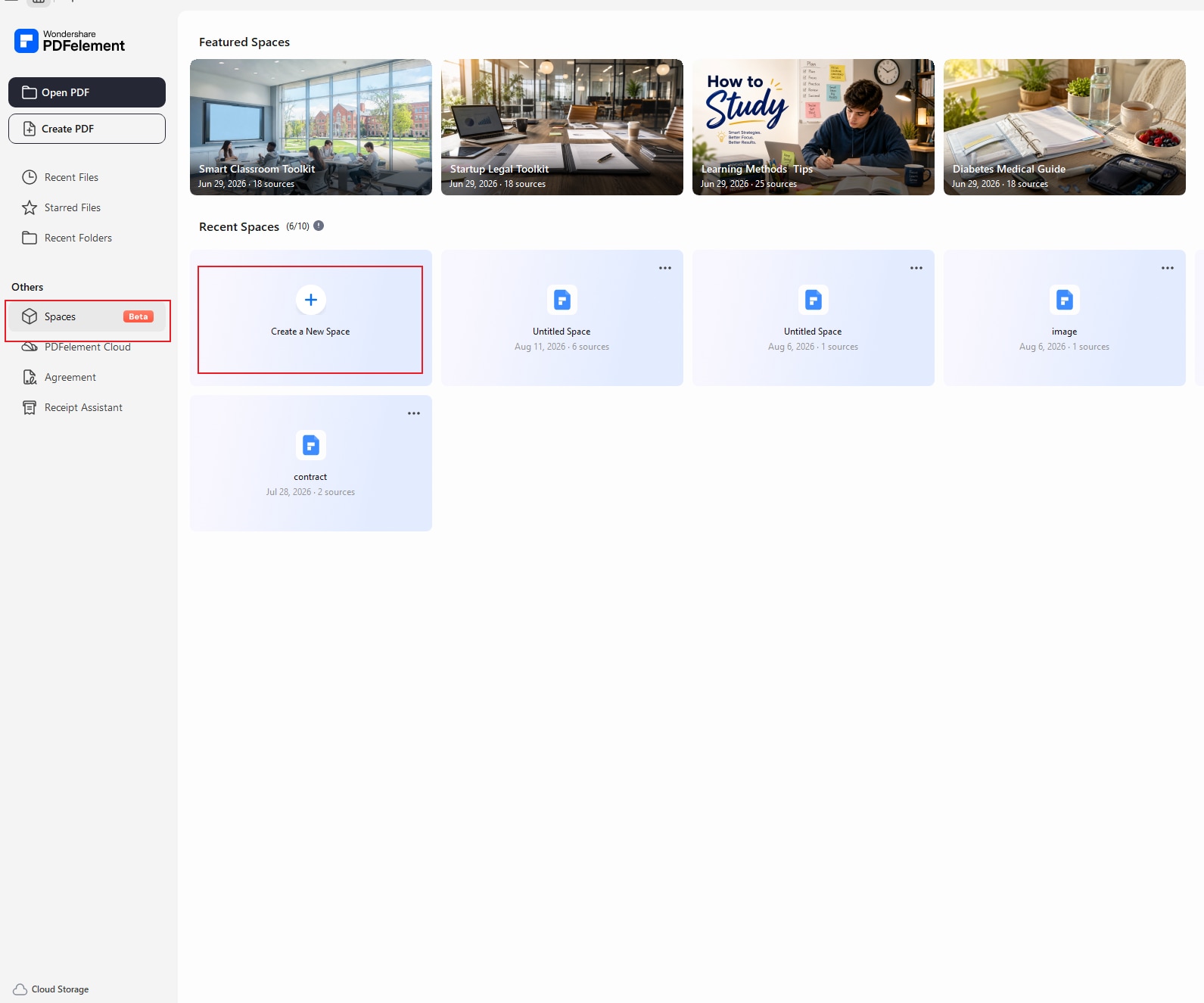
Open PDFelement and select “Spaces” from the left-side panel. Then, click “Create a New Space” to set up a workspace for your study materials.
Step 2. Add Your Study Material
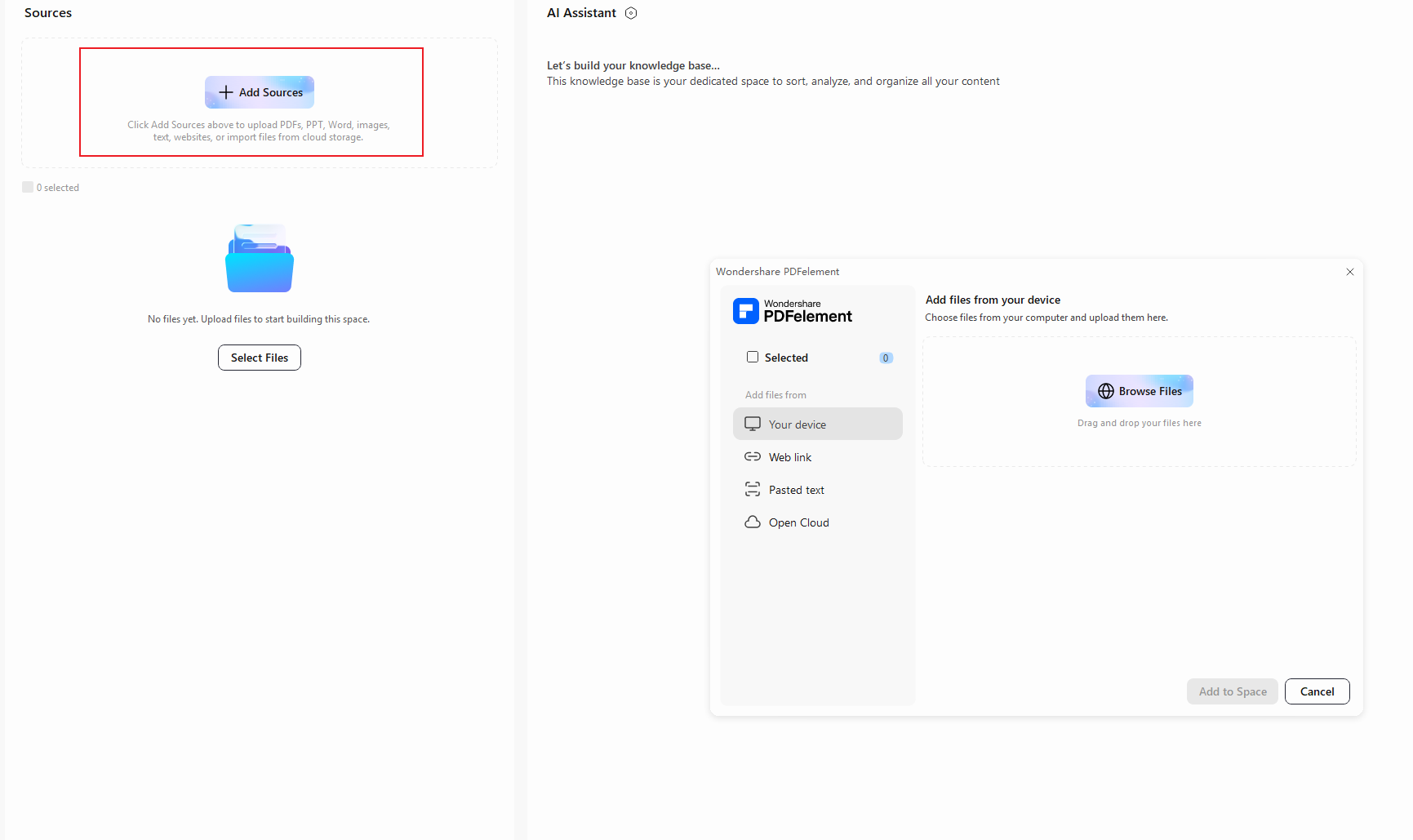
Inside the new Space, click “Browse Files” to select the document you want to use. Then, click “Add to Space” to import it and make it available for AI processing.
Step 3. Generate Flashcards
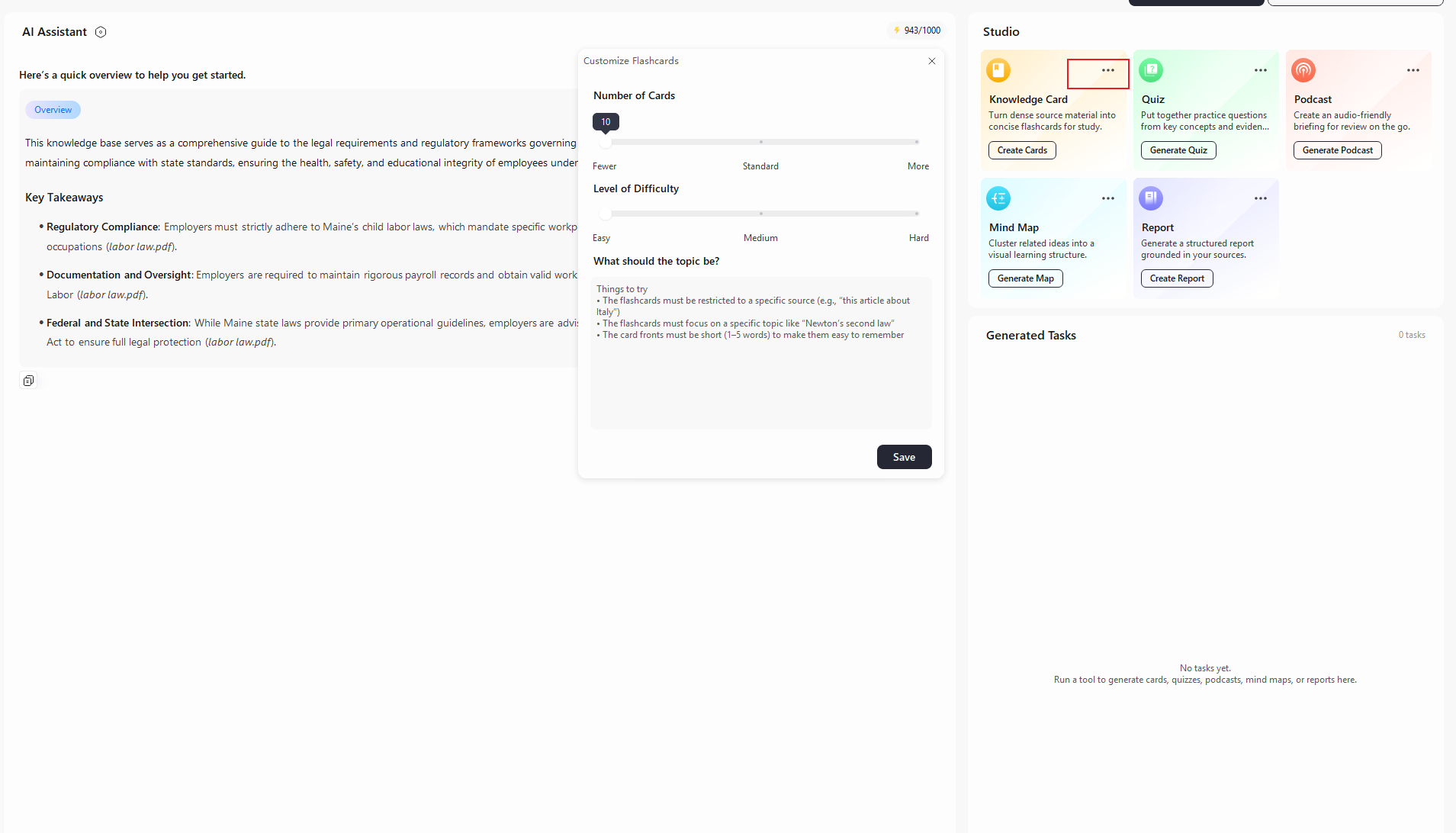
When you have the information you need, go to the “Studio” section. You can choose “Knowledge Card” or “Quiz”. Click “three dots” to customize your flashcard. PDFelement will use the content from your document to create flashcards for you.
Step 4. Review Your Flashcards
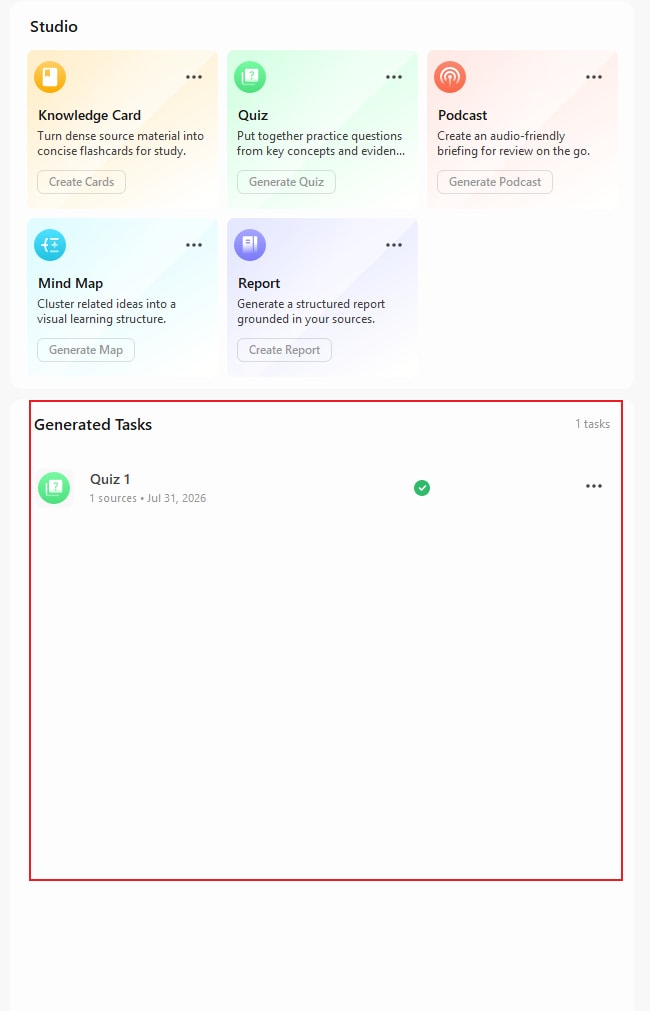
After the flashcards are generated, open “Generated Tasks”, click the “Three-Dots” menu, and select “Open”. Review the generated cards and use them to test your knowledge and reinforce key concepts.
Why Choose PDFelement for Flashcard Creation?
PDFelement goes beyond simply converting study materials into flashcards. Its AI-powered features make the process faster and more flexible, while giving you more ways to learn from the same content.
- Generate Flashcards in Seconds: Turn your study materials into AI-generated flashcards in just a few seconds, eliminating the need to create questions and answers manually.
- Support Multiple File Types: You are not limited to PDF files. PDFelement can work with PDFs, Word documents, PowerPoint presentations, images, and other common file formats, making it easier to turn different types of study materials into flashcards.
- Create More Than Flashcards: Flashcards are just one way to study with your documents. PDFelement can also transform your content into mind maps and podcasts, giving you different ways to review and understand the same material.
- Study Across Devices: PDFelement is available on Windows, Mac, iOS, and Android, allowing you to access your documents and learning materials across different devices.
Final Takeaway
Flashcards are powerful tools for enhancing learning and teaching across various subjects. They promote active recall, use repetition and engagement, and lead to better memory and understanding. Wondershare PDFelement play a pivotal role in simplifying the flashcard creation process. It has a suite of online features. Users can use them to merge, convert, compress, organize, and customize their study materials. You can use PDFelement to create digital flashcards. It streamlines the process, making it faster and better.




