
PNG to PDF: 6 Methods to Convert PNG to PDF
Learn how to convert PNG to PDF on Windows, Mac, online, iPhone, and Android. Convert one or multiple PNG images to PDF
 100% Secure |
 Powered by AI
 Home
>
Convert Images
> PNG to PDF: 6 Methods to Convert PNG to PDF
Home
>
Convert Images
> PNG to PDF: 6 Methods to Convert PNG to PDF
"How do you convert a PNG to a PDF?
Many people may need to convert PNG to PDF for sharing files easier, and want to learn the best way to change PNG to PDF. In this article below, we'll introduce several useful ways to convert PNG to PDF files.


 G2 Rating: 4.5/5 |
 100% Secure
There are several ways to convert PNG to PDF, and the right choice depends on your device and workflow:
- Use PDFelement when you need batch conversion, multiple images in one PDF, OCR, or further PDF editing.
- Use Microsoft Print to PDF for a quick conversion on Windows.
- Use Preview for a simple PNG-to-PDF workflow on Mac.
- Use an online converter when you want to convert PNG files without installing software.
- Use a mobile PDF app when you need to convert PNG images on iPhone or Android.
- Part 1: Convert PNG to PDF with PDFelement
- Part 2: How to Convert PNG to PDF in Windows
- Part 3: How to Convert PNG to PDF on Mac
- Part 4: How to Convert PNG to PDF Online for Free
- Part 5: How to Convert PNG to PDF on Mobile Phone
- Part 6: How to Convert PNG to PDF Without Losing Quality
- Part 7: Convert PNG to PDF: FAQs
Part 1. Convert PNG to PDF with PDFelement
Wondershare PDFelement is useful when you need more than a one-time image conversion. It can create PDFs from images, combine multiple files into one document, batch-create PDFs, and continue working with the converted PDF afterward. PDFelement also provides OCR for turning image-based content into searchable or editable text.
G2 Rating: 4.5/5 |100% Secure
Here is how you use this PDFelement PNG to PDF converter.
Way 1. Convert a single PNG into PDF
Step 1. Open PDFelement.
Launch PDFelement on your computer.
Step 2. Select PNG File.
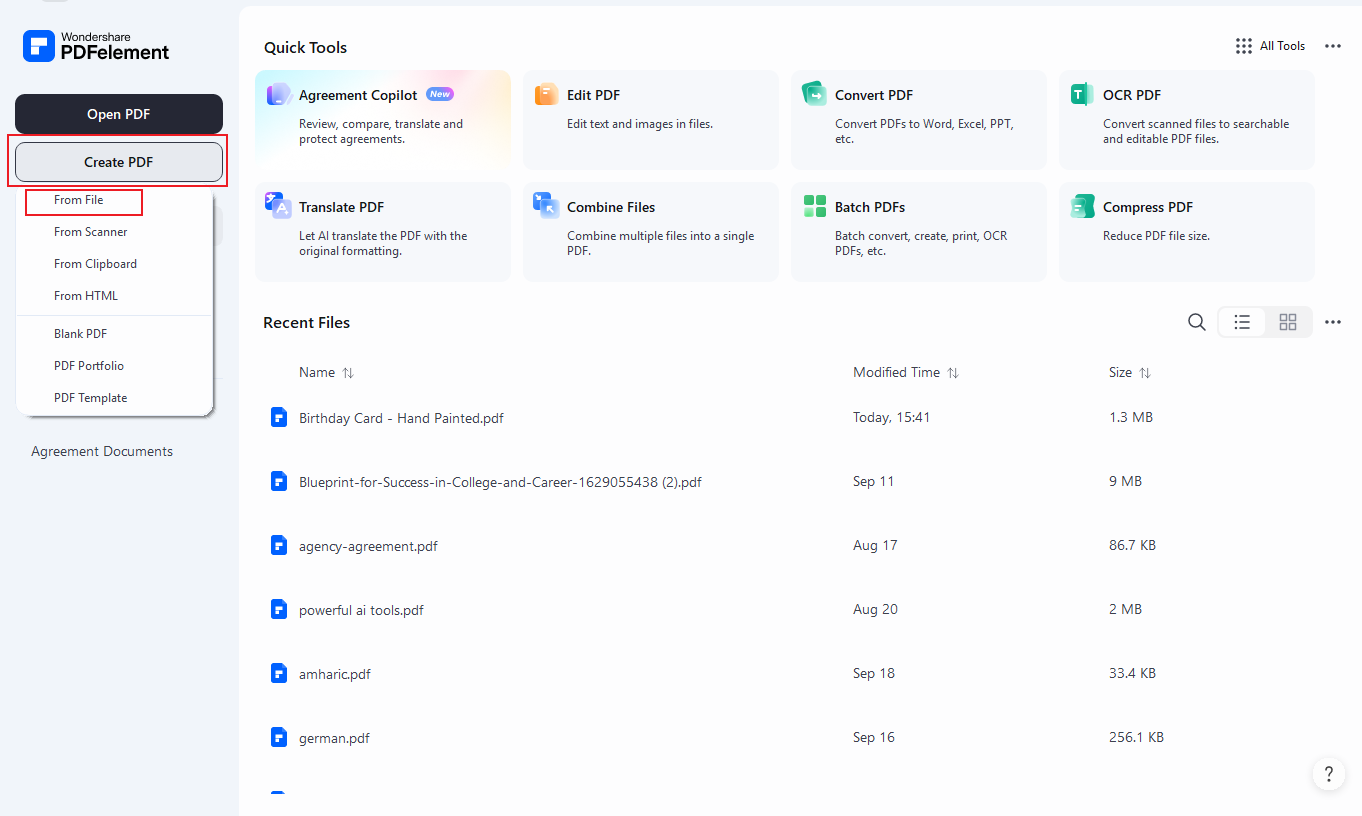
From the home screen, choose Create PDF and select the PNG image you want to convert.
Step 3. Save as PDF
PDFelement opens the image as a PDF. Save the new PDF to your preferred location.
This method works well when you simply need to turn a PNG screenshot, graphic, scanned page, or other image into a PDF.
Way 2. Convert multiple PNG to one PDF
If you have several PNG images and want to create a single multi-page PDF, you can combine the images into one document.
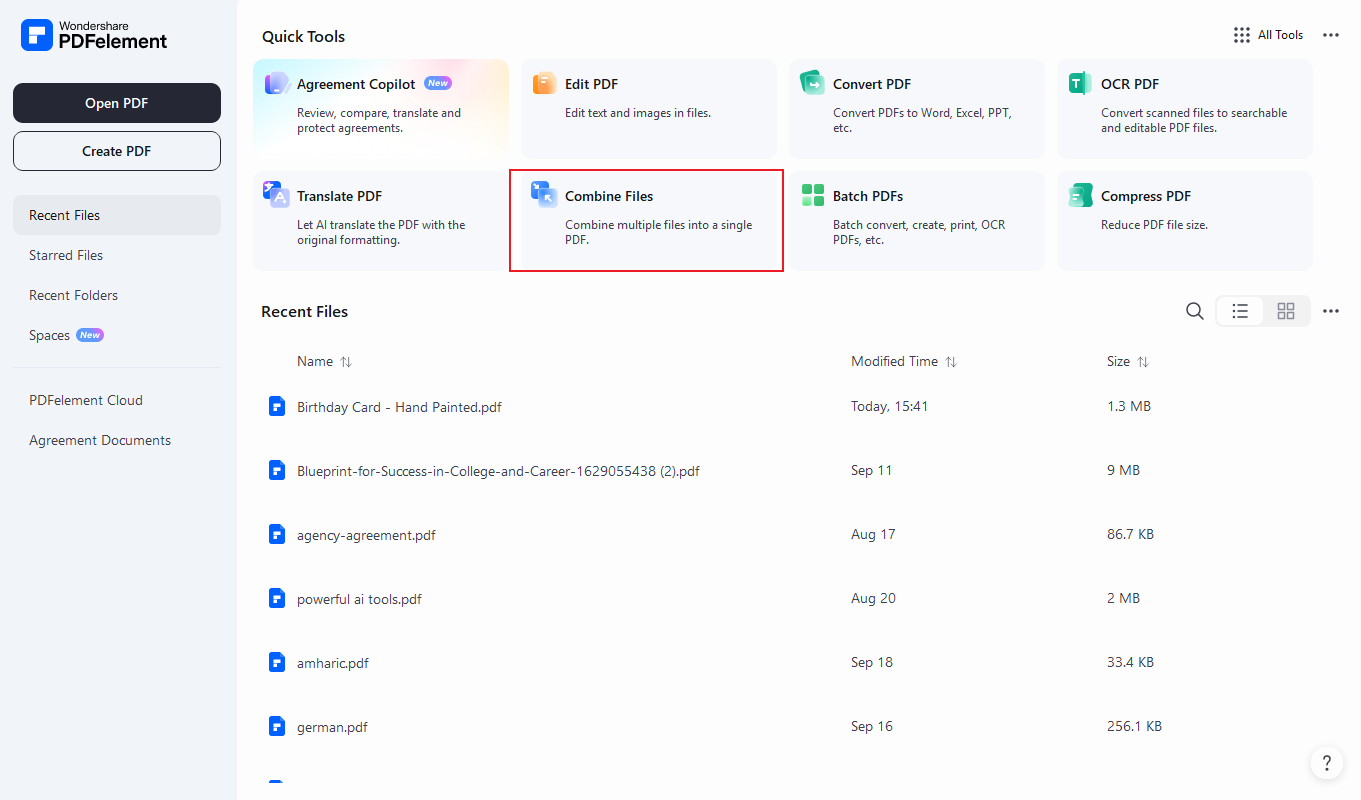
Step 1. Open the PDF combining feature.
Launch PDFelement and choose the option for combining files.
Step 2. Add your PNG images.
Select the PNG files you want to include. Arrange them in the order you want them to appear.
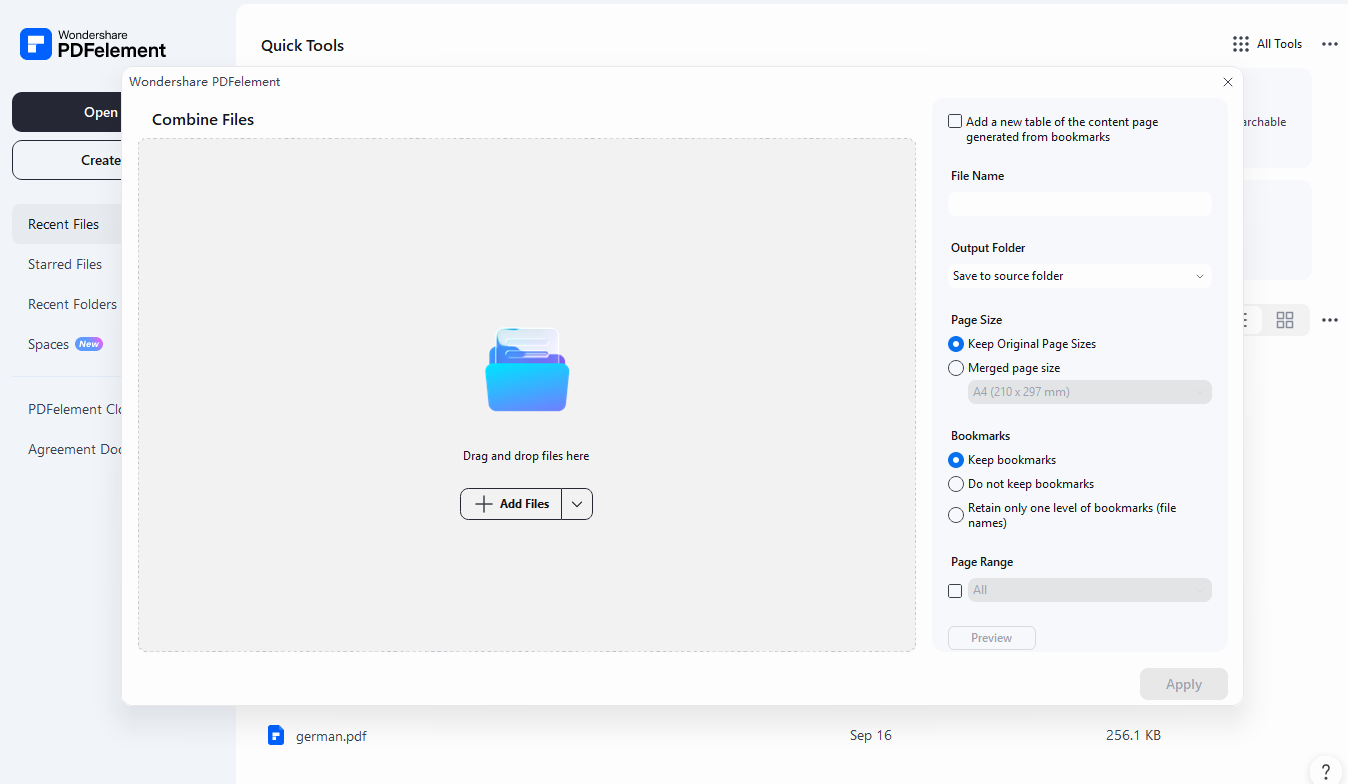
Step 3. Create and save the PDF.
Apply the conversion and save the resulting PDF.
This workflow is useful for scanned pages, screenshots, receipts, certificates, or image-based documents that need to be shared as one file.
Way 3. Batch convert PNG to PDF
When you have many PNG files and want one PDF for each image, batch processing is more efficient than converting each file manually.
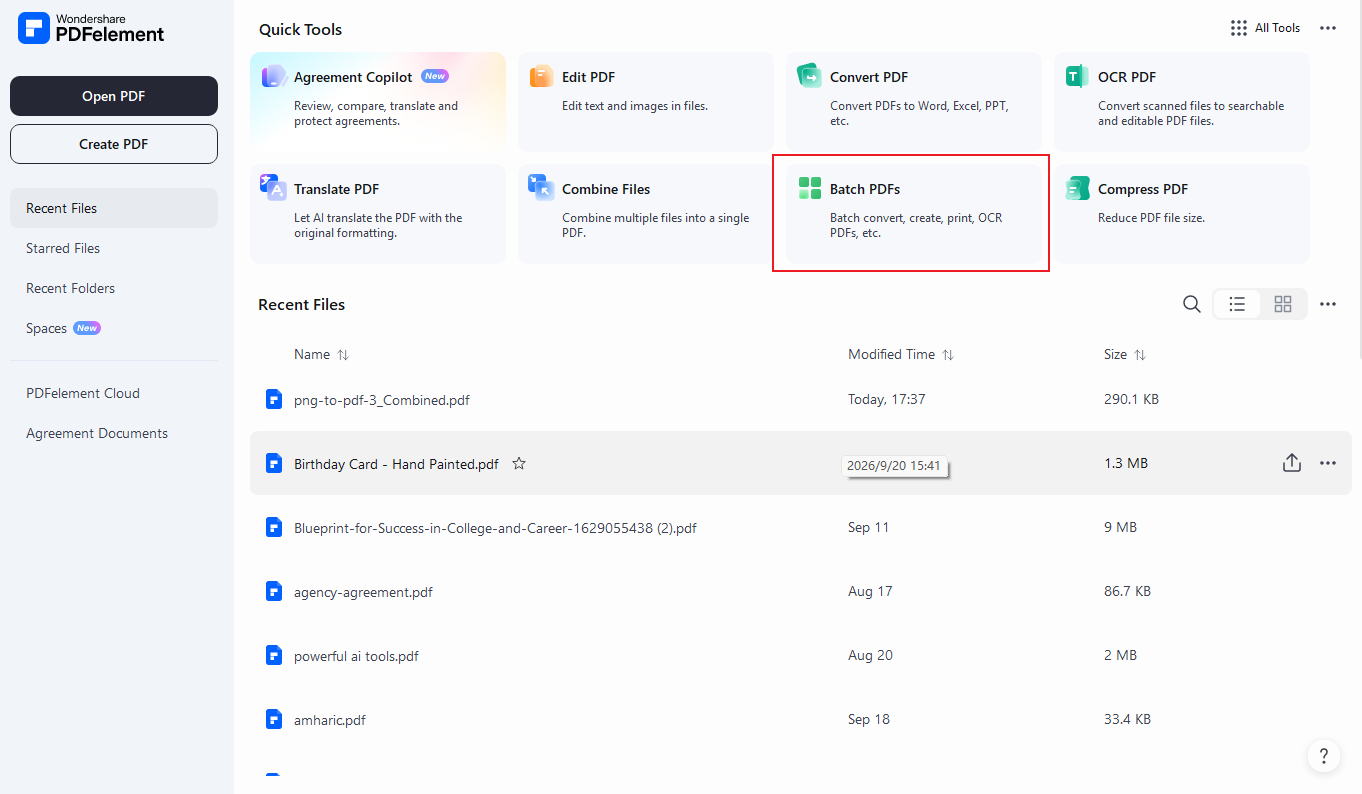
Step 1. Open Batch PDF.
Launch PDFelement and go to Batch PDF.
Step 2. Select the Create option.
Add the PNG images you want to process.
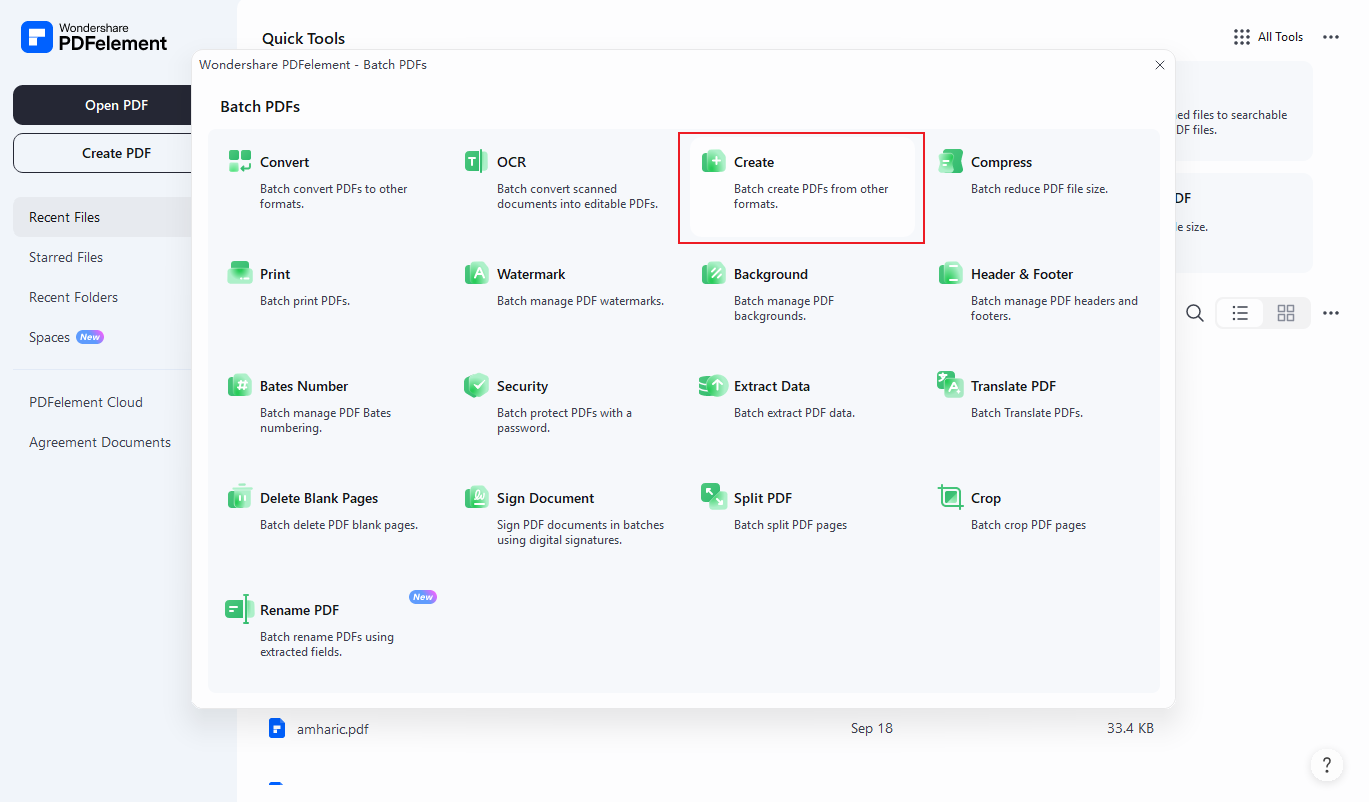
Step 3. Start the batch conversion.
Click Apply and choose an output location for the newly created PDF files.
PDFelement is particularly useful when PNG conversion is only the first step of your workflow. After creating a PDF, you can continue editing, annotating, organizing, protecting, or running OCR on the document.
For example, a scanned PNG can first be converted to PDF and then processed with OCR to make its text searchable or editable.
G2 Rating: 4.5/5 |100% Secure
Part 2: How to Convert PNG to PDF in Windows
Using Windows but worrying about how to turn PNG to PDF in Windows? Well, you can perform this action easily on the Windows system without using any third-party tool. Microsoft Windows has a built-in feature that's known as Microsoft print to PDF, which is a kind of virtual printer that can print PNG to PDF easily. Let's get into more details below:
Step 1. Locate the PNG file that you want to convert into PDF and right-click on it.
Step 2. A list of options will appear and you have to choose "Print" from the context menu.
Step 3. Next, you have to choose "Microsoft Print to PDF" as a printer and click Print.
Step 4. A new dialogue box will appear and here you have to enter the name of the file and choose a location where you want to save the converted PDF after that click on the "Save" button.
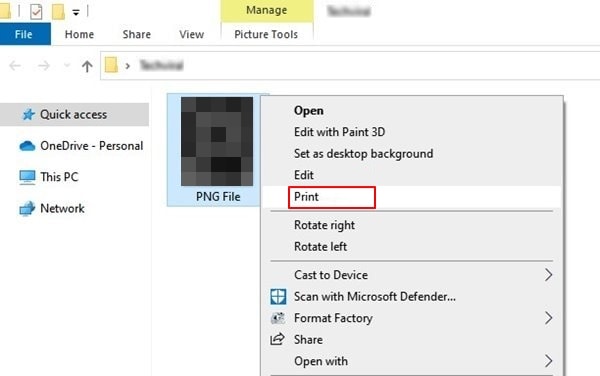
Microsoft Print to PDF can combine your multiple PNGs into a PDF as well and you can control the number of copies that you want to make. If the Print option isn't appearing on your computer, you can use any tool that has a print function and in the printer, you just have to choose "Microsoft Print to PDF".
However, you still need a professional PDF editor program like PDFelement if you need to convert PNG to PDF in bulk, turn PNG to editable text, and more.
G2 Rating: 4.5/5 |100% Secure
Part 3: How to Convert PNG to PDF on Mac
Being a Mac user, you would probably have used or heard about the Preview tool. Preview is the app that's used for viewing PDF documents and other image formats on Mac and we can make use of a feature that Preview has to change PNG to PDF on Mac. Well, curious to know how it works? Follow the guideline provided below:
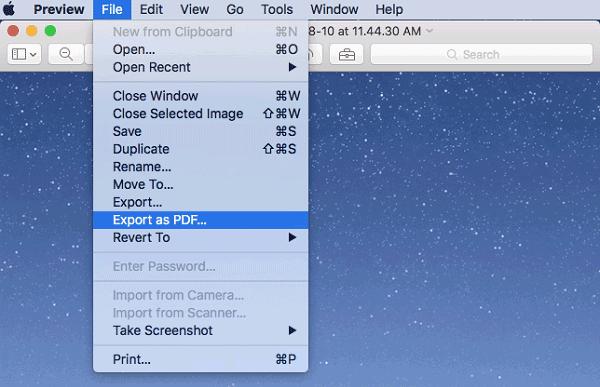
Step 1. Launch Preview on your Mac or you can directly open a PNG file on your Mac with Preview.
Step 2. Click on File from the main menu on the top left corner and choose the Export as PDF option from the context menu.
Step 3. Enter a file name or you can use the default name as well and later choose a location where you want to save the file and click on the Save button. if there's anything wrong with the orientation of your PDF file, you can rotate it by using the "Command + R" key from the keyboard.
Part 4: How to Convert PNG to PDF Online for Free
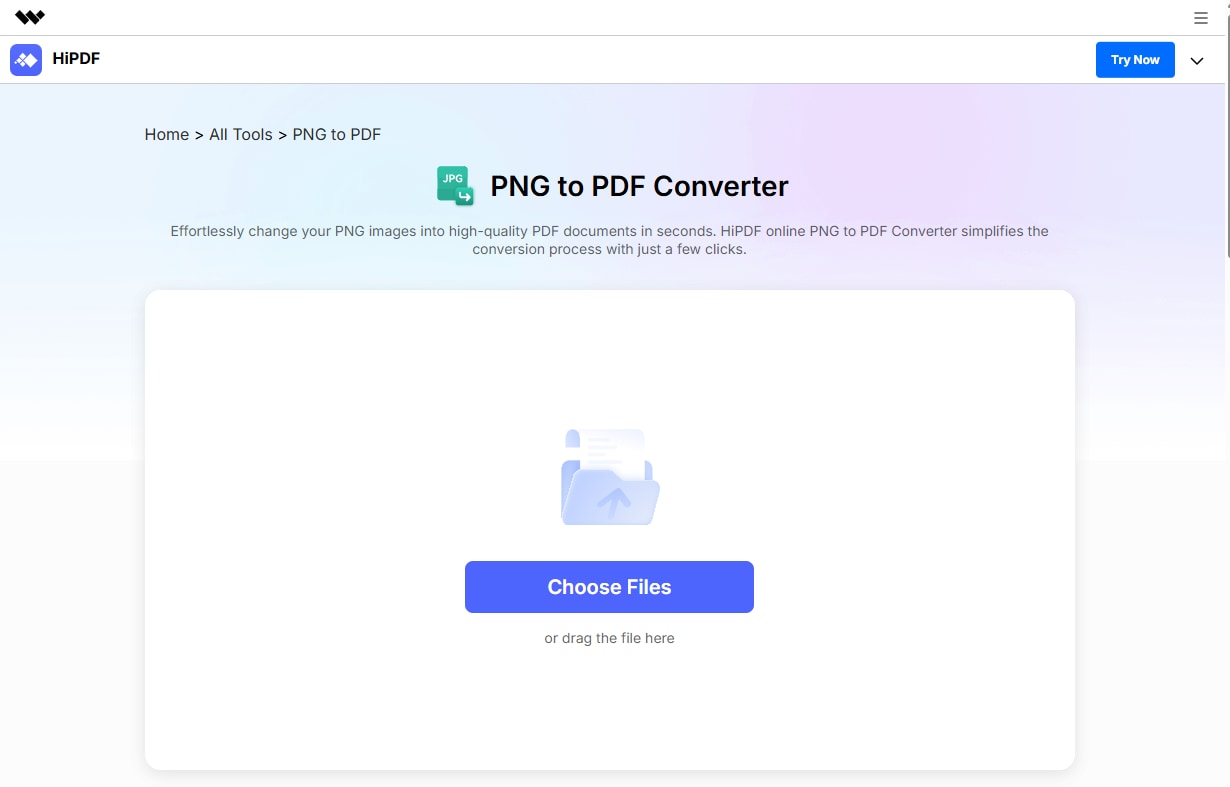
If you need to convert PNG to PDF online, HiPDF would be the best choice for you. It not only can convert PNG to PDF but also can convert JPG, PNG, TIFF, BMP, and GIF to PDF, compress PDF, create PDF, split PDF, protect PDF, and more. It works on all the common browsers like Chrome, Internet Explorer, Firefox, and Safari. Here is how to convert PNG to PDF using HiPDF.
Step 1. Visit HiPDF PNG to PDF website, click "CHOOSE FILE" to upload a PNG file from your local folder. Alternatively, you can upload a file from Dropbox, OneDrive, or Box.
Step 2. After adding all the PNG files you need to convert, click the "CONVERT" button, and you will get the converted file in seconds. Then click the "Download" button to download the PDF into your local folder.
Limit: You can convert up to 2 files one day with HiPDF free version. Many online PDF converters have a files limit like this. You can choose an offline PDF solution if you have more files to convert.
Part 5: How to Convert PNG to PDF on Mobile Phone
Change PNG to PDF on iPhone
To convert PNG to PDF on iPhone, you can install PDFelement for iOS from App Store. It provides a PDF converter that enables you to convert JPG, PNG, and more to PDF or vice versa.
Step 1. Install PDFelement for iOS on your iOS device.
Step 2. Tap the Add icon and select the PNG files from Photos or Files app on your iPhone. Tap on the PNG images and choose Convert to PDF to transform the PNG file to PDF.

Turn PNG to PDF on Android
What to do if a user wants to convert PNG to PDF from their mobile phone? Well, you can use a tool that is going to show you this part. Image to PDF Converter is a mobile app that anyone can download from the Google Play Store and start converting PNGs following the steps given below:
Step 1. Install PNG to PDF app on your android smartphone and launch it.
Step 2. You can open PNG files from your local storage or cloud storage such as OneDrive, Google Drive, or Dropbox as well.
Step 3. Once the image is uploaded, you can crop it or adjust the size and then tap on the "Convert" button.
Step 4. The conversion process will begin and once it’s completed, you can view it or download it on your device for later use.

Part 6: How to Convert PNG to PDF Without Losing Quality
One of the most common questions is whether converting PNG to PDF reduces image quality.
In general, converting a PNG into a PDF does not automatically mean that the image will become blurry. PNG is a lossless image format, and a PDF can contain the original image data. However, the final result can still be affected by resizing, compression, page settings, or the conversion method.
To keep the result clear:
- Start with a high-resolution PNG.
- Avoid unnecessary resizing before conversion.
- Check the page size and orientation.
- Avoid repeated conversions between different formats.
- Choose a converter that preserves image quality.
Part 7: Convert PNG to PDF - FAQs
Q: How to convert PNG to PDF on Linux?
A: There are two tools that are commonly used for converting PNG to PDF on Linux: ImageMagick and img2pdf. ImageMagick is an open-source image processing utility while img2pdf is a dedicated image conversion tool. First install one of the utility in Ubuntu, then use command line to convert PNG to PDF.
Q: How to print PNG to PDF in A3?
A: In Windows, right-click a PNG image and select Print. In the Microsoft Print to PDF windows, select A3 as the file size. Click Print.
Q: Will converting PNG to PDF reduce quality?
Not necessarily. PNG is a lossless format, but the final PDF can still be affected by resizing, compression, and page settings. Starting with a high-quality PNG and using appropriate conversion settings can help preserve image clarity.
Q: Can I convert a PNG into an editable PDF?
A: You can create a PDF from the PNG, but the image itself is not automatically converted into editable text. If the PNG contains text, use OCR to recognize the text and create searchable or editable content.
Free Download or Buy PDFelement right now!
Free Download or Buy PDFelement right now!
Try for Free right now!
Try for Free right now!


Elise Williams
chief Editor