
Best Free WordPad to PDF Converters
Do you need to convert WordPad to PDF? This post offers three simple methods to convert WordPad to PDF documents.
 100% Secure |
 Powered by AI
 Home
>
Convert Word
> Best Free WordPad to PDF Converters
Home
>
Convert Word
> Best Free WordPad to PDF Converters
Do you need an appropriate WordPad to PDF converter? With the proper tool, the entire process becomes seamless. In this article, we are digging into the best four ways to convert WordPad to PDF online and offline.
- Wondershare PDFelement: Convert RTF(Wordpad files) to PDF offline. Batch processing supported
- Microsoft Word: Save WordPad files to PDF for free.
- Microsoft Print to PDF: Save files to PDF right in WordPad.
- Online WordPad to PDF converter: Upload and convert WordPad files without installation.
Offline WordPad to PDF Converter - Multi-format Support for WordPad
Similar to Microsoft Word, LibreOffice Writer, and WordPad is a basic word processing program that's included with Microsoft Windows. A WordPad file is usually saved as one of the following file types:
- RTF
- TXT
- DOC/DOCX
- ODT
Wondershare PDFelement - PDF Editor Wondershare PDFelement Wondershare PDFelement is an easy-to-use PDF solution that supports a wide range of file formats. It can convert WordPad files in different formats to PDF or vice versa. It can create PDFs from WordPad in TXT, RTF, DOC, DOCX. You can also edit, combine, split, and annotate PDFs with PDFelement. Here is how to convert WordPad to PDF with this comprehensive solution.


 G2 Rating: 4.5/5 |
 100% Secure
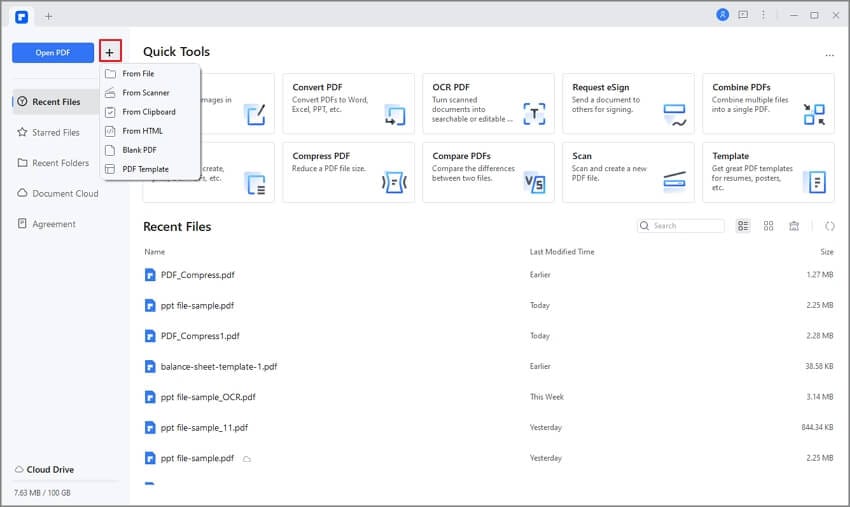
Step 1. Click "Create PDF"
Download, install, and run PDFelement on your PC. On the main interface, locate and click the "Create PDF" button.
Step 2. Convert WordPad to PDF
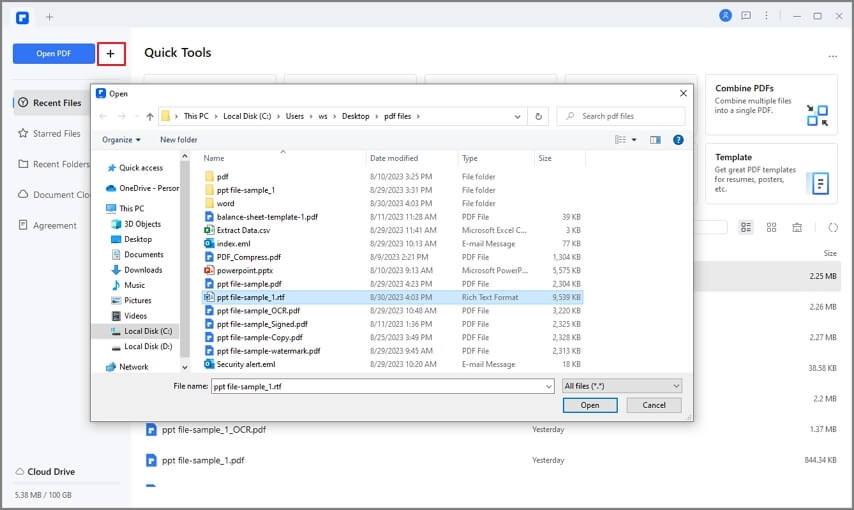
From the subsequent file directory window, choose the target WordPad file and click "Open" to upload the file into the program's interface.
Step 3. Save the PDF to Your Computer
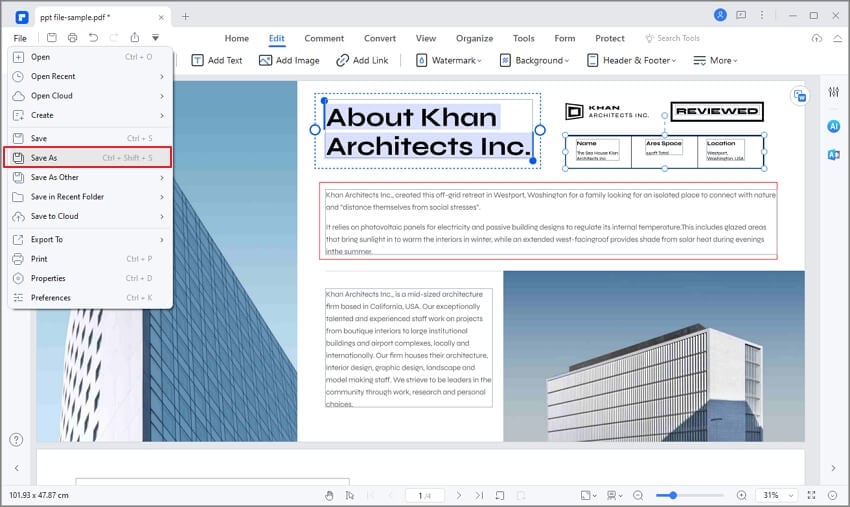
Click "File" > "Save As" to save the created PDF file. Select the output folder and now the "Save As" window shall be displayed. Once satisfied with the selections made, hit the "Save" button to trigger the conversion of WordPad to PDF file format.
Tip: Convert WordPad to PDF in One Click
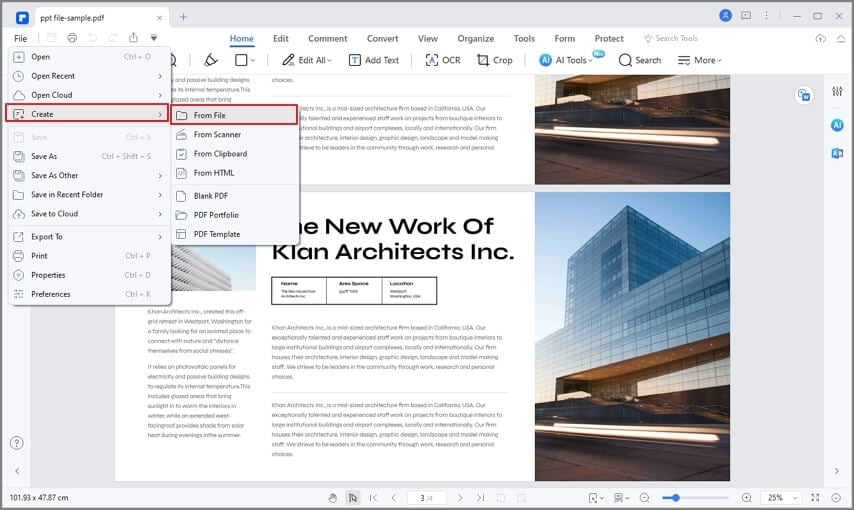
With PDFelement on your computer, you can create a PDF from WordPad files in several ways. You can:
- Drag and drop a WordPad file to the PDFelement window to create a PDF.
- Right-click on a WordPad file and click Create to PDF to convert it to a PDF file.
G2 Rating: 4.5/5 |100% Secure
Tip: Convert Multiple WordPad Files to PDF
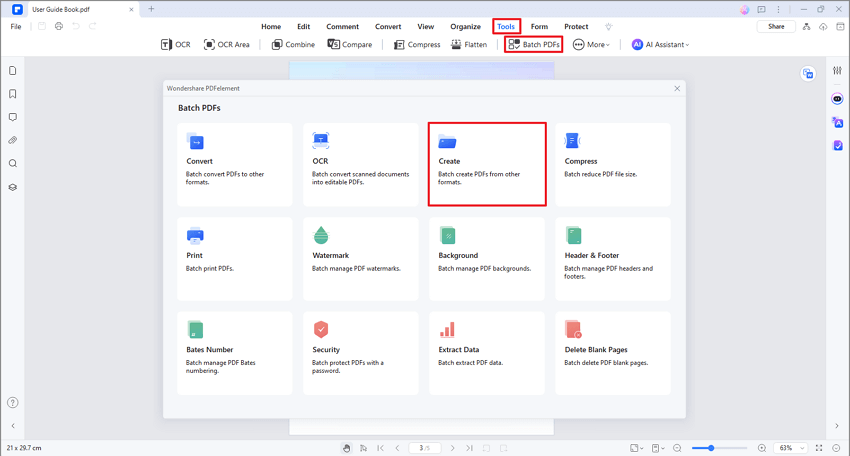
If you have many WordPad files that you need to convert to PDF, you can do that in one click with the "Batch Process" feature on PDFelement.
- Click Batch Process.
- Choose "Create."
- Add all the WordPad files you want to convert to PDF and click Apply.
- That's it. You can turn multiple WordPad files into PDFs in just a minute.
G2 Rating: 4.5/5 |100% Secure
Best Wordpad to PDF Converter
From the above guide, it is crystal clear that PDFelement is a powerful WordPad to PDF converter. This program transforms the way we convert files by making them so simple and efficient. The sleek interface, coupled with incredible conversion speed, makes it the right choice for users across the globe. Unlike other programs, PDFelement offers multiple ways to convert WordPad to PDF. Whether you want to convert a single or several WordPad files to PDF at once, you do not have to fret because this program can handle multiple files at the same time. Besides WordPad, it supports an array of other file formats, including docs, Excel, HTML, and image formats, among others. The following are other features available:
G2 Rating: 4.5/5 |100% Secure
- Perform PDF OCR to make scanned documents editable and searchable.
- Share PDF files via email attachments, Evernote, Dropbox, and Google Drive.
- Optimize PDF files without compromising the quality.
- Protect your PDF file with the help of passwords, digital signatures, and redaction.
- Create and fill out forms manually or automatically.
- Edit PDF contents, including images, links, and texts.
- Add comments, text markups, and drawings, and highlight PDF contents with ease.
- Combine several file formats to form a single PDF file.
Microsoft Word - Export Wordpad as PDF for Free
Perhaps you would like to convert a WordPad file to PDF with any converter. To perform all of this, you can use Microsoft Word. Microsoft Word can open Wordpad files and save them as PDFs. Here is how to do that.
Step 1. To locate the Wordpad file you want to save as PDF, right-click it, and in the "Open with" dialog box, select Microsoft Word instead of WordPad to open the file.
Step 2. When the WordPad file is opened in Word, go to the "File" menu and select "Save as."
Step 3. In the "Save as type" field, select "PDF" as the output format.
Step 4. Find a suitable file name and a destination folder for your PDF file.
Step 5. After clicking "Save", the WordPad file will be saved as PDF. Now open the file with your preferred PDF viewer so you can check if your PDF looks how you want it to be before sending it to anyone else.

Microsoft Print to PDF - Print Wordpad as PDF
Although you can't directly save a file as PDF format using WordPad, WordPad allows you to print a file as PDF, which can work as a workaround to save a WordPad file as PDF.
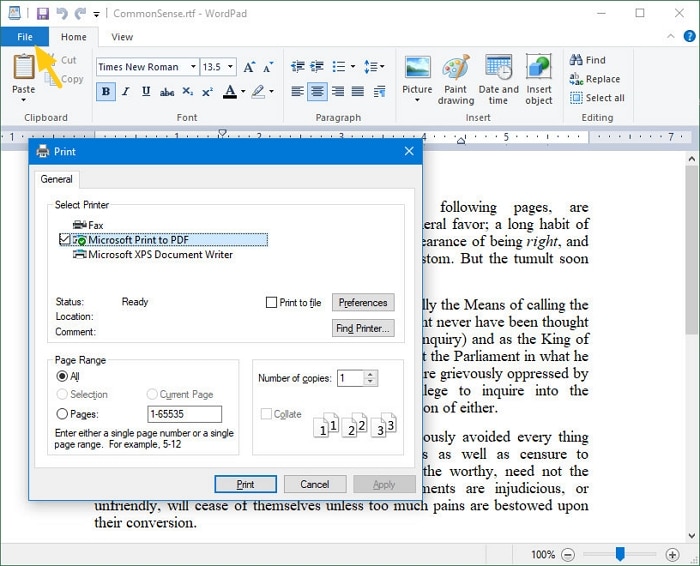
Step 1. Open a document you want to save as PDF on WordPad.
Step 2. Then go to "File" > "Print". This will open the Print dialog box, in which you can select Microsoft Print to PDF.
Step 3. Click the Print button. Then you can select the location to save the WordPad file as a PDF and rename the file if needed.
Part 5: Online Free WordPad to PDF Converter
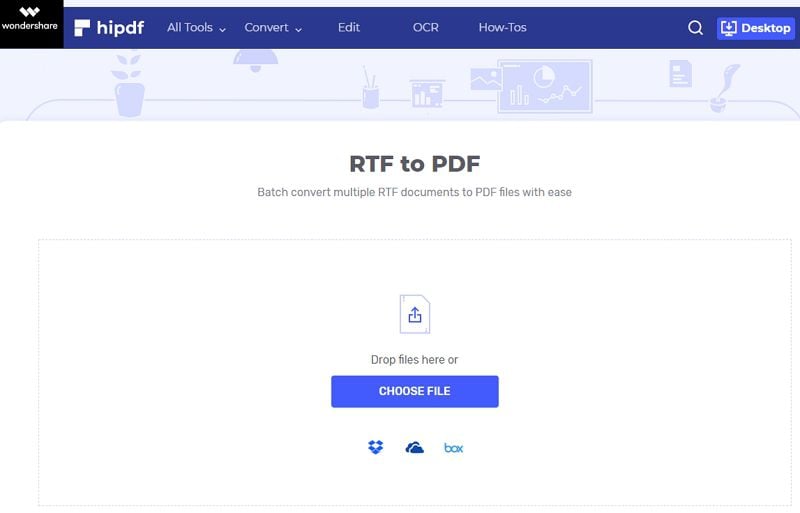
HiPDF is a plausible free online WordPad to PDF converter with plenty of excellent integrated features. The program has a user-friendly interface and is thus a smooth ride for users, whether experts or newbies. The following steps clearly illustrate how to convert RTF to PDF using HiPDF.
- Step 1. Visit HiPDF RTF to PDF converter online to access the homepage.
- Step 2. Tap the "Choose File" button and browse for the RTF file from the subsequent file directory. Once located, select and click "Open" to upload it to HiPDF. Alternatively, you can drag the input RTF file and drop it on the drop region within the program's interface. Other file upload options include Dropbox, OneDrive, and Box.
- Step 3. After uploading the WordPad (RTF) file, hit the "Convert" button to allow the program to start to convert WordPad to PDF. You can monitor the conversion progress in the background.
- Step 4. When the conversion process is complete, hit the "Download" button to fetch your new PDF file.
And this is how you can seamlessly convert WordPad files into PDF online. Converting WordPad to PDF online is certainly convenient, but if you want to do more editing, such as combine WordPad files into one PDF, edit PDF, split or delete a specific page, or annotate PDF, you should convert WordPad with PDFelement, a powerful PDF solution with all the PDF tools you.
G2 Rating: 4.5/5 |100% Secure
FAQs about Converting WordPad to PDF
How to save as pdf on Wordpad?
You can save a WordPad file as a PDF by using the Print to PDF feature built into Windows. WordPad itself does not have a built-in “Save as PDF” button, but the print method works well for simple documents.
- Step 1. Open your file in WordPad.
- Step 2. Click File > Print.
- Step 3. In the printer list, choose Microsoft Print to PDF.
- Step 4. Click Print.
- Step 5. Choose where to save the file, enter a file name, and click Save.
If you do not see Microsoft Print to PDF, you may need to enable it in Windows Features or use another PDF printer tool.
What formats are WordPad Files?
WordPad can support several different formats. There seem to be five in total: .txt, .doc, .rtf, .odt, and .docx. To clarify, these are Text File, Microsoft Word File Document, Rich Text Format, Open Document Text, and Office Open XML Document. Therefore, you can operate any of these formats without problem because they are WordPad files. A powerful PDF editor like Wondershare PDFelement can handle all these WordPad formats and even more. It's the only tool you need to convert WordPad to PDF and edit PDF.
Can I convert WordPad to PDF?
Yes, you can convert a WordPad document to PDF. The easiest way is to open the file in WordPad and use Microsoft Print to PDF on Windows. This creates a PDF version without changing the original document.
If that option is not available, you can also open the WordPad file in another program, such as Microsoft Word or Google Docs, and then export or save it as a PDF.
Online file converters may also work, but they are usually better for non-sensitive files since uploading documents to a website may raise privacy concerns. For most users, the built-in print-to-PDF method is the simplest and safest choice.
What is the best WordPad to PDF converter online?
If you want to convert a WordPad file to PDF online, the best option usually depends on whether your file is in RTF, TXT, or another text format. Here are some popular online choices:
- HiPDF: A strong option for converting RTF or TXT files to PDF, with broad format support and simple controls.
- Convertio: Easy for beginners and works directly in the browser, making it convenient for quick one-time conversions.
- Zamzar: A straightforward online converter that supports common document formats and is easy to use.
For sensitive or private files, an offline method like Microsoft Print to PDF is usually the better choice. Online converters are best for quick, non-confidential documents.
How do I convert a WordPad document to a Word document?
In WordPad, click File > Save as, then choose "Office Open XML Document", which will save the WordPad document as a . docx file.
Can you edit a PDF in WordPad?
WordPad can't directly edit PDF files. To edit the content in the file, you need to convert the PDF file to Word document. Then you can edit the Word document.
Free Download or Buy PDFelement right now!
Free Download or Buy PDFelement right now!
Try for Free right now!
Try for Free right now!

Elise Williams
chief Editor