

As a student preparing for your exams, you might have a lot of study materials to read within a limited time frame. Converting your PDF documents into MP3 files can help you continue studying while carrying out daily routine tasks. This will help you be more productive and efficient by eliminating the time spent on reading.
In this guide, we will compare the top 7 tools for converting PDFs to MP3 format. Furthermore, you will be provided with stepwise guides to use PDFelement and a workflow of typical online converters.
In this article
- Part 1. Quick Understanding of the Conversions
- Part 2. Key Things to Know Before You Start the Conversion
- Part 3. 7 Popular PDF to MP3 Conversion Tools - Comparative Table
- Part 4. Method 1 - The Fastest Way: Listen Instantly with PDFelement
- Part 5. Method 2 - Convert PDF Text To MP3 (When You Truly Need an Audio File)
- Part 6. Tips to Ensure Accuracy and Quality While Converting PDF to MP3
- Part 7. Troubleshooting PDF to MP3 Conversion
- Frequently Asked Questions
- Conclusion
Part 1. Quick Understanding of the Conversions
Listening to PDFs is now easier than ever, thanks to several free solutions that fit different needs. There are 2 routes, the first is to have a direct conversation with the online PDF to MP3 tools. The second one and the most advanced alternative is to use modern PDF apps such as PDFelement, which has a built-in Read Aloud feature that can voice the text without exporting or saving audio.
Part 2. Key Things to Know Before You Start the Conversion
Before you dive into the procedure of converting PDF to MP3 free, let's explore the basics of PDF for better understanding:
- Text Vs. Scanned PDFs: Text PDFs are instantly readable and easily converted to audio, while scanned PDFs require OCR to recognize and process the text content.
- Voice Quality & Languages: It affects how natural and understandable the output sounds, as some tools offer lifelike voices, while others are limited to introductory synthetic speech.
- Speed Vs. Accuracy: Instant conversion tools may skip punctuation and headings, but the advanced solution takes time to capture the whole structure.
- Privacy & File Size Limits: It is essential for online converters, as uploading sensitive material can risk data exposure, and large documents can be rejected.
PDFelement offers a convenient Read Aloud feature that allows users to listen to any text-based PDF instantly. Furthermore, it supports multiple languages and customizable voices for a comfortable user experience. If you have a scanned document, PDFelement provides a high-quality OCR tool to recognize printed text across multiple languages, unlocking audio playback even from non-searchable documents.


 G2 Rating: 4.5/5 |
 100% Secure
Part 3. 7 Popular PDF to MP3 Conversion Tools - Comparative Table
Here we have provided a detailed breakdown of the best PDF to MP3 converters in a table, covering their essential specs for better understanding:
| Tool | Free | Output | Languages/Voices | Offline | Privacy Control | Best For |
| TTS Maker | Yes | MP3 Export | Multiple, basic | No | Good (no signup) | Fast conversion, simplicity |
| Zamzar | Yes | MP3 Export | Multiple, basic | No | Limited file size | Simple, casual use, quick exports |
| Online-Convert | Yes | MP3 Export | Multiple, customizable | No | Limited file size | Device flexibility, bitrate setup |
| Digital Office Pro | Yes | MP3 Export | Limited, basic | No | Moderate | Fast conversions, no registration needed |
| FreeMedia Tools | Yes | MP3 Export | Basic | No | Good | Easy UI, video/image/audio conversions |
| PDF2Go | Yes | MP3 Export | Multiple | No | Good | Easy text-to-speech, basic PDF handling |
| PDFelement (Read Aloud) | Yes | MP3 Export | Multiple, customizable | Yes | Full (no uploads) | Fastest study/review, privacy, instant use |
Pros: Speed, privacy, on-the-fly listening
Cons: No MP3 export, reading is limited to the device
G2 Rating: 4.5/5 |100% Secure
Part 4. Method 1 - The Fastest Way: Listen Instantly with PDFelement (Read Aloud PDF)
If you don’t have enough space on your device and want to listen to PDF files, you need to opt for a PDF reader software that allows you to instantly listen to PDF documents. Choosing Wondershare PDFelement ensures that you avoid wasting long hours reading lengthy documents by offering an effective Read Aloud function. To get a better understanding of how this procedure works, follow the details below:
Why Choose Playback Over Converting to MP3?
First, let's explore why you should opt for the playback feature rather than converting the PDF to MP3 format:
- Instant Listening: Instant listening enables content to be heard immediately, with no delays, simply by opening the PDF and starting to listen.
- No Uploads: No uploads are required, ensuring privacy and protecting sensitive data, since the PDF never leaves the device.
- Annotate While Listening: Playback solutions let users pause, highlight, comment, or add notes as they listen, streamlining the workflow.
- Save Time: Skipping lengthy conversion steps and eliminating the need to manage large audio files makes the process quicker and easier.
- Accessibility: Features like adjustable voice speed and punctuation make playback ideal for users with diverse needs or disabilities.
Detailed Step Guide on Using the PDFelement Read Aloud Function
If you are exploring a detailed guide on how to use the PDFelement read-aloud feature, then go through the following steps:
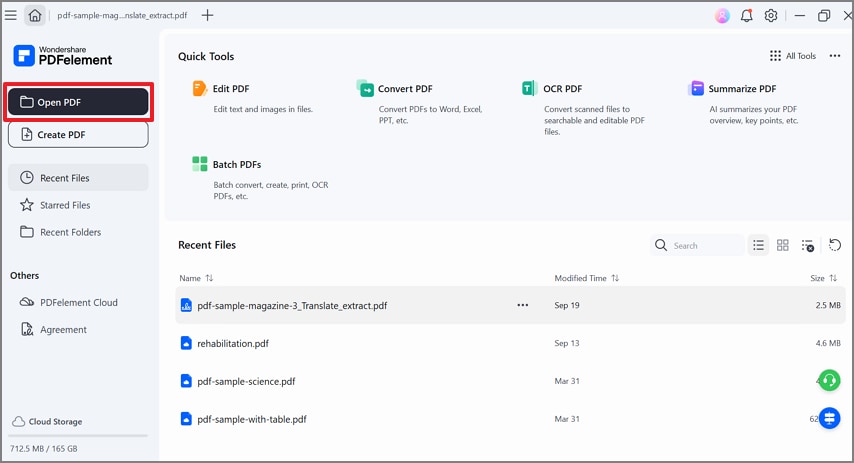
Step 1Open the Required PDF in the PDFelement Tool
Access the tool and click on the “Open PDF” button to insert the desired PDF within the PDFelement tool.
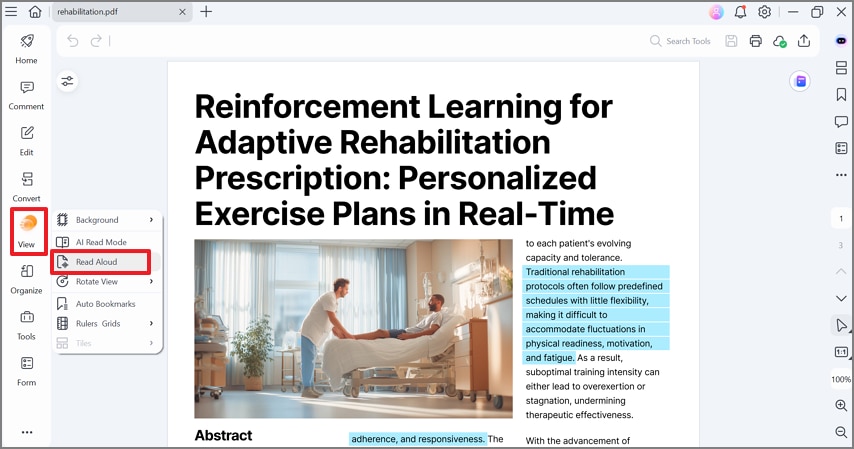
Step 2Click the View menu and select the Read Aloud Option
Now, tap on the “View” menu and choose the “Read Aloud” option from the pop-up menu that appears.
Step 3Access Settings to Pick Voice Rate for Audio
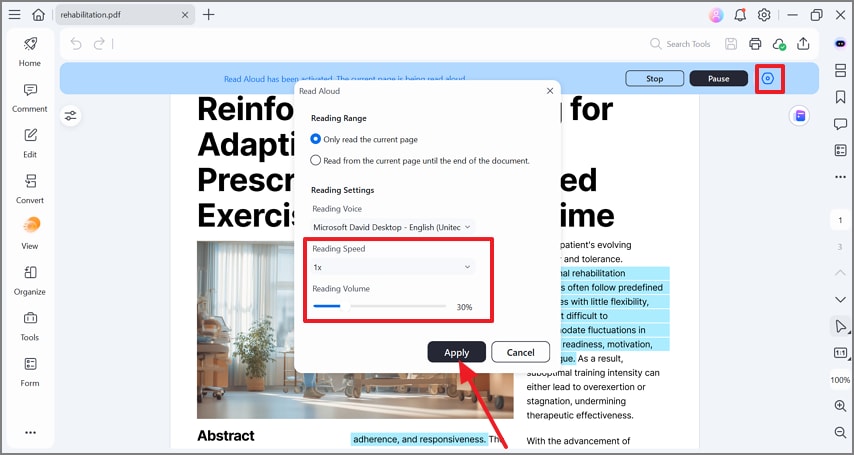
As it will start reading your PDF, click on the “Settings” option and then select the desired “Voice Rate” for your voice reading.
Step 4Choose the Play or Pause Button to Control Voice
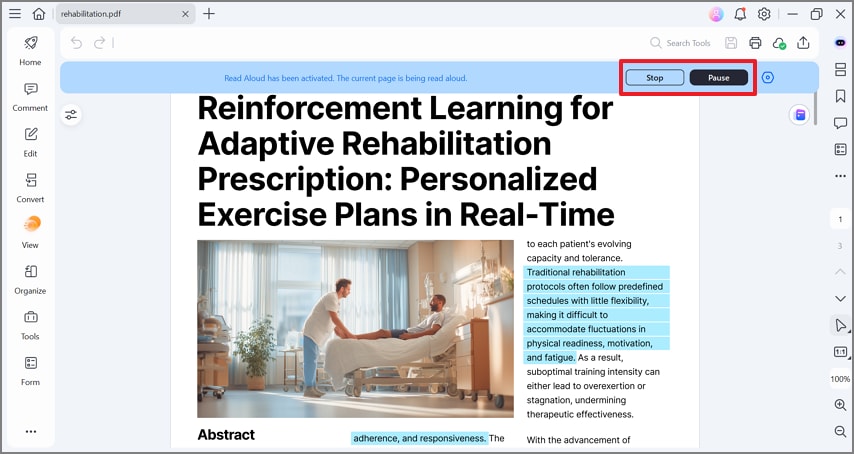
Here, you can click on the “Stop” button to finish reading or the “Pause” button to pause recording for a while. As the tool starts reading the PDF, it highlights the text so that you can follow along at the same time.
Smooth Study Sessions and Workflows
Integrating listening with note-taking and annotation creates a powerful study or work workflow. PDFelement allows users to create structured listening sessions by enabling multitasking and increasing comprehension by pairing auditory and visual cues. Users can pause or rewind audio, make highlights for important sections, or add notes and comments without disturbing the listening flow.
Accessibility & Languages
Exploring accessibility and language features in modern PDF readers like PDFelement provides several accessible and powerful options:
- Voice Speed: It is fully adjustable, letting users set a pace that matches their listening comfort or learning speed. This feature is considered ideal for both detailed study and faster skimming.
- Clarity: It supports multiple natural-sounding voices and languages, making it suitable for both native and non-native language documents.
- Punctuation Handling: Software recognizing pauses, sentence breaks, and even some headings, especially in technical, academic, or detailed documents.
- Section Jumps: It enables users to move quickly through the document, skipping to headings or chapters as needed.
- Platform Compatibility: Many advanced PDF readers now support text-to-speech playback across devices and operating systems.
Download PDFelement to listen to PDFs with Read Aloud instantly and elevate your study or work sessions. This feature lets users hear any PDF directly from their device, with adjustable voice, speed, and volume settings for a tailored listening experience.
G2 Rating: 4.5/5 |100% Secure
Part 5. Method 2 - Convert PDF Text To MP3 (When You Truly Need An Audio File)
Besides using playback, if you want to convert a PDF to MP3 free using online web-based tools, then go through the following part:
Comparing Export Approach Vs. Playback
For your better understanding, we have provided you with a detailed comparison of Export Approach and Playback, making it easy to choose:
| Features/Need | Export Approach (MP3 File) | Playback (On-Device Read Aloud) |
| Sharing | Easy to distribute files via email, cloud, or apps | Playback is only available on the user's device |
| Offline Players | Compatible with MP3 players, audio apps, and podcasts | Limited to supported devices with the playback feature |
| Portability | MP3s can be copied or uploaded anywhere | Tied to the original PDF/viewer app |
| Edit/Clip Audio | MP3s can be edited, trimmed, and reused | No access to a standalone audio file |
| Privacy | The file may need to be uploaded to a third-party server | The file never leaves the user's device |
| Speed | Conversion and download required | Instant listening—no exports needed |
| Best For | Sharing, archiving, offline listening, podcasting | Study, review, privacy, instant access |
| Annotation | Not possible while listening to an exported MP3 | Can annotate, highlight, and take notes as you listen |
| Language/Voice | Depends on the converter's available voices | Wide choice of languages/voices, often adjustable |
| Multitasking | Requires a separate media player or device | Built-in for multitasking (listen and work in the same app |
Create a Clean PDF Document to Ensure Accurate Audio
If you want to get a better audio outcome while converting PDF to MP3, then follow the following points to clean the source file:
- Headers/Footers: Remove headers and footers that can interrupt listening flow or add irrelevant information to the audio, so one should edit them before.
- Fix Reading Order: Fix reading order by ensuring the logical text structure reflects the actual progression of the document.
- Run OCR for Scans: If working with scanned or image-based PDFs, use Optical Character Recognition to convert images into text to easily access the playback feature.
- Hyphenation: Correct hyphenation that occurs from line breaks in original documents by joining split words, as this avoids unnatural pauses.
- Page Numbers: Remove page numbers, which are often read aloud unnecessarily and interrupt the narrative flow, so edit these elements beforehand.
General Guide to Converting PDF to MP3 Using Online Tools
Most online converters follow a straightforward procedure, so let's explore the step-by-step guide to convert PDF to MP3 free:
Step 1Upload the PDF file
Upload the PDF file into the desired online converter tool or drag and drop it into the conversion area.
Step 2Choose settings
Upon inserting the desired file, choose the preferred voice and language settings, like audio speed, and even voice type.
Step 3Convert
The platform will take some time, and it will convert your PDF file into the MP3 format.
Step 4Download
As the outcome is generated, click the Download icon to render the converted MP3 file to your device.
Factors to Remember While Using Desktop and Online PDF to MP3 Converters
Besides online converters, most users prefer offline converters to convert PDF to MP3 free, so let's explore the detailed guide:
- No Upload: Files are processed entirely on the local computer, reducing privacy risks and keeping sensitive documents secure.
- Larger Files: Desktop software can handle bigger and more complex PDFs without the size limitations.
- Batch Processing: Many offline tools support converting multiple PDFs at once, streamlining large projects and saving time.
- Customization: These tools offer advanced settings that allow you to choose voices and adjust the speed to tailor the listening experience.
- Reliability: Offline converters aren’t affected by internet connection issues or server downtimes, ensuring consistent access.
Part 6. Tips to Ensure Accuracy and Quality While Converting PDF to MP3
After knowing about the conversation process of the free PDF to MP3 converter, let's explore its effective tips:
- OCR Scanned PDFs First for Clean Text: Use high-quality OCR tools on scanned PDFs to ensure all content is selectable and accurately recognized by speech software.
- Use Headings for Navigation: Organize content with clear section headings, and ensure that lists and tables are formatted adequately so that audio tools can read them.
- Adjust Voice Rate: Set a comfortable reading pace and select a high-quality, human-like voice especially for lengthy documents.
- Proof-Listen to the Output: Ensure you listen to the first few minutes of the audio to identify errors, mispronunciations, or missing content.
- Use Premium Voices for Key Uses: If the audio is for professional presentations, consider investing in premium or AI-enhanced voice options for a more realistic speech.
Part 7. Troubleshooting PDF to MP3 Conversion
Even with the right tools and methods, you may encounter a few common issues. Here are some quick troubleshooting tips to help you resolve these problems effectively:
- Scanned PDF Not Read: If a PDF contains only images, you need to apply OCR to transform the images into searchable and selectable text.
- Voice Sounds Robotic: In case the voice sounds unnatural, try using a different available voice or adjust the reading rate/speed.
- Wrong Order Reading: If content is read in the wrong sequence, reflow or tag the PDF’s structure for logical reading order, or export the text.
- Large MP3 Sizes: Remove unusual formatting or fix broken line breaks to prevent mispronunciations and unnatural pauses during playback.
- Document Layout: Ensure tables and lists are formatted cleanly in the source PDF so the speech tool can interpret them correctly.
Conclusion
In conclusion, this article provides the most efficient methods for converting PDF to MP3 format. However, if you are in a hurry and don’t want to get caught up in the conversation, then we recommend using PDFelement's Read-Aloud feature. It is the fastest way to listen to the narration as it can also be accessed while being offline within its desktop tool.
Frequently Asked Questions
-
What’s The Best PDF to MP3 converter?
The best PDF to MP3 converter is generally considered the one that provides advanced features with broader compatibility. Some of the best tools are Speechify, PDFelement, and Zamzar. -
Is PDF to MP3 Free Really Free and Safe?
Most of the PDF to MP3 tools are free to use and provide safety features. However, the FBI and cybersecurity experts warn users to be cautious with these tools. -
Can I Listen Without Converting to MP3?
Absolutely, you can listen to the PDF using the PDFelement tool's newly introduced Read Aloud feature. It turns PDF text into spoken words with adjustable voices and speed while supporting major languages. -
How Do I Handle Scanned PDFs That Won’t Read?
To handle scanned PDFs that won't work with the read-aloud or text-to-speech feature, you need to perform OCR first. This feature will convert scanned images into editable text, making it easily accessible for text-to-speech readers. -
Can I Control Speed and Voice?
Yes, absolutely, most advanced tools like PDFelement allow you to control the speed of the narration. Users can also choose from available male/female options, various accents, and supported languages. -
How Do I Keep Formatting (Headings/Pauses) In Audio?
Yes, it is possible to keep document formatting, such as headings, in the audio output when converting a PDF to MP3. Advanced tools like PDFelement use AI to analyze document structure during conversion. -
Is There an Offline Way?
Yes, there are numerous desktop tools available, such as PDFelement, which allows you to use its Read-Aloud feature offline. You simply need to insert the desired file and access its Read-Aloud feature to listen to the text narration. -
How To Annotate While Listening?
Yes, it is possible to annotate PDFs using PDFelement, which allows multitasking while listening to the narration. It allows users to highlight text, add notes, and make comments in real-time while audio plays, helping to streamline the study workflow.
![All the Methods to Convert a PDF to Black and White [2026]](https://images.wondershare.com/pdfelement/images2026/pdf-like-article-1.png)



