

Canva is a well-known tool for creating designs. It is easy to use, and many people like it for making graphics and documents. Often, users need to convert their PDF files to Word files because Word files are easier to edit.
This article will show you how to convert Canva PDF to Word documents. We will also talk about Wondershare PDFelement. This tool helps in converting PDFs, too. We will compare it with Canva. This will help you understand which tool might work best for your needs.


 G2 Rating: 4.5/5 |
 100% Secure
In this article
Part 1. Use PDF Converter to Convert a Canva PDF to Word
Converting a PDF to a Word document in Canva is useful. It lets you edit your documents more easily. This is because Word files are simpler to change than PDF files. Here’s how you can create and change your PDF files using Canva:
Step 1
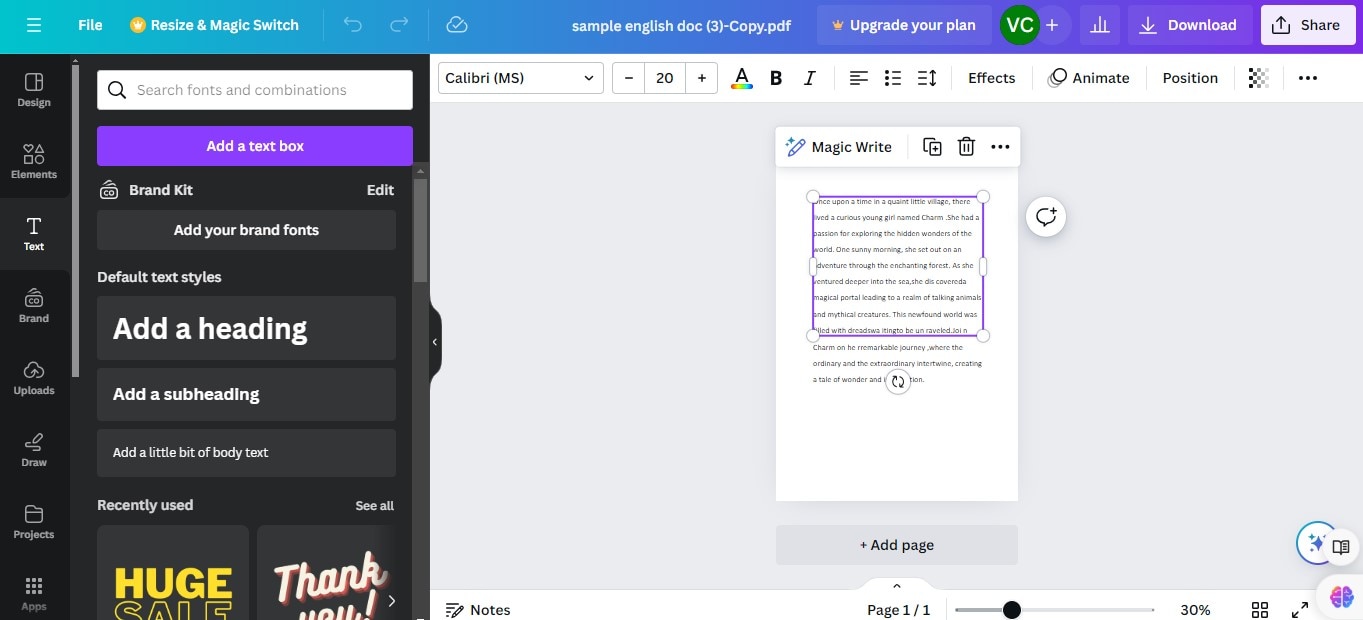
Start on the Canva homepage. Open a Canvas design.
Step 2
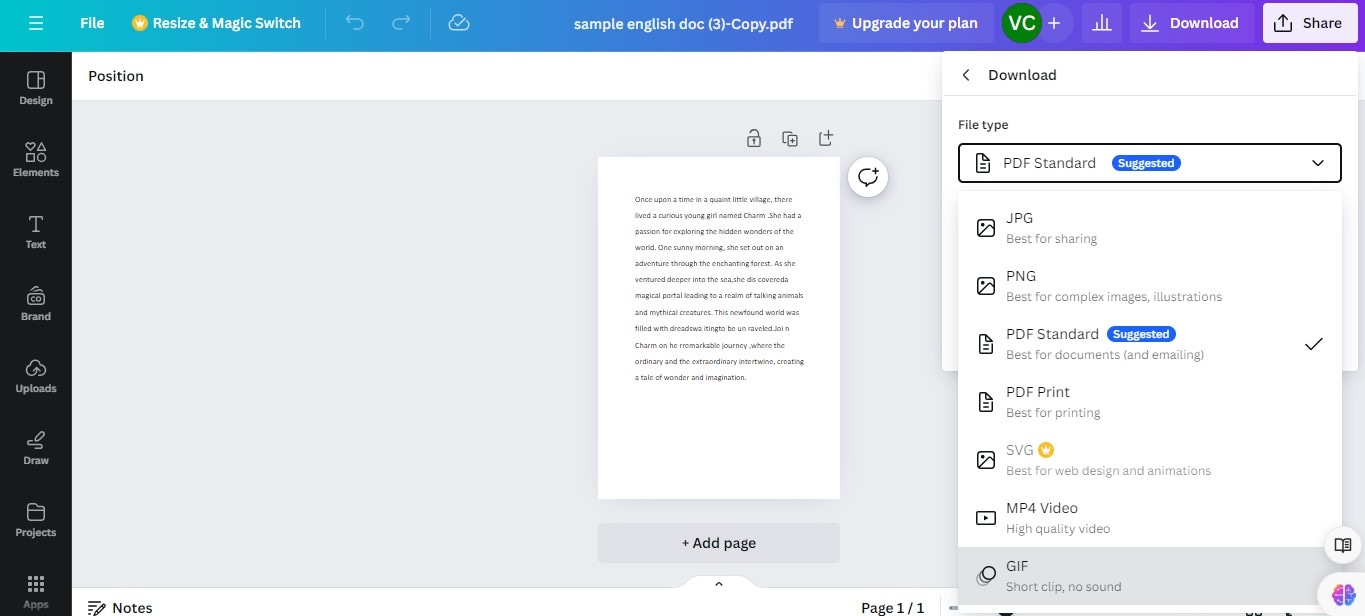
Once you have finished editing, you can download the design. Choose to download it as a PDF document.
Once you have a Canva PDF document, you can easily convert it to a Word document using a PDF converter. Wondershare PDFelement can change PDF files into many other file types, including Word, Excel, PowerPoint, and Pages. It can edit PDF files to make sure your Canva design can be converted to a Word document in high quality and without formatting changes.
G2 Rating: 4.5/5 |100% Secure
Step 3
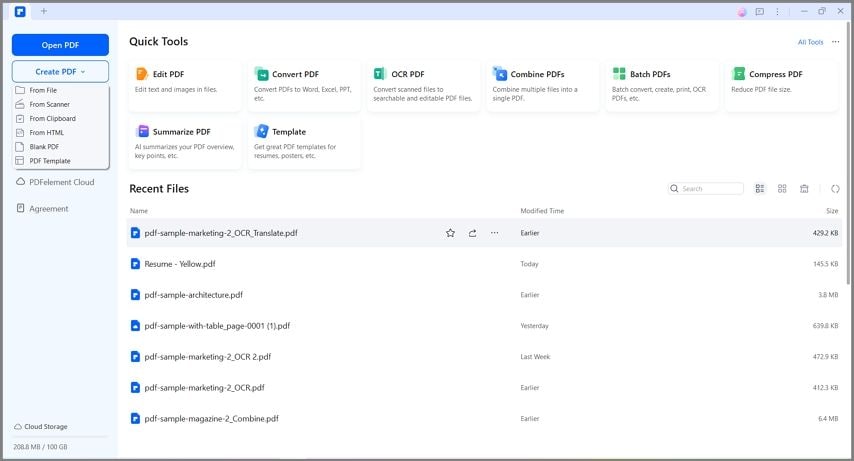
Download and install PDFelement on your computer. Click "Open File" and select the PDF you want to convert.
Step 4
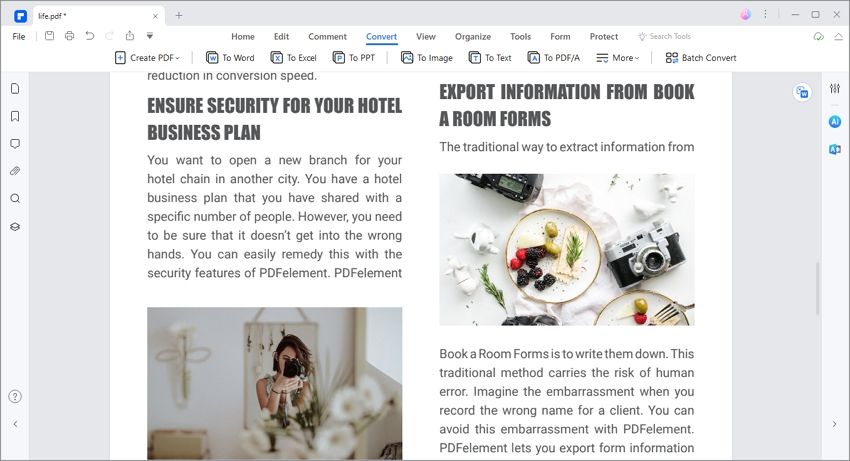
Once your Canva PDF is open, click on the "Convert" tab. Choose the format you need: Word, Excel, PowerPoint, or another.
Step 5
After selecting the format, name your new Canva file. Click the "Save" button to start the conversion.
Step 6
If you want, click on "Convert Settings" before converting. Here, you can choose the quality of images and the range of pages you want to convert.
Wondershare PDFelement offers both online tools and desktop applications. This means you can convert PDF to Word online with PDFelement or by using the software on your computer. The desktop version has more features. It is better for large files or when you need to edit the PDF before converting it. If you prefer an online PDF converter, click the Upload button below to get started.
Part 2. Use Canva Docs to Convert Design to Word Document
To convert a Canva design into a Word document, Canva Docs can act as a helpful bridge between a visual layout and an editable text file. Here is how the process works.
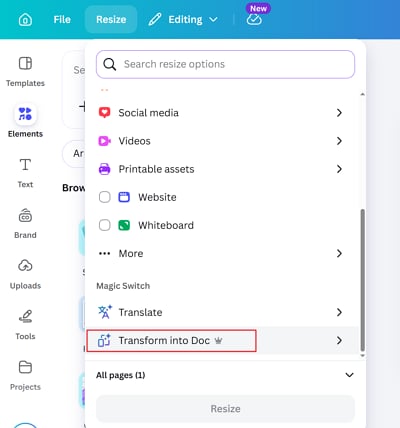
Step 1Resize a canva design to Docs
Open your Canva design first, then click Resize > Transform to Docs to convert the design into a Canva Doc format. This changes the project from a design-based layout into a more document-friendly structure. During this step, Canva pulls the text into a format that is easier to edit like a written document instead of a graphic design. If the original design includes many decorative elements, the result may need some cleanup.
Step 2Make edits
After the design has been converted into Canva Docs, review the content carefully. Adjust the headings, paragraph breaks, bullet points, spacing, and image placement so the document reads smoothly. Some text boxes or visual elements from the original design may not transfer perfectly, so this step is important for improving readability. You can also simplify the layout and remove extra design features that are unnecessary in a Word document.
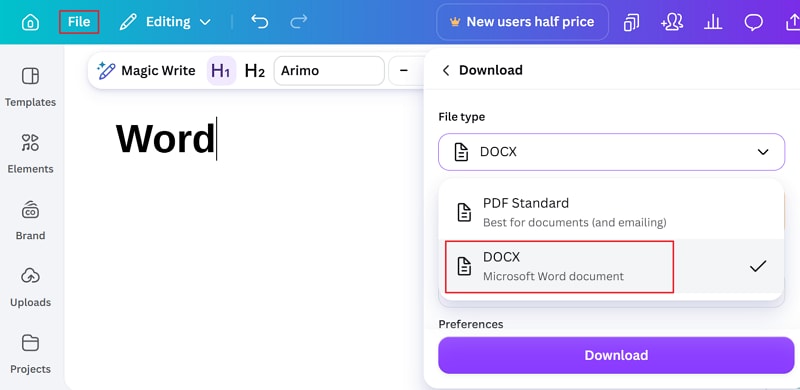
Step 3Download a canva docs to Microsoft Word
Once the Canva Doc looks the way you want, click File, then Download, and choose Microsoft Word (.docx) as the file type. After downloading, open the file in Word and check the formatting. There may be small differences in font style, spacing, or image alignment, so a final review in Microsoft Word is recommended before sharing or printing.
Part 3. Wondershare PDFelement: Canva Converter Alternative
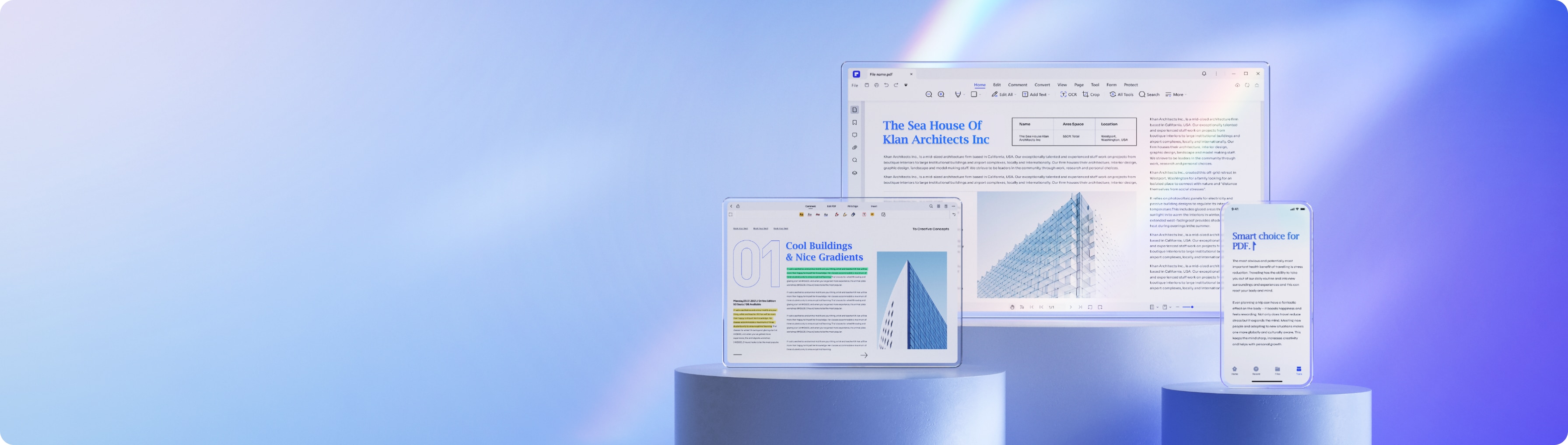
Wondershare PDFelement is a powerful program for working with PDFs. It lets you easily edit, create, convert, and secure PDF files. Here are some key things it can do:
G2 Rating: 4.5/5 |100% Secure
- Edit PDFs: Change text, fonts, and images in your PDFs.
- OCR Technology: Turn scanned documents into editable files.
- Convert Files: Change PDFs into Word, Excel, or image files.
- Forms: Create and fill out PDF forms directly in the app.
While Canva is great for design, PDFelement focuses on PDF management. Here’s how they compare:
Editing Tools
- Canva allows basic edits to designs before saving them as PDFs.
- PDFelement offers extensive editing tools. You can change anything in your PDF after it's created.
File Conversion
- Canva can convert designs to PDF and vice versa. It also lets you download Word documents but with limited functionality.
- PDFelement converts PDFs to many formats without losing quality. This includes Word, Excel, and more.
User Interface
- Canva has a simple, user-friendly interface designed for design tasks.
- PDFelement has a professional interface that looks like Microsoft Office. It’s designed for detailed PDF editing.
Wondershare PDFelement have several advantages over Canva:
- Enhanced Editing Tools: It offers more advanced editing features, including changing text, resizing images, and modifying page layout.
- OCR Technology: PDFelement’s OCR technology is powerful. It can read text from scanned documents, making them editable and searchable.
- File Conversion Options: PDFelement supports more file types for conversion. This makes it versatile for different needs.
- Security Features: You can add passwords and permissions to your PDFs. This keeps your documents safe.
G2 Rating: 4.5/5 |100% Secure
If your main task is to manage and edit PDF documents, Wondershare PDFelement is a strong choice. It has robust tools that go beyond what Canva offers for PDF handling.
Converting PDFs with PDFelement is simple. It only takes a few clicks. The tool is designed to make the process easy for everyone. Besides converting, PDFelement also lets you edit your PDFs. You can add text, images, and even create forms. This makes it a very useful tool for both personal and professional use.
Conclusion
Converting PDFs from Canva to Word is easy. This allows you to edit documents quickly. For more features, Wondershare PDFelement is a great choice. It offers detailed control over PDF editing and converting. PDFelement supports many file types and provides advanced editing tools. This makes it perfect for managing all your documents. Try PDFelement if you need a powerful tool for your document needs. It can help make your work easier and more efficient.
G2 Rating: 4.5/5 |100% Secure
![All the Methods to Convert a PDF to Black and White [2026]](https://images.wondershare.com/pdfelement/images2026/pdf-like-article-1.png)



