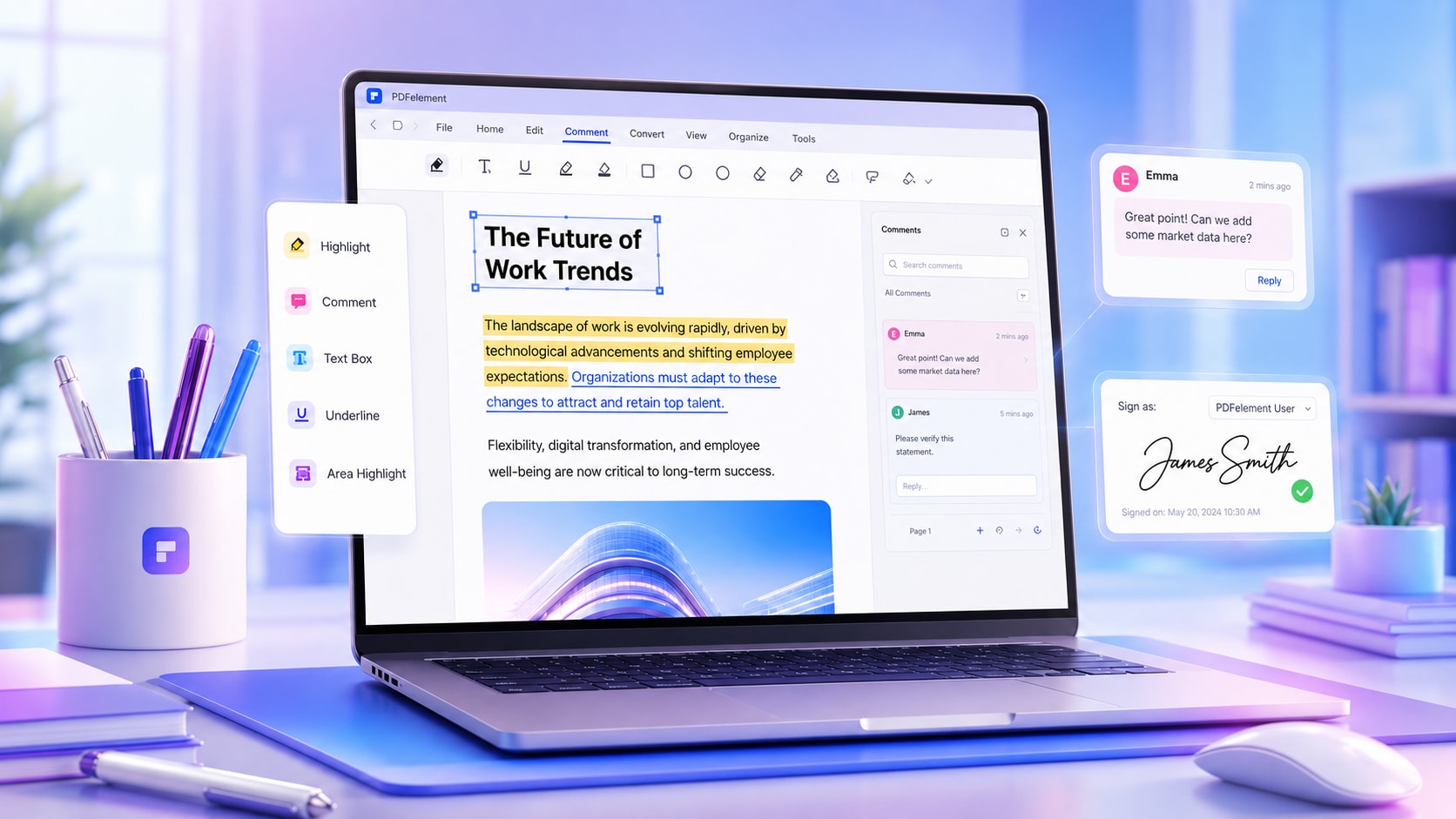
PDFelement-Powerful and Simple PDF Editor
Get started with the easiest way to manage PDFs with PDFelement!
In the digital age, saving webpages as PDFs have become a common practice for preserving valuable content. However, users often encounter issues with cut-offs, leading to incomplete captures. This article addresses how to save webpage as PDF without cutting off.
By mastering this skill, readers can ensure content and layout integrity, enabling easy offline access to their favorite online resources. Whether archiving research, preserving articles, or capturing important web data, this comprehensive tutorial empowers readers with the know-how to navigate the challenges of webpage-to-PDF conversion.
In this article
Why Is My Webpage Cut Off When I Save It as a PDF?
Browsers generate a print layout rather than copying the screen exactly. Responsive designs, fixed-width tables, sidebars, background graphics, and content that loads while you scroll may look different in the print preview.
A webpage may also be divided across several standard-size PDF pages. This is normal and does not necessarily mean that content is missing. A complete webpage PDF should include the relevant content in one file, even when the file contains multiple pages.
How to Save a Webpage as a PDF Using Your Browser
This is the most convenient method for most public webpages because it does not require additional software.
Step 1 Open the webpage and wait for the text, images, and embedded content to finish loading.
Step 2 Scroll through the page once if images load only when they enter the screen.
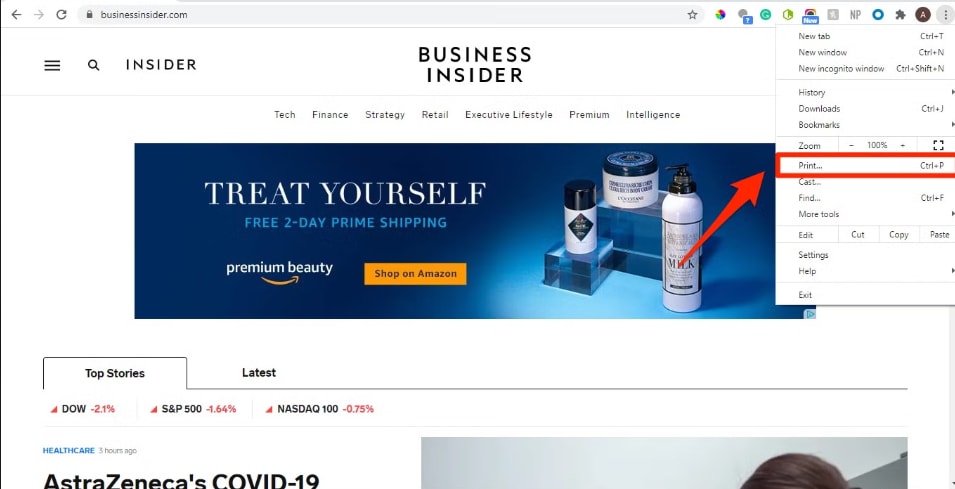
Step 3 Press Ctrl + P on Windows or Command + P on Mac. You can also open the browser menu and select Print.
Step 4 Choose Save as PDF as the destination.
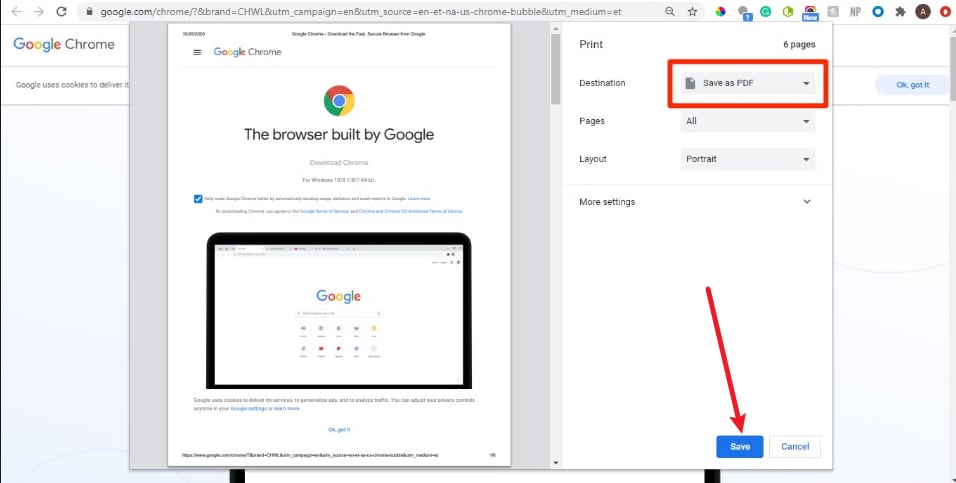
Step 5 Open More settings and adjust the paper size, orientation, scale, margins, background graphics, and headers or footers.
Step 6 Check the preview from the first page to the last page.
Step 7 Select Save and choose a location for the PDF.
5 Methods to Save Webpage as PDF Without Cutting Off
Discover five effective techniques to save webpages as one complete PDF page, eliminating cut-offs and preserving content integrity. Each method offers unique approaches to tackle the common issue, ensuring seamless webpage-to-PDF conversion and enabling users to access web content offline without disruptions.
Method 1: Using PDFelement to Save Webpage as PDF Without Cutting Off
PDFelement, a versatile and user-friendly software, offers an efficient solution for saving webpages as complete PDFs, free from cut-offs. Its comprehensive features allow users to seamlessly convert web content into single-page PDFs while preserving the original layout and eliminating disruptions.


 G2 Rating: 4.5/5 |
 100% Secure
- Intuitive Interface: PDFelement boasts a user-friendly interface, making it accessible to novice and advanced users.
- Complete Webpage Capture: It ensures full-page capture, including text, images, and formatting, delivering a faithful webpage representation.
- URL-to-PDF Conversion: Users can directly convert webpage URLs into PDFs without the need to save the webpage as an HTML file.
- Customizable Settings: Adjusting paper size, orientation, and margins enables personalized PDF outputs to suit specific requirements.
- Seamless Editing: PDFelement offers editing options to enhance PDFs by adding annotations, highlights, and other modifications.
- Secure PDFs: Password protection and encryption features keep sensitive web content safe and confidential.
Option 1: Using the "Create PDF" Feature
PDFelement offers a user-friendly "Create PDF" feature, facilitating easy conversion to PDF and subsequent conversion to various document file types.
G2 Rating: 4.5/5 |100% Secure
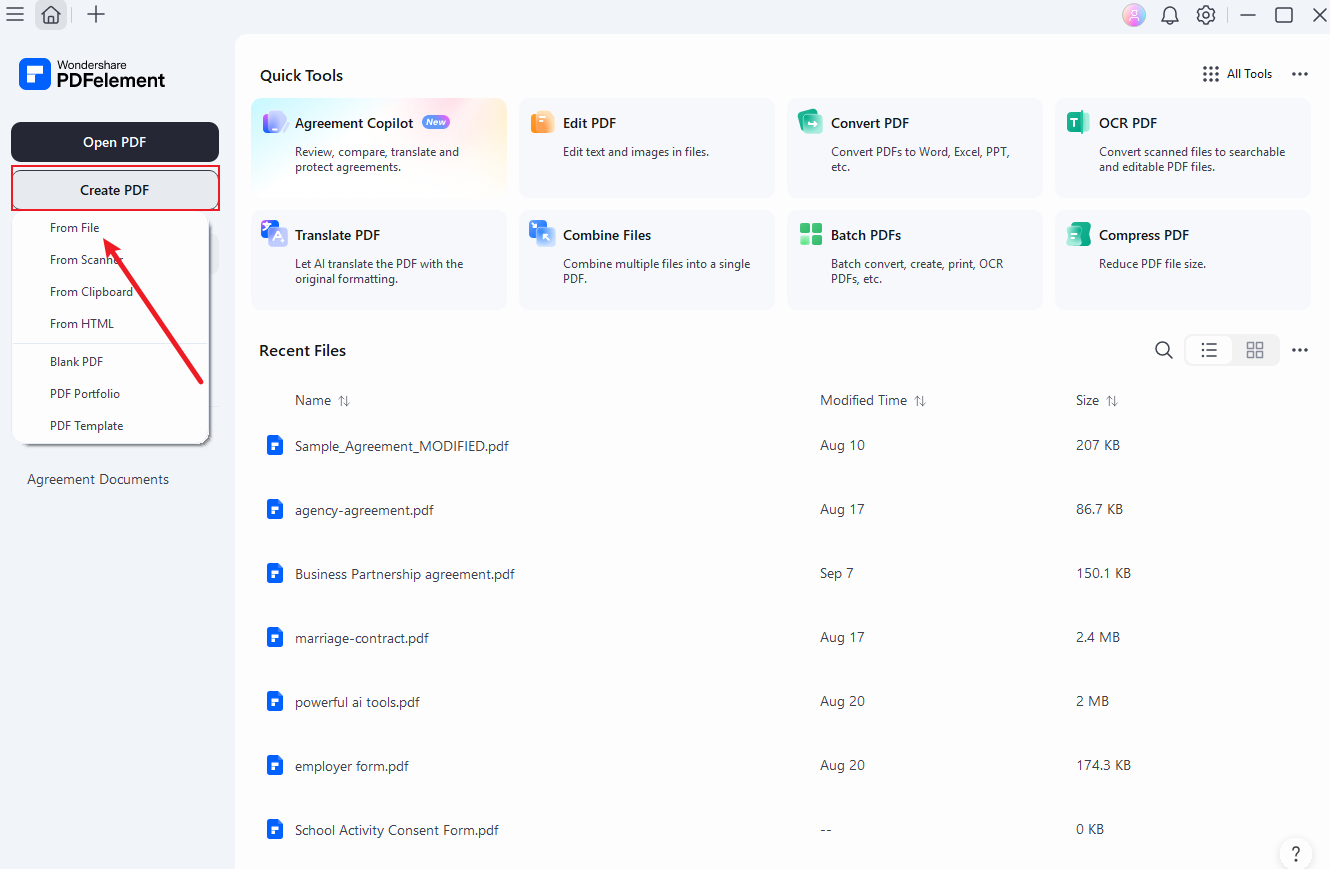
Step 1 Open PDFelement on your computer and select "CreatePDF" > "FromFile."
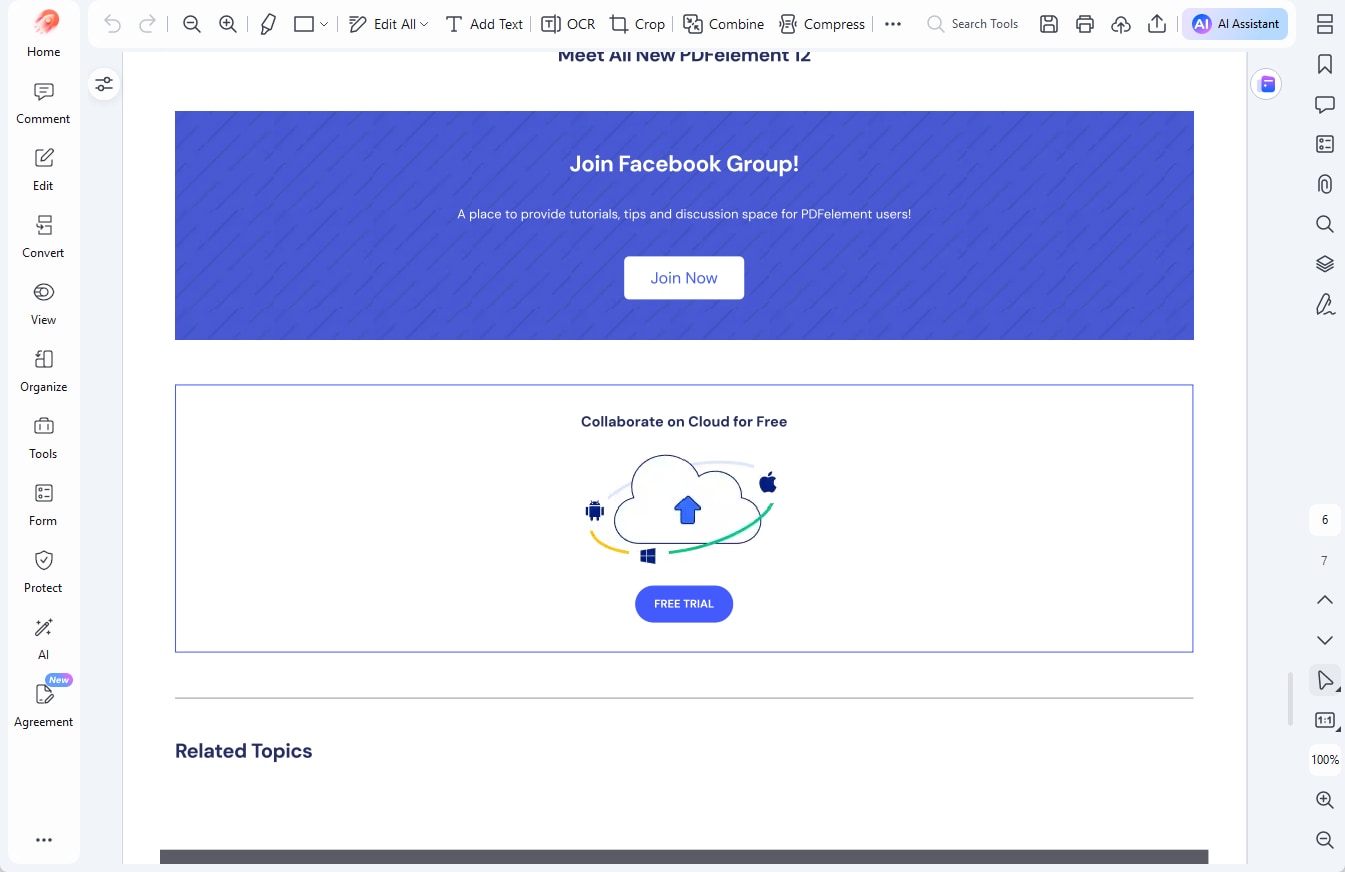
Step 2 Locate the HTML file on your computer, open it, and let PDFelement automatically convert it into a PDF file.
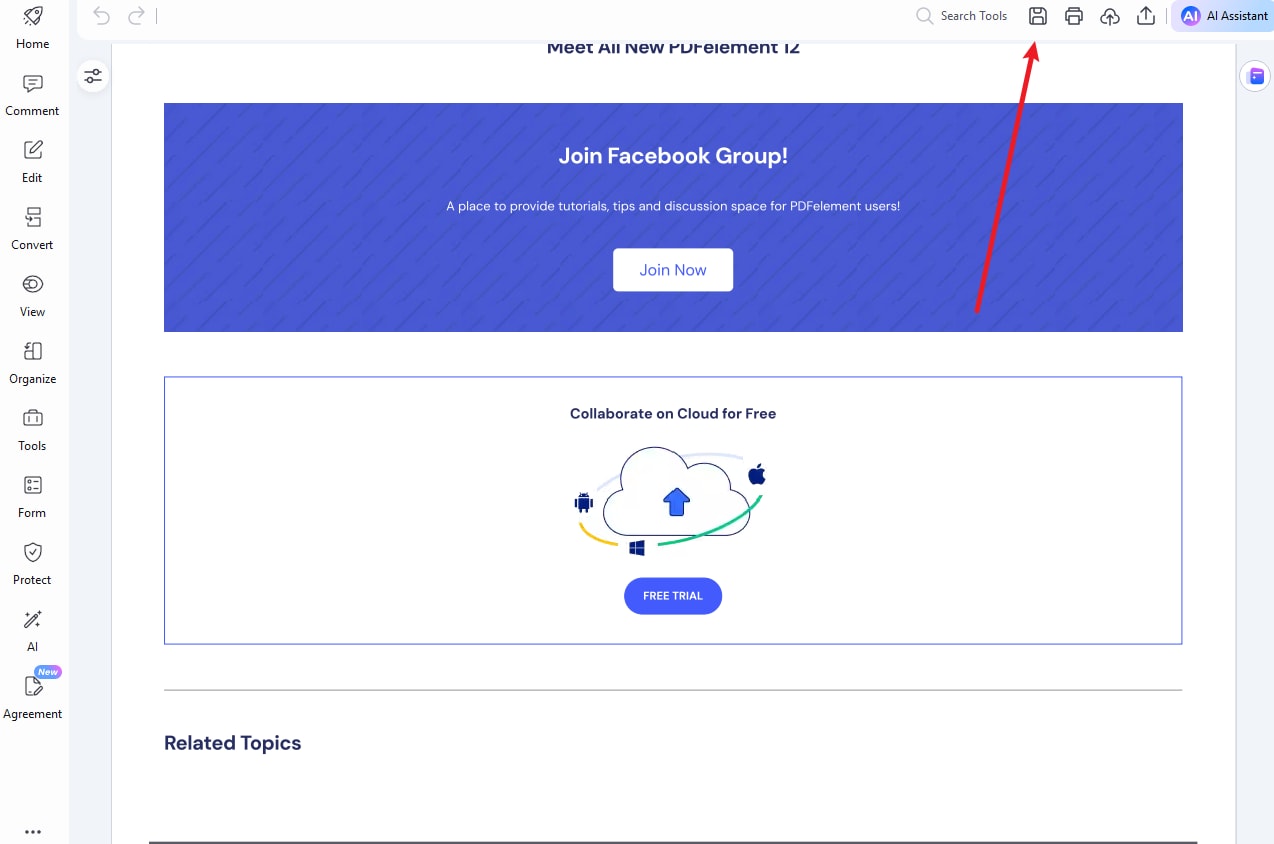
Step 3 Click "save" button to save your converted PDF file.
Option 2: Directly Convert the URL to PDF
PDFelement simplifies the process of converting HTML links directly to PDF.
G2 Rating: 4.5/5 |100% Secure
Step 1 Launch PDFelement and click "CreatePDF" > "BlankPDF" on your computer.
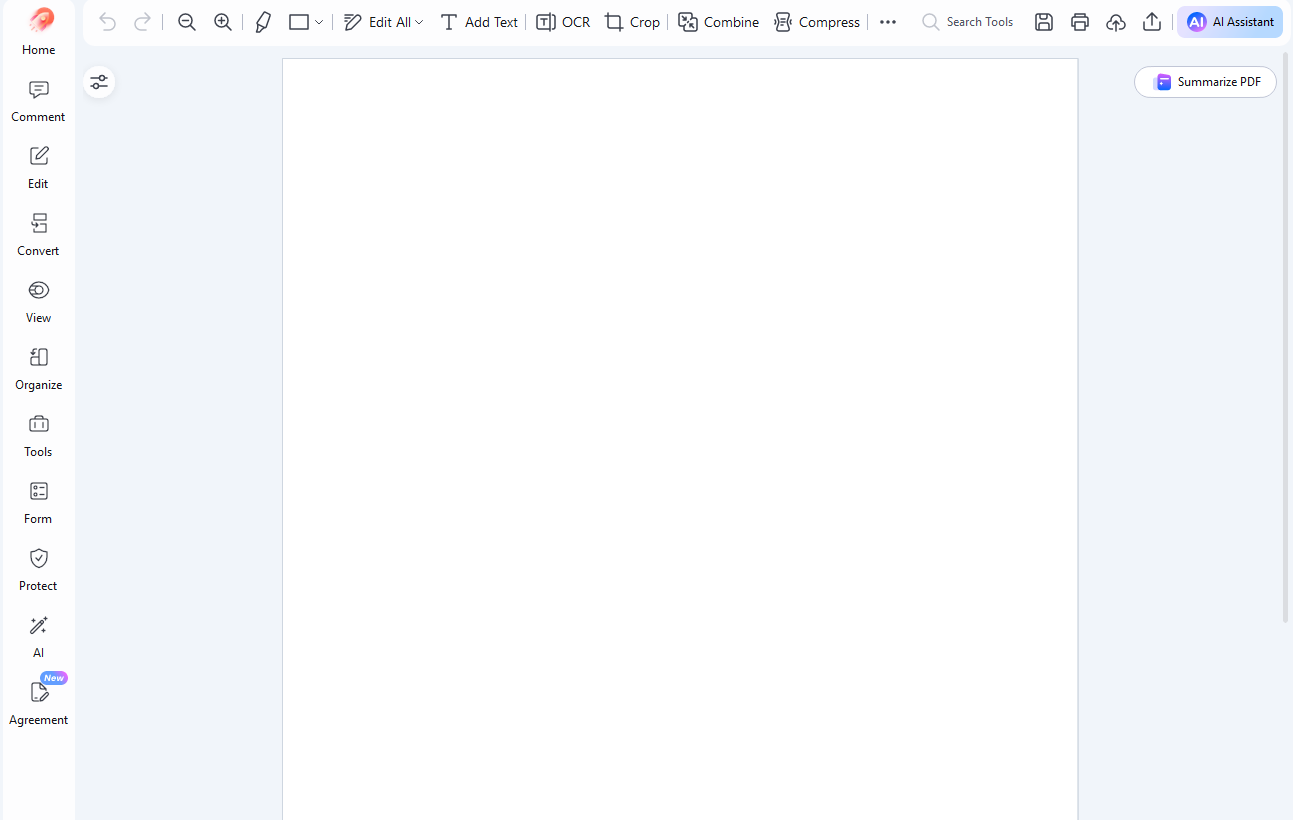
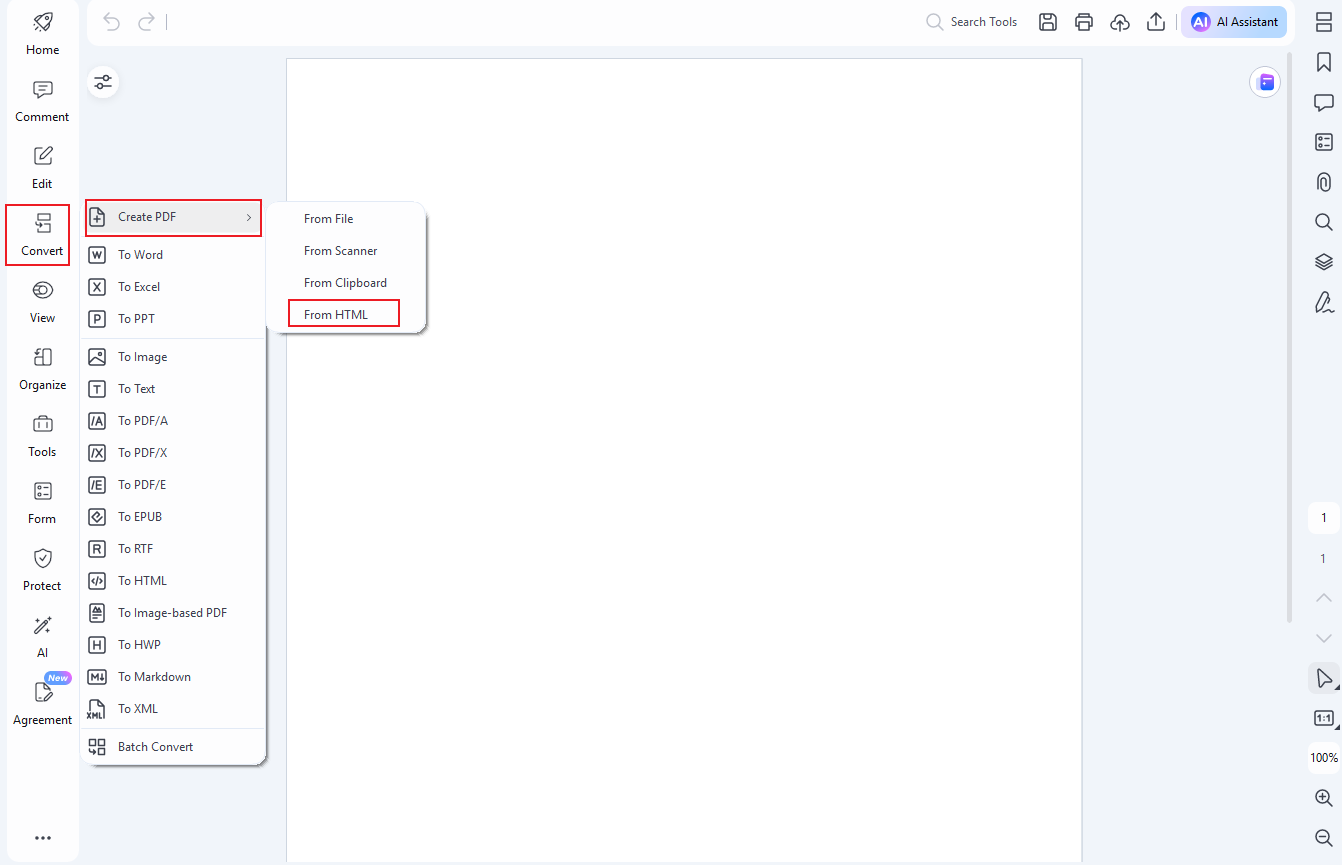
Step 2 An empty PDF file will open. Click "Convert" > "CreatePDF" > "FromHTML."
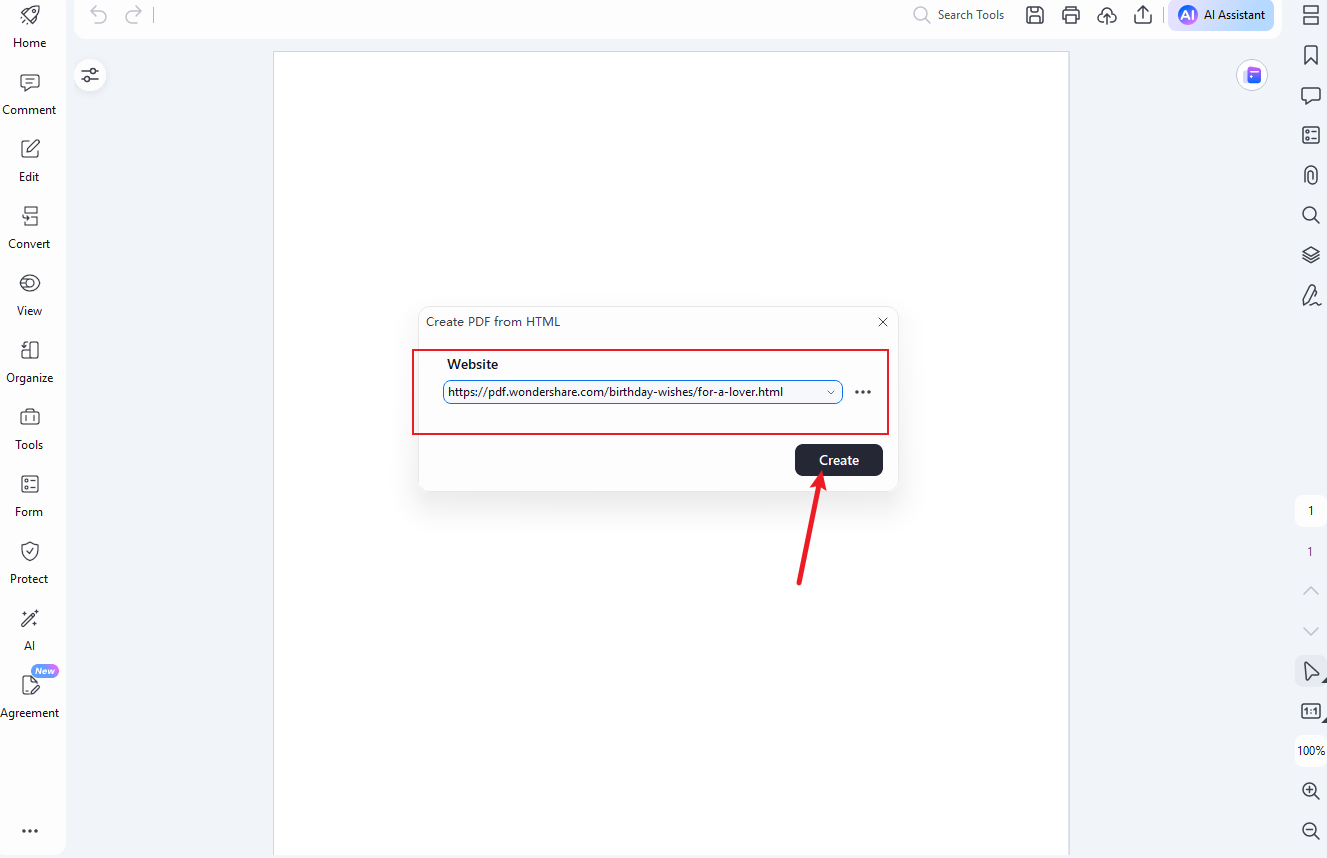
Step 3 Paste the link and click "Create."
Step 4 Click "save" button to save your converted PDF file.
Method 2: Save the Entire Webpage as PDF Using Webtopdf
Webtopdf is an efficient tool that enables hassle-free conversion of webpages to PDFs without any cut-offs or disruptions.
Here's how to save a webpage as a PDF using Webtopdf:
Step 1 Copy the URL of the desired HTML webpage you want to convert.
Step 2 Open Webtopdf, paste the URL into the text box and click "Options'' to adjust conversion settings.
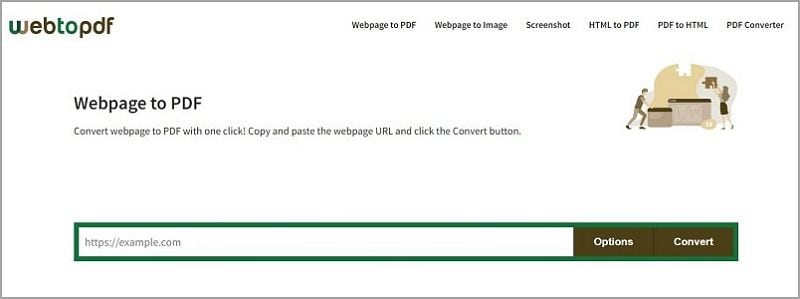
Step 3 Click "Convert" and wait a few seconds for the conversion to complete.
Step 4 Download the converted PDF file by clicking the download button.
With Webtopdf, preserving entire webpages as well-formatted PDFs becomes a straightforward task, ensuring that you retain the content's integrity and layout without encountering any cut-offs. This user-friendly tool proves invaluable for archiving web content, accessing online information offline, and conveniently sharing complete web pages with others. Say goodbye to truncated PDFs and embrace the seamless webpage-to-PDF conversion offered by Webtopdf.
Method 3: Save the Entire Webpage as PDF Using Web2PDF
Web2PDF is a powerful webpage-to-PDF converter, ensuring seamless preservation of webpages without cut-offs. Follow these steps to convert the webpage to PDF:
Step 1 Input the URL of the webpage you want to convert into a PDF.
Step 2 Press "Enter" to initiate the conversion process.
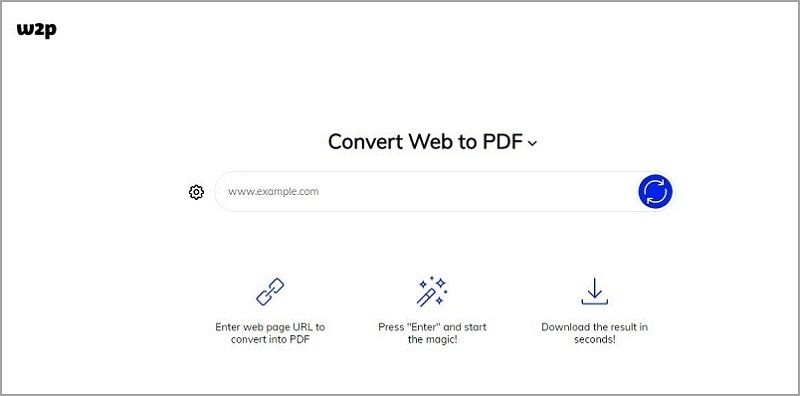
Step 3 Within seconds, download the PDF output.
Web2PDF efficiently transforms webpages into complete, well-formatted PDFs, enabling users to retain content and layout integrity. Alongside its user-friendly interface, additional features enhance the PDF conversion process, offering a hassle-free experience for archiving web content, sharing information, and accessing online data offline. Embrace the convenience of Web2PDF and bid farewell to truncated PDFs, for it's the ideal solution to save entire webpages accurately and efficiently.
Method 4: Save the Entire Webpage as PDF Using PDFShift
PDFShift offers a reliable PDF conversion solution, ensuring seamless preservation of webpage layouts without cut-offs.
Here's how to access and use PDFShift for saving webpages as PDFs:
Step 1 Access PDFShift via their website.
Step 2 Choose the desired subscription plan or avail yourself of the free trial for a limited number of conversions.
Step 3 Obtain the API key for authentication purposes.
Step 4 Send a POST request to PDFShift API with the desired webpage URL and your API key.
Step 5 PDFShift will process the request and convert the webpage to a PDF.
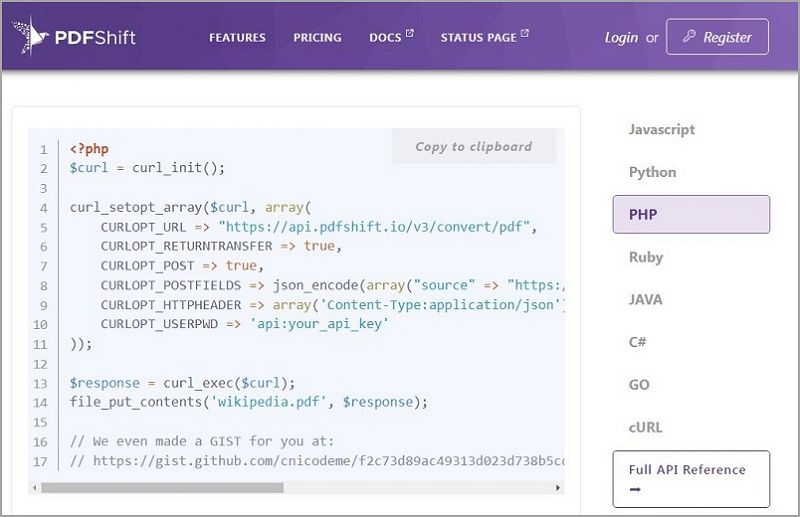
Step 6 Download the converted PDF from the API response.
With PDFShift, preserving entire webpages as accurately formatted PDFs becomes effortless. The cloud-based service guarantees consistent layout preservation, making it ideal for archiving web content, generating digital documents, and accessing online information offline. Embrace the power of PDFShift to convert webpages to PDFs seamlessly, enhancing your document management and content preservation capabilities.
Method 5: Save the Entire Webpage as PDF Using NovaPDF
NovaPDF is a versatile tool known for converting webpages to PDFs without interruptions. Here's the step-by-step guide on utilizing NovaPDF for saving webpages as PDFs:
Step 1 Launch NovaPDF on your computer.
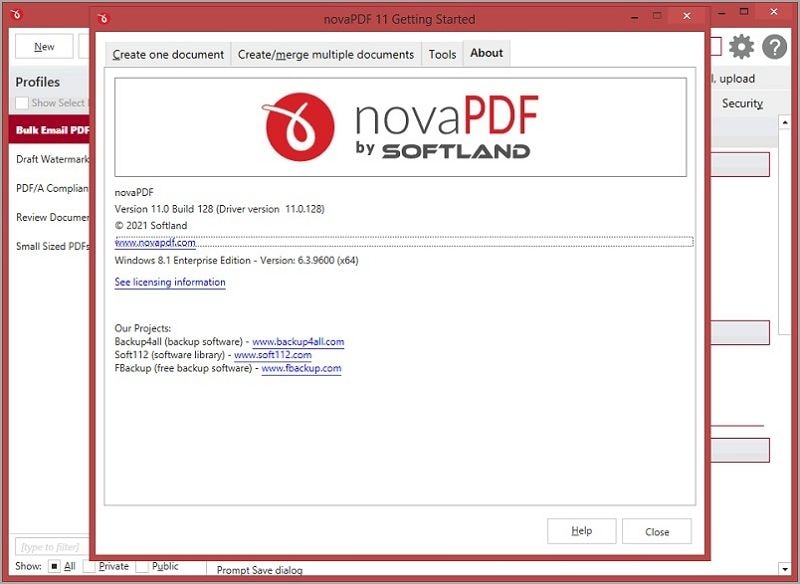
Step 2 Open the desired webpage in a web browser.
Step 3 Click "Print" and select "NovaPDF" as the printer.
Step 4 Adjust settings like paper size and orientation if needed.
Step 5 Click "OK" to start the conversion process.
Step 6 NovaPDF will convert the webpage into a PDF, ensuring a complete and uninterrupted output.
NovaPDF empowers users to save entire webpages as professional-grade PDFs effortlessly, guaranteeing an uninterrupted conversion process. Its diverse settings and features enable users to tailor PDF outputs to meet specific requirements, making it a reliable choice for archiving, sharing, and accessing web content offline. Experience the seamless webpage-to-PDF conversion with NovaPDF, simplifying your document management needs.
Final Thoughts
This article explored various methods to seamlessly save entire webpages as PDFs, ensuring content integrity and eliminating cut-offs. PDFelement, Web2PDF, PDFShift, and NovaPDF were highlighted as powerful tools with user-friendly interfaces, enabling accurate conversions. By applying these techniques, readers can effortlessly preserve web content, optimize document management, and access valuable information offline.
Emphasizing the importance of maintaining webpage integrity in PDFs, these methods empower users to retain the original layout, ensuring a seamless reading experience. Embrace these efficient solutions to capture web content precisely, unlocking the potential of complete webpage preservation in well-formatted PDFs.