

Table of Contents
If you searched for remove watermark from PDF online iLovePDF, the short answer is this: iLovePDF is useful for adding a watermark to a PDF, but it is not a true PDF watermark remover. You can use its Watermark tool to place text or images over PDF pages, adjust transparency, rotate the mark, and choose page ranges. But if your goal is to delete an existing watermark from a PDF, iLovePDF does not currently provide a dedicated “remove watermark” function.
That difference matters. Adding a watermark is usually a simple overlay task. Removing one depends on how the watermark was created. Some watermarks are editable PDF objects. Others are flattened into the page background, embedded inside scanned images, or locked behind document permissions. A browser tool may work for simple cases, but it may fail when the watermark is part of the page content itself.
This guide explains what the iLovePDF watermark tool can actually do, why “remove watermark from PDF iLovePDF” searches often lead to the wrong tool, and which alternatives are more practical. It also covers a safer offline workflow with PDFelement for users who need more control over PDF editing, page cleanup, OCR, and document management.


 G2 Rating: 4.5/5 |
 100% Secure
Can You Remove Watermark from PDF Online with iLovePDF?
iLovePDF is a popular online PDF platform for everyday tasks: merging, splitting, compressing, converting, rotating, and adding watermarks. It is convenient because you can open the site, upload a file, apply a quick change, and download the result without installing desktop software.
For watermark removal, though, iLovePDF is not the right tool. Its Watermark feature is designed to add watermarks, not remove existing ones. If a PDF already contains a “Draft,” “Confidential,” company logo, trial software mark, or page background stamp, iLovePDF does not offer a direct button to detect and delete it.
That means searches like pdf watermark remover online iLovePDF, remove watermark from PDF iLovePDF, and i love PDF watermark remover usually need a more precise answer: use iLovePDF if you want to add a watermark; use another PDF editor if you need to remove or edit one.
What the iLovePDF Watermark Tool Does
The iLovePDF Watermark tool lets you place either text or an image on selected PDF pages. You can choose the watermark position, transparency, rotation, layer placement, and page range. For example, you can add “CONFIDENTIAL” diagonally across every page, place a company logo in the corner, or apply a light background label to only the first few pages.
It is useful for quick branding, internal document control, and marking a file as a draft. It can also process multiple files depending on your account and usage limits, which makes it handy for simple batch watermarking.
What it does not do is analyze a PDF and remove existing watermark objects. If the watermark was added by another tool, iLovePDF will not automatically find it and delete it.
Why Removing a Watermark Is More Complicated
A PDF watermark can be stored in different ways. If it is a separate editable object, a PDF editor may be able to select and remove it cleanly. If it is part of the page content, removing it may require object editing, redrawing the background, or using OCR and reconstruction. If it is on a scanned PDF, the watermark may simply be pixels inside an image.
There is also a permissions issue. Some watermarks are intentionally added to protect ownership, licensing, or confidentiality. Removing a watermark from a file you do not own or do not have permission to edit can violate copyright, license terms, or workplace policy. Adobe’s overview of PDF security and permissions is a useful reference if you need to understand why some PDFs restrict editing.
So, before looking for a one-click remover, first check whether the document is yours to edit and what kind of watermark you are dealing with.
Before You Remove a PDF Watermark: Check These Things First
A PDF watermark is not always a decorative layer. It may be a legal notice, a confidentiality marker, a trial software stamp, or a sign that the file was generated by an unpaid service. Removing it without permission can create problems. For legitimate cases—such as cleaning up your own draft, removing an outdated internal label, or editing a document template your company owns—a PDF editor can save a lot of time.
Start with three quick checks.
First, confirm that you have the right to edit the document. If it is your own file, a company file you are authorized to update, or a template you created, watermark removal is usually part of normal document maintenance. If the watermark marks someone else’s ownership, leave it in place unless you have permission.
Second, identify the watermark type. Open the PDF in an editor and try selecting the watermark. If it behaves like a separate object, removal is likely straightforward. If it cannot be selected and looks blended into the page, it may be flattened. If the entire page is one scanned image, you may need OCR or image cleanup rather than a simple watermark command.
Third, consider privacy. Online tools require you to upload your PDF to a web service. That may be fine for a public brochure or a non-sensitive draft. It is less suitable for contracts, HR files, financial reports, legal documents, unreleased product materials, or PDFs containing personal information. If you are handling sensitive data, a desktop tool is usually the safer workflow because the file stays on your device.
G2 Rating: 4.5/5 |100% Secure
Best Way to Remove a PDF Watermark Offline with PDFelement
For users who came here hoping to remove watermark from PDF online iLovePDF, the practical alternative is often to use a desktop PDF editor instead of another browser tool. Wondershare PDFelement is a strong option when the watermark is part of a document you are authorized to edit and you need more control than a basic online utility provides.
The reason is simple: watermark removal often sits inside a larger PDF cleanup workflow. You may need to remove a watermark, edit text, repair page layout, run OCR on scanned pages, compress the finished PDF, add a signature, or reorganize pages before sharing the document. PDFelement brings those tasks into one workspace, so you are not uploading the same file to several different websites.
How to Remove a Watermark from a PDF in PDFelement
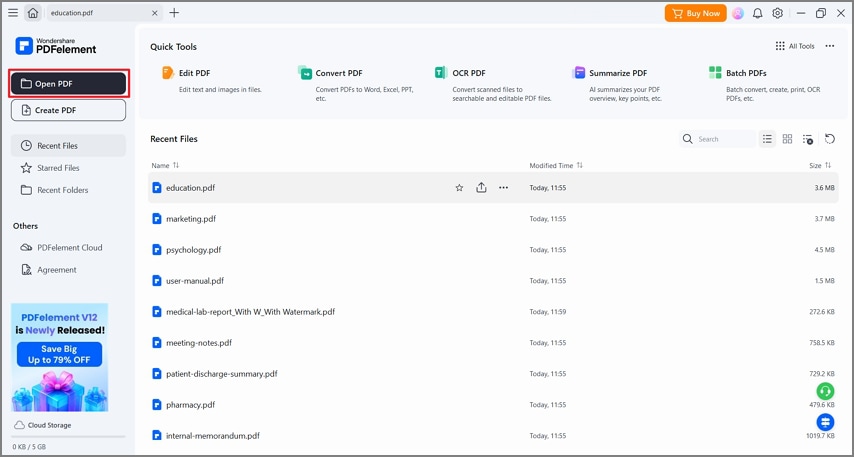
Open PDFelement on your computer, then choose the PDF that contains the watermark. If you work with private documents, this offline step is already a major advantage over a browser-based workflow.
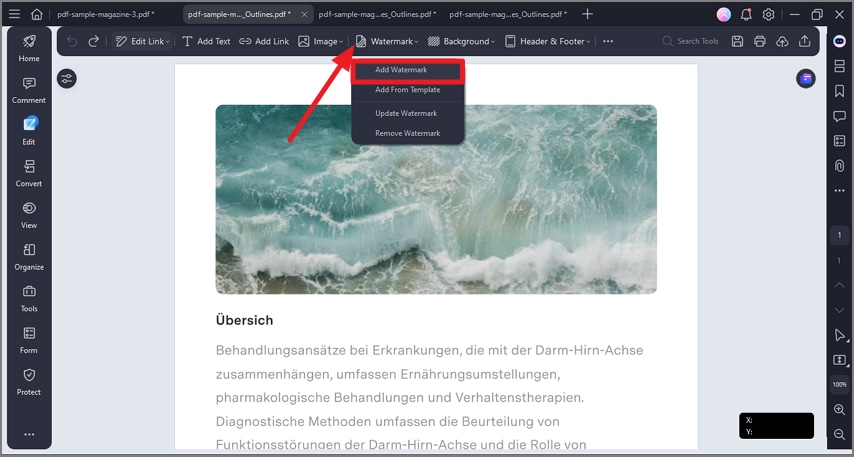
Once the file is open, go to the editing tools and look for the Watermark option. In PDFelement, watermark controls are grouped with PDF editing features, so you can manage existing watermarks or add new ones from the same area. Choose the option to remove or delete the watermark, then confirm the change when prompted.
After the watermark is removed, review several pages rather than only the first page. Some PDFs use different watermark layers on different page ranges. Others have separate marks on cover pages, appendices, or inserted files. If the watermark disappears from some pages but not others, it may not have been applied consistently.
Finally, save the edited PDF. If you are updating a business document, it is smart to save a new version instead of overwriting the original immediately. For example, use a filename such as proposal-clean-final.pdf while keeping the original watermarked draft for reference.
What If the Watermark Is Flattened or Scanned?
A standard watermark removal command works best when the watermark exists as a separate PDF object. If the mark is flattened into the page or part of a scanned image, no editor can always remove it perfectly with one click.
In that case, PDFelement can still help with the broader repair process. You can use OCR to make scanned text editable, crop or replace pages, edit objects where possible, or recreate clean sections of the document. For heavily flattened watermarks, the most reliable approach may be to return to the original source file—such as Word, PowerPoint, Excel, or an unwatermarked PDF export—and generate a clean PDF again.
This is where a desktop editor is more useful than a narrow online remover. Even if the watermark cannot be deleted as a neat layer, you still have tools for rebuilding the document into a usable final file.
G2 Rating: 4.5/5 |100% Secure
Add or Replace a Watermark After Editing
Sometimes the goal is not simply to remove a watermark, but to replace an old one. A document might have “Draft” on every page, but now needs “Approved.” Or a company may need to swap an old logo watermark for a new brand mark.
PDFelement supports adding text, image, or PDF-based watermarks. You can set page range, opacity, position, and scale, then apply the new mark across the document.
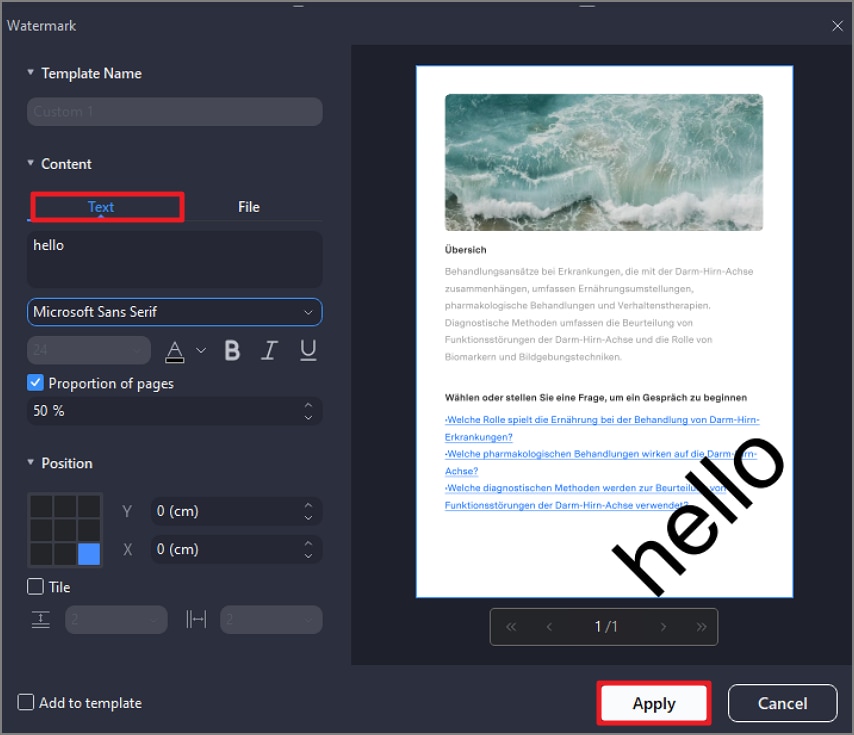
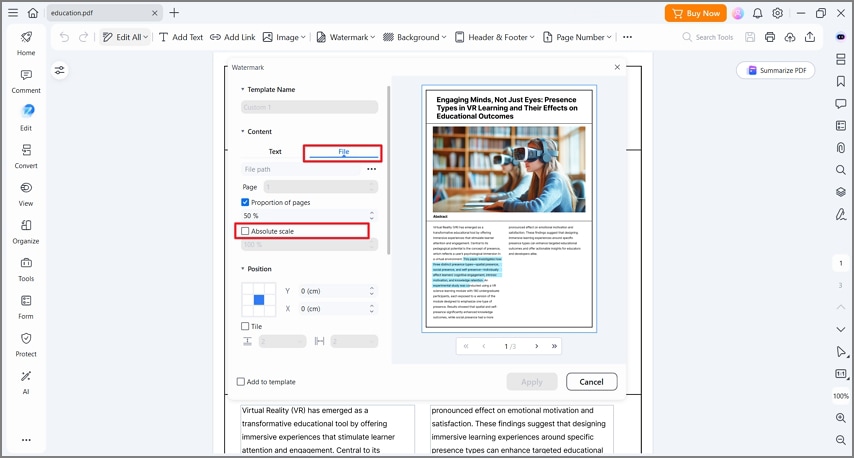
This is useful for teams that need a consistent document workflow: remove an outdated watermark, make final edits, apply the correct approval mark, then compress or sign the file before distribution.
PDF Watermark Remover Online iLovePDF Alternatives
If your PDF is not sensitive and the watermark is simple, an online tool may still be enough. Just remember that “online” does not automatically mean “better” or “free forever.” Many sites have file-size limits, daily task limits, paid-account requirements, or restrictions on what types of watermarks they can remove.
A good online watermark remover should explain what it can remove, how long uploaded files are stored, whether the tool works on scanned PDFs, and whether there are size limits. If a tool claims to remove every watermark from every PDF instantly, be skeptical.
Right PDF Watermark Remover
Right PDF offers an online watermark removal workflow that is designed for quick tasks. It may be suitable for smaller files where the watermark is recognized as removable PDF content. The main limitation is file size; free usage may not work well for larger documents.
Use this type of tool for a simple, low-risk file, such as a short internal draft or a sample document. Avoid it for confidential contracts or reports unless you have reviewed the service’s privacy terms and your organization allows uploading such documents.
pdfFiller
pdfFiller is a broader online PDF editing and form platform rather than only a watermark tool. It may be useful if you need to edit, fill, sign, or manage documents in a browser. For watermark-related tasks, access may depend on the account plan and available features.
This kind of platform makes sense if your work already involves online form filling or document routing. If you only need to remove one watermark from one PDF, a full document management service may feel heavier than necessary.
TinyWow
TinyWow provides many lightweight online PDF utilities, including tools for common editing and conversion tasks. It is often used for quick one-off jobs because the interface is simple and does not require a complicated setup.
For watermark removal, results can vary depending on how the watermark was added. A text watermark that sits as a removable layer is very different from a logo embedded into a scanned image. Try it on a copy of the file, then inspect the output carefully.
Online Tool Comparison
| Tool | Best For | Watermark Removal Support | Key Limitation |
|---|---|---|---|
| iLovePDF | Adding text or image watermarks online | No dedicated watermark remover | Cannot remove existing watermarks |
| Right PDF | Small files with simple removable watermarks | Yes, depending on file and plan limits | File-size restrictions may apply |
| pdfFiller | Online editing, forms, signing, and document workflows | May support watermark editing/removal features | Often requires an account or paid plan |
| TinyWow | Quick browser-based PDF tasks | May help with simple watermark cases | May not remove embedded logos or scanned marks |
| PDFelement | Desktop PDF editing, watermark removal, OCR, cleanup, and final file management | Yes, for editable watermark objects | Requires installing desktop software |
The biggest takeaway: iLovePDF belongs in the “add watermark” category, not the “remove watermark” category. If your query is pdf watermark remover online iLovePDF, you will probably need either another online tool or a desktop PDF editor.
G2 Rating: 4.5/5 |100% Secure
When Online Watermark Removers May Fail
Online removers tend to struggle with three cases. The first is a scanned PDF, where every page is essentially an image. The second is a flattened watermark that has been merged with the page background. The third is a locked or permission-restricted PDF.
You may also see quality problems after removal. Some tools leave blurred patches, broken text, missing background areas, or changed page formatting. That is why you should always compare the edited PDF against the original before sending it to clients, coworkers, or customers.
For general PDF standards and structure, the PDF Association is a useful non-commercial reference. PDF files can contain layers, images, fonts, annotations, forms, metadata, and security settings, which is why a single watermark removal method does not work equally well for every document.
How to Add an iLovePDF Watermark Online
Although iLovePDF cannot remove a watermark, it is still a practical tool if you want to add one. If your actual task is to place a label, logo, or stamp on a PDF, the iLovePDF watermark workflow is straightforward.
Open the iLovePDF website and choose the Watermark tool. Upload your PDF by selecting the file from your device or from supported cloud storage options if available. Once the file is loaded, choose whether you want a text watermark or an image watermark.
For a text watermark, type the words you want to display, such as “Draft,” “Confidential,” “Internal Use Only,” or a project name. Then adjust the font, size, color, transparency, and placement. For an image watermark, upload the image file, usually a logo or brand mark, and position it on the page.
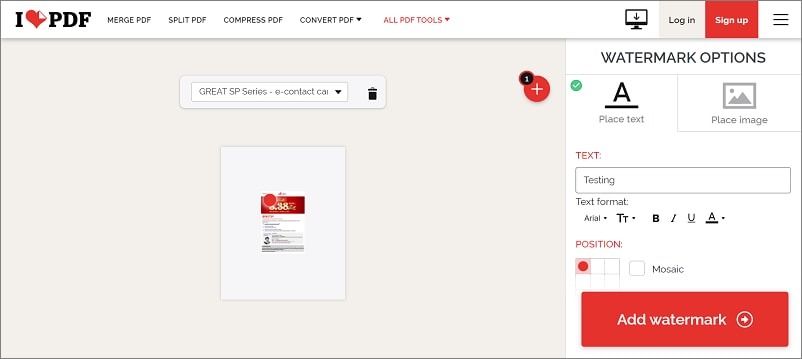
The position grid lets you place the watermark in a corner, along an edge, or in the center. You can also use a repeated pattern if you want the watermark to cover more of the page. Be careful with opacity here. A watermark that is too dark makes the PDF hard to read; one that is too light may not serve its purpose.
Next, choose the page range. You may want the watermark on every page, only the first page, or a selected range. iLovePDF also lets you adjust rotation and decide whether the watermark appears above or below the PDF content.
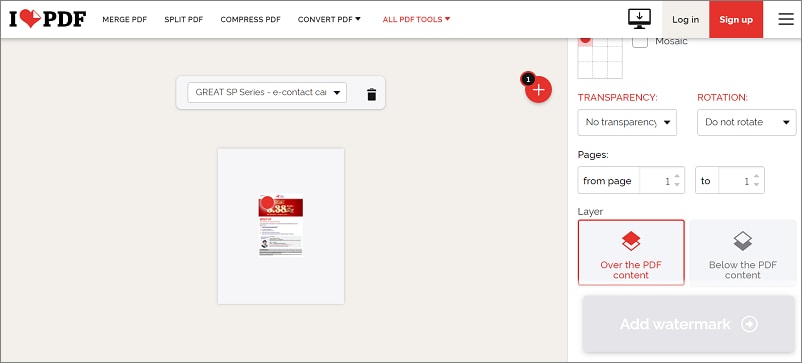
After confirming your settings, apply the watermark and download the finished PDF. Before sharing it, open the file and check several pages. Pay special attention to pages with charts, signatures, tables, or dark backgrounds, because the watermark may interfere with readability.
When iLovePDF Is Still the Right Choice
iLovePDF is a good fit when your goal is simple watermarking and the document is safe to upload. It works well for drafts, classroom materials, public-facing brochures, internal notices, and other files where browser-based processing is acceptable.
It is less suitable when you need to remove an existing watermark, edit the PDF in detail, work offline, process sensitive files, or repair scanned documents. In those cases, PDFelement or another full PDF editor is usually the more practical route.
Online vs Offline: Which Watermark Workflow Should You Choose?
The online vs offline decision comes down to document sensitivity, watermark complexity, and how often you work with PDFs. A one-page non-sensitive PDF is very different from a 200-page client contract.
Choose an online tool if the file is small, not confidential, and you only need a quick one-off result. Browser tools are convenient because there is no installation step. They are also useful if you are working from a device where you cannot install software.
Choose an offline editor if the file contains private information, if you need repeat PDF editing work, or if the watermark removal is only one part of a larger cleanup job. Offline software is also better when internet access is unstable or when company policy restricts uploading documents to third-party sites.
A practical workflow often looks like this: use iLovePDF for quick watermark adding, use a dedicated online remover only for simple and non-sensitive removal tasks, and use PDFelement when the PDF needs careful editing, OCR, signing, compression, or page organization after watermark removal.
Here are a few common scenarios:
For a public event flyer that needs a “Draft” mark, iLovePDF is quick and enough.
For a company report with an outdated watermark, PDFelement is safer because the file stays local.
For a scanned PDF with a visible background mark, try OCR or return to the original source file rather than relying on a one-click remover.
For a file watermarked by a trial tool or third-party service, remove it only if you have the right license or ownership.
The best tool is the one that matches the actual PDF, not just the search phrase. “Remove watermark from PDF online iLovePDF” sounds like a single task, but in practice it can mean several different workflows.
People Also Ask
-
Can iLovePDF remove a watermark from a PDF?
No. iLovePDF has a Watermark tool for adding text or image watermarks to PDFs, but it does not provide a dedicated feature to remove existing watermarks. If you need to delete a watermark, use a PDF editor or an online watermark remover that specifically supports removal. -
Why do people search for “remove watermark from PDF online iLovePDF” if iLovePDF cannot do it?
Because iLovePDF is well known for PDF tools, and its Watermark feature can be confusing at first glance. Many users assume a watermark tool handles both adding and removing watermarks. In iLovePDF’s case, it is mainly for adding watermarks. -
What is the best iLovePDF alternative for removing a PDF watermark?
For authorized document editing, PDFelement is a practical desktop alternative because it includes watermark controls along with PDF editing, OCR, page organization, compression, signing, and other cleanup tools. For simple non-sensitive files, online tools such as Right PDF, pdfFiller, or TinyWow may be worth trying. -
Can online PDF watermark removers remove every watermark?
No. Online tools may work on simple removable watermark layers, but they can fail on flattened watermarks, scanned PDFs, image-based marks, or protected files. Always inspect the output before using it professionally. -
Is it legal to remove a watermark from a PDF?
It depends on ownership and permission. Removing a watermark from your own file or an authorized company document is usually part of normal editing. Removing a copyright notice, licensing mark, or ownership label from someone else’s document may violate legal or contractual rights. -
How can I tell if a PDF watermark is removable?
Open the PDF in a proper PDF editor and try selecting the watermark or using the watermark management tool. If it is a separate object or watermark layer, it may be removable. If it is embedded into a scanned image or flattened page background, removal is much harder. -
Can I remove a watermark from a scanned PDF?
Sometimes, but it is not a standard watermark removal task. A scanned PDF is usually image-based, so the watermark may be part of the image. OCR can help make text editable, but removing the visual mark cleanly may require image editing, page reconstruction, or access to the original unwatermarked document. -
Can I use iLovePDF to add a watermark after removing an old one elsewhere?
Yes. You can remove or edit the old watermark using another tool, then upload the cleaned PDF to iLovePDF to add a new text or image watermark. Just make sure the file is not sensitive before uploading it to an online service. -
Should I use an online or offline PDF watermark remover?
Use an online tool for simple, low-risk files. Use an offline editor such as PDFelement for confidential documents, larger files, repeated PDF work, or cases where you also need OCR, editing, signing, compression, or page management.




