

PDFelement-Powerful and Simple PDF Editor
Get started with the easiest way to manage PDFs with PDFelement!
Ever tried to copy the PDF table into Excel only to discover to your horror that it looks nothing like the original? The problem is that copying a table from PDF to Excel requires specialized tools that will help retain formatting aspects such as alignment, character attributes, etc. Not all methods or tools can handle this action properly, which is why you need specific software or workaround methods to get this done right. This article shows you how to accurately import a PDF table into Excel, which means retaining the exact format of the source document. This will be very handy for users who regularly get stuck with how to copy a table from PDF to Excel.
First, let's begin with the problem itself.
Part 1. Copying Table from PDF to Excel May Lose Its Formatting
If you have an editable PDF, it will allow you to copy content (such as a table or a paragraph of text) by simply selecting it and hitting Ctrl+C. You can then paste it into an Excel spreadsheet with Ctrl+V. However, you will definitely notice that the formatting isn't the same. Your table values might be correct but the alignment and other attributes will be off, including the fonts from the PDF.
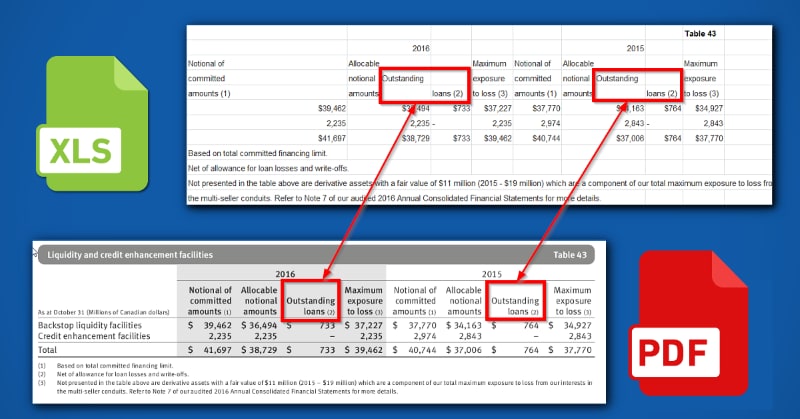
To avoid this issue, let's look at a couple of solutions that are available.
Part 2. How to Copy Table from PDF to Excel with Microsoft Word
One of the easy ways to copy tables from PDF into Excel is to use Microsoft Word to first convert the PDF to Word. After that, copying the table becomes easy. However, please note that this method is not entirely foolproof because of the PDF to Word conversion process in Word, which isn't always 100% accurate when it comes to tables and tabular content.
Step 1 Open the PDF with Microsoft Word
The first step is to open your PDF file in MS Word.
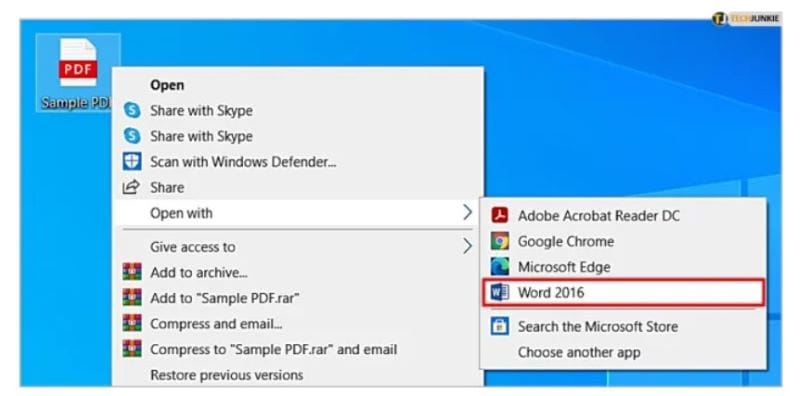
Right-click the PDF, select Open With… and then choose Microsoft Word. This might take a little time depending on the size of your file and the complexity of the content. Once you see the newly created Word file, move to the next step.
Step 2 Find and Copy Your Table
Find the table you want and select it in Word. You may already see that the formatting has changed; if so, you can try and adjust table alignment using the Word toolbar.
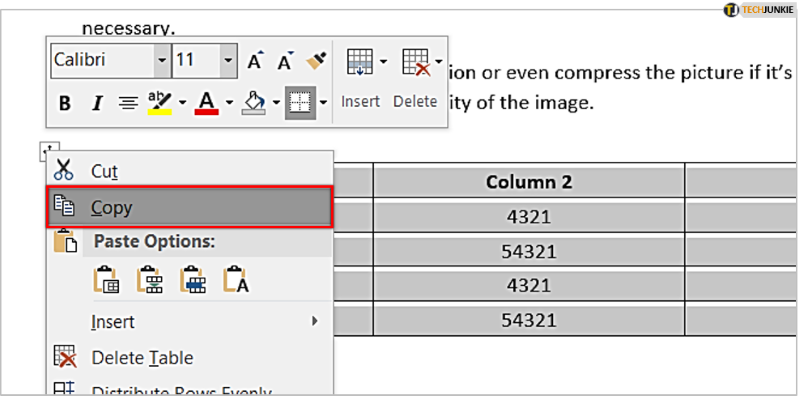
Now select the entire table and copy it using the Edit menu or the icon near the top-left corner of the table or with Ctrl+C
Step 3 Paste Table into Excel
Open your Excel spreadsheet. Choose a cell for pasting. Paste the table with Ctrl+V
If the accuracy isn't what you expected, please move ahead and try the next two methods, both of which are 100% guaranteed to preserve the integrity of content when you copy a table from PDF into Excel.
Part 3. How to Copy Table from PDF to Excel with PDF Converter - PDFelement
Wondershare PDFelement - PDF Editor Wondershare PDFelement Wondershare PDFelement can be used for copying table in PDF to Excel. The best part is that there are a couple of ways to do this, and both methods will ensure that all table data including the formatting will be maintained exactly as in the original PDF file. Let's look at the first method, which uses the powerful conversion engine of PDFelement to convert PDF to Excel while maintaining all original attributes of the content.


 G2 Rating: 4.5/5 |
 100% Secure
Step 1 Launch PDFelement and Open PDF
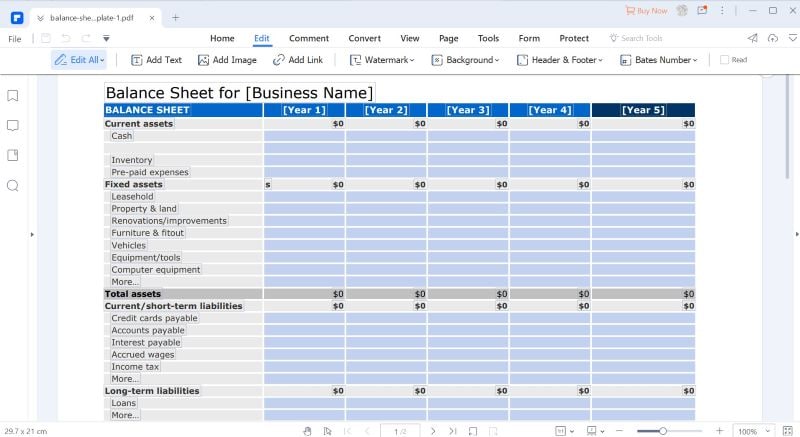
Open PDFelement, and then open a PDF file using the File Open button or a simple drag and drop action.
Step 2 Convert PDF to Excel
Click the Convert tab at the top.
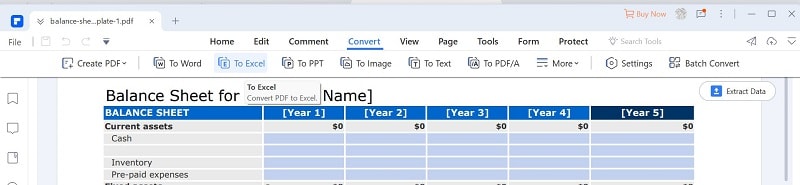
Next, click 'To Excel', which you'll see in the toolbar below the main tab header.
Step 3 Save the Excell
The file will be converted to Excel. When prompted, choose a target folder for the output Excel file. When you open the file, your table will be intact and formatted exactly as in the PDF.
Next, let's look at a way to directly modify a table in PDF, without having to copy the table from PDF to Excel or even converting the entire file.
Part 4. How to Edit Table in PDF to Excel with PDFelement
If you have a PDF document containing tables and you need to change some of the tabulated content, there's actually no need to transfer it to Excel. You can edit PDF tables directly in PDFelement. Let's see how to do this.
G2 Rating: 4.5/5 |100% Secure
Step 1 Open the PDF
As shown before, open a PDF file containing one or more tables. Navigate to the page that contains your table.
Step 2 Go to Edit Mode
Next, select Edit mode by clicking the tab at the top. PDFelement is now in Edit mode.
Step 3 Edit Table and Save File
Double-click into any cell in the table.
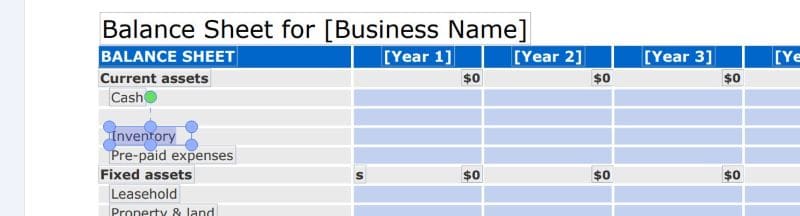
Edit the content using your keyboard.
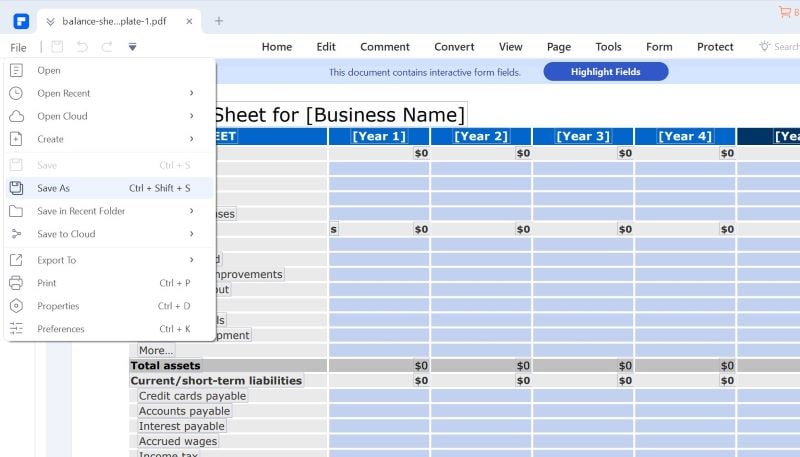
Save the file using the File → Save As option.
Parting Words
PDFelement is very versatile, as you can see. Not only can you convert PDF table to Excel and directly edit PDF tables but also copy tables from PDF into Excel and extract table data to spreadsheet formats. The convenience factor is extremely high, and the software is highly user-friendly as well as affordable, making it the preferred solution to import table from PDF to Excel and other actions. In addition, you can edit files, convert them into a range of formats, create forms, perform OCR, process in bulk, apply e-signatures, and much more. Now that you have the right tools for how to copy table from PDF to Excel, you can easily boost your productivity with these tools and methods shown here.
Check out the link below if you want to make PDF editing easier for you forever by accessing one of the best PDF editors of all time.

