

Many students finish long PDFs without remembering the most important ideas they just finished reading. Textbooks, lecture slides, and research papers often contain too much information for quick revision later. An AI notes generator from a PDF converts long documents into clear, organized study notes automatically.
It identifies important ideas, keeps the main context, and presents information in an easier study format. This guide explains how the process works and why it improves learning beyond basic PDF summaries.


 G2 Rating: 4.5/5 |
 100% Secure
In this article
Part 1. What is an AI PDF to Notes Converter?
An AI PDF to notes converter reads a PDF and creates organized study notes from its content. Unlike basic PDF summarizers, it understands the document before generating study materials. Instead of copying important sentences, it rewrites information into clear and structured notes. This helps students review complex topics faster and remember important information more easily.
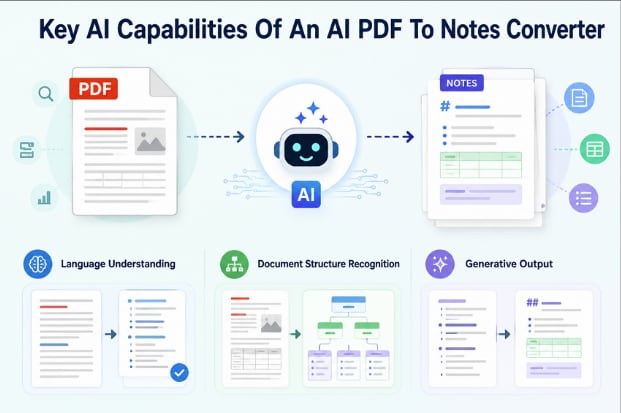
Key AI Capabilities
The following capabilities separate AI note generators from basic PDF extraction tools completely.
- Language Understanding: The system follows an argument across paragraphs rather than scoring isolated sentences.
- Document Structure Recognition: Identifies headings, tables, lists, and sections for clear, organized study notes.
- Generative Output: Notes are written fresh rather than assembled from sentences lifted from the source.
Part 2. How AI PDF to Notes Conversion Works
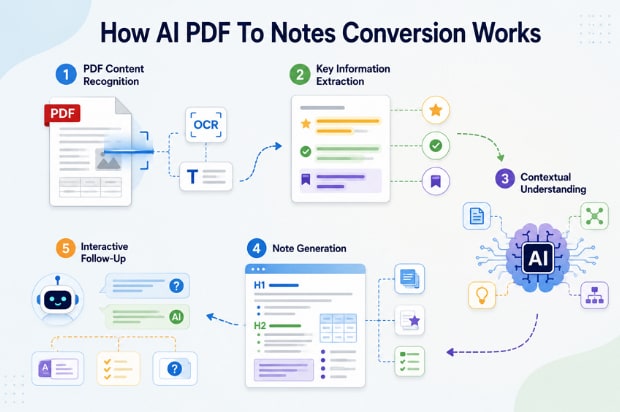
These capabilities work together to create clear and organized study notes from PDF documents. Every PDF to study notes process follows 5 simple stages for accurate results.
- PDF Content Recognition: Reads every page before creating study notes from the document. Scanned PDFs use OCR to convert images into readable text first. NIST found that lower image quality significantly reduces OCR accuracy.
- Key Information Extraction: Finds important headings, facts, definitions, and key ideas throughout the document. Unnecessary details stay out, keeping study notes clear and focused.
- Contextual Understanding: Understands how different ideas connect across the document instead of separate sentences. Original meaning stays clear when creating organized study notes.
- Note Generation: Turns important information into structured notes for easier studying and revision later. The same content becomes flashcards, quizzes, and mind maps.
- Interactive Follow-Up: Allows additional questions after the first study notes are generated successfully. Simpler explanations, extra notes, and quizzes are created whenever needed.
Part 3. Why an AI PDF to Notes Converter Beats Manual Note-Taking
Manual note-taking takes longer as PDF documents become larger and more detailed every time. An AI notes generator from PDF creates organized study notes faster with less manual work. Now, let's explore the biggest advantages of using AI for creating study notes.
Save Time on Long PDFs and Textbooks
Reading long textbooks and writing notes by hand takes considerable time. AI creates organized study notes quickly, leaving more time for revision.
Understand Difficult Concepts Faster
Complex topics and technical terms often make studying more difficult. Clear explanations help readers understand important ideas without repeated reading. The Learning Scientists recommend elaboration and retrieval practice to improve understanding instead of simply rereading material.
Turn Passive Reading into Active Learning
Reading alone does not always improve understanding or memory. SAGE Journals reports that practice testing and distributed practice are among the most effective learning techniques for improving student learning. Quizzes, flashcards, and mind maps encourage active learning and better knowledge retention.
Review Anywhere, Anytime
Digital study notes remain available across different devices whenever revision becomes necessary. PDF-to-study-notes also supports flashcards, mind maps, and other study formats from the same document.
Part 4. How to Convert PDF to Notes with AI Using PDFelement
When creating study notes, PDFelement keeps the original PDF and generated notes together automatically. Its AI Sidebar summarizes complete documents or selected passages for easier understanding. Selected sections become easier to understand without losing important details from the surrounding content. It creates structured notes, knowledge cards, mind maps, podcasts, and detailed reports.
Custom prompts adjust the depth and focus of every generated result for different study needs. Built-in OCR converts scanned PDF pages into readable text before AI processes every page correctly. Follow the steps below to use the AI PDF to notes features in PDFelement:
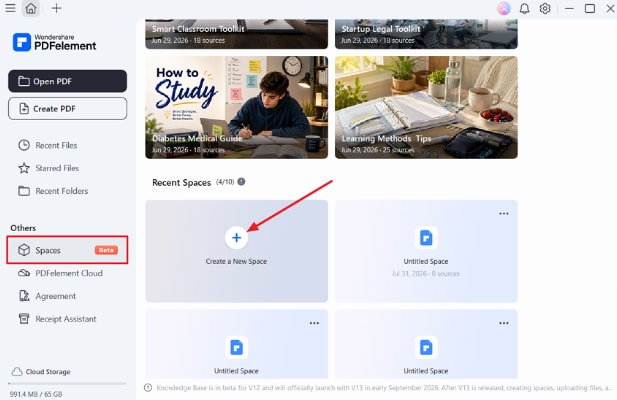
Step 1. Create a New Space in PDFelement
Once you open PDFelement, press the “Spaces” option in the left side panel and choose “Create a New Space.”
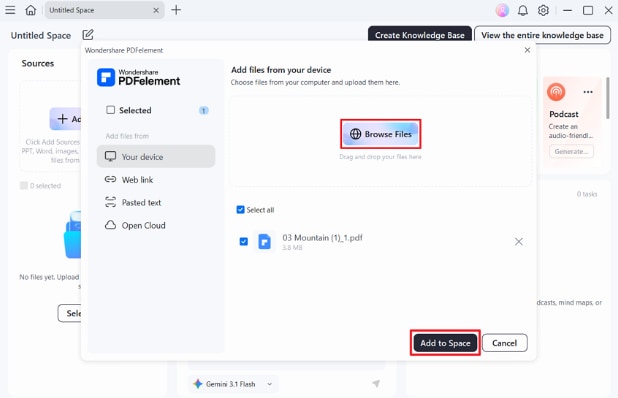
Step 2. Add Your PDF to Space
Afterward, press the “Browse Files” option and choose the PDF file you want to add. Next, press the “Add to Space” button.
Step 3. Chat with The PDF
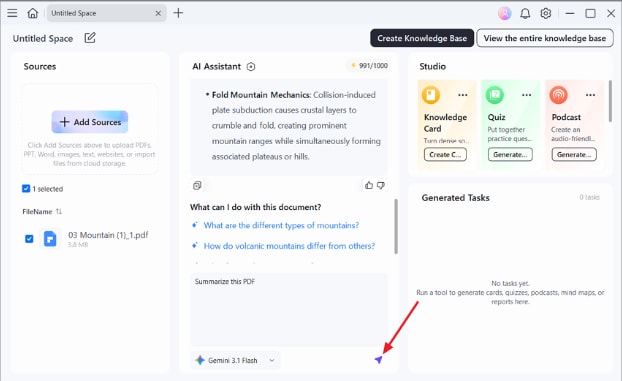
Next, type your questions about the PDF or ask AI to summarize the PDF in the chat section. Press “Send” to get a comprehensive AI assistant response.
Step 4. Generate a Report
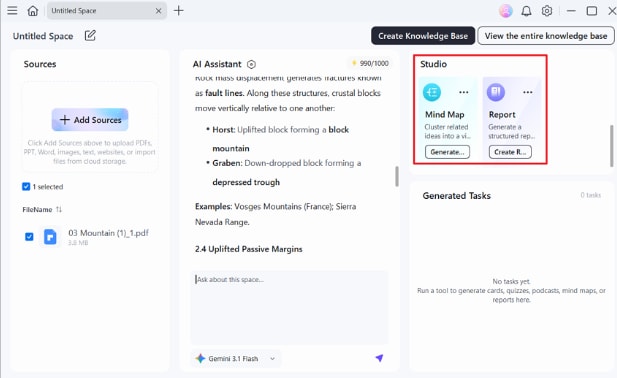
Consequently, in the “Studio” section, select “Report” or “Mind Map” and press “Create Report” to convert AI response to study material. You can also create “Knowledge Cards,” “Quiz,” or “Podcasts” within this section to improvise your studying style.
Step 5. Review the Generated Report
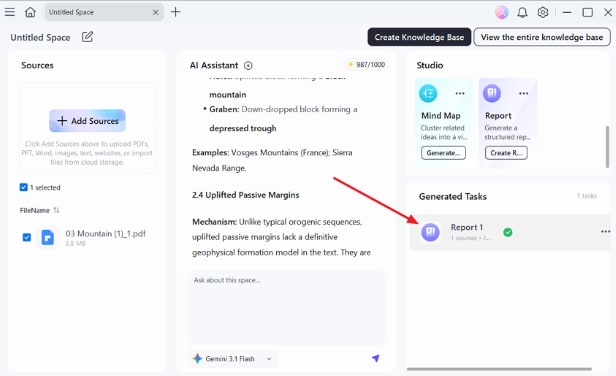
In the “Generated Tasks” section, you’ll see the study materials. Simply press the output to open and read it.
G2 Rating: 4.5/5 |100% Secure
Part 5. AI PDF Notes Generator vs Traditional PDF Summarizer
Many readers compare AI PDF to notes with basic PDF summarizers without understanding the differences. The table below explains the biggest differences between both tools:
| Comparison Point | Traditional PDF Summarizer | AI PDF Notes Generator |
| Core Purpose | Makes the document shorter | Restructures the document for studying |
| What it Returns | A block of continuous prose | Cards, quizzes, mind maps, reports, audio |
| Detail Retained | The main argument, with examples dropped | Definitions, examples, and figures kept separate |
| Your Role | Reading passively | Recalling, testing, and connecting ideas |
| Follow-up Questions | Not supported; the output is fixed | Chat refines the notes after the first pass |
| Best Used For | A quick overview before a class | Exam preparation and long-term retention |
Frequently Asked Questions
Can AI read scanned PDFs?
Scanned PDF pages are images, so AI cannot read them without OCR first. PDFelement changes scanned pages into readable text before creating study notes correctly.
Is an AI PDF to notes converter accurate?
AI usually keeps the main ideas and document structure clear in generated notes. Always check important dates, numbers, and quotes with the original PDF before trusting them.
Can I ask questions about my PDF?
Yes, chat features let you query the document directly, and answers draw on its contents rather than general knowledge. Naming a section makes the response more precise.
What is the best format for AI-generated study notes?
Flashcards help remember facts, while quizzes check learning through simple practice questions. Mind maps connect ideas, while podcasts make studying easier during daily travel or breaks.
Final Takeaway
Studying becomes easier when information is clear, organized, and simple to review later. An AI notes generator from PDF creates study materials that support faster learning and better revision. Different study formats help readers remember important ideas instead of reading the same pages repeatedly. PDFelement brings every feature together, making it an excellent choice for creating organized study notes.
G2 Rating: 4.5/5 |100% Secure




