

A PDF accessibility checker scans a PDF for barriers that may prevent people using screen readers, keyboards, magnifiers, or other assistive technologies from reading and navigating the document. Depending on the tool, it can flag missing PDF tags, incorrect reading order, missing alt text, unlabeled form fields, table structure problems, image-only pages, and other accessibility issues.
Quick answer: If you need to check whether a PDF meets accessibility requirements, use a dedicated checker such as Adobe Acrobat's Accessibility Checker or PAC PDF Accessibility Checker. If the report finds problems, you can use a PDF editor such as PDFelement to fix document structure, OCR scanned pages, edit tags and reading order, add alternative text, and improve navigation. Then run the accessibility checker again to verify the updated PDF.
In this article
Part 1. What Does Accessibility Mean for a PDF?

PDF accessibility means creating a document that people with disabilities can read, understand, and navigate with assistive technologies such as screen readers, magnifiers, voice recognition software, and keyboard controls.
A PDF may look perfectly normal on screen and still have accessibility problems. For example, a scanned document may contain no machine-readable text, headings may only be visually formatted instead of properly structured, or images may have no alternative text. A screen reader can also struggle when the document has missing tags or an incorrect reading order.
An accessible PDF typically combines readable text with a logical document structure. Important elements include PDF tags, headings, lists, descriptive alternative text, properly structured tables, labeled form fields, bookmarks, meaningful links, sufficient color contrast, and a logical reading order.
Accessibility requirements can also depend on where and how a document is used. PDF/UA is a PDF-specific accessibility standard, while WCAG provides broader accessibility requirements for digital content. In the United States, Section 508 applies to federal agencies and certain federally related digital content. Other accessibility obligations may apply depending on the organization, jurisdiction, and use case.
If you are preparing documents for accessibility requirements, an automated accessibility checker for PDF files is a useful starting point. However, automated testing should be combined with manual review because a checker cannot always determine whether alt text is meaningful, whether the reading order makes sense, or whether instructions are clear to a real user.
Part 2. How to Check PDF Accessibility
The best way to check PDF accessibility depends on what you need to do. Some tools focus on standards validation, while others are better suited to fixing the problems found during an audit.
| Tool | Best For | Accessibility Role |
|---|---|---|
| PDFelement | Editing and improving an existing PDF | Fix tags, reading order, alt text, scanned text, navigation, forms, and document content before rechecking the PDF |
| Adobe Acrobat Pro | Checking and remediating PDFs in one workflow | Runs an accessibility check and reports issues that may require correction or manual review |
| PAC PDF Accessibility Checker | Dedicated PDF/UA and WCAG validation | Runs automated accessibility and quality checks and provides a detailed validation report |
1. Improve PDF Accessibility with PDFelement
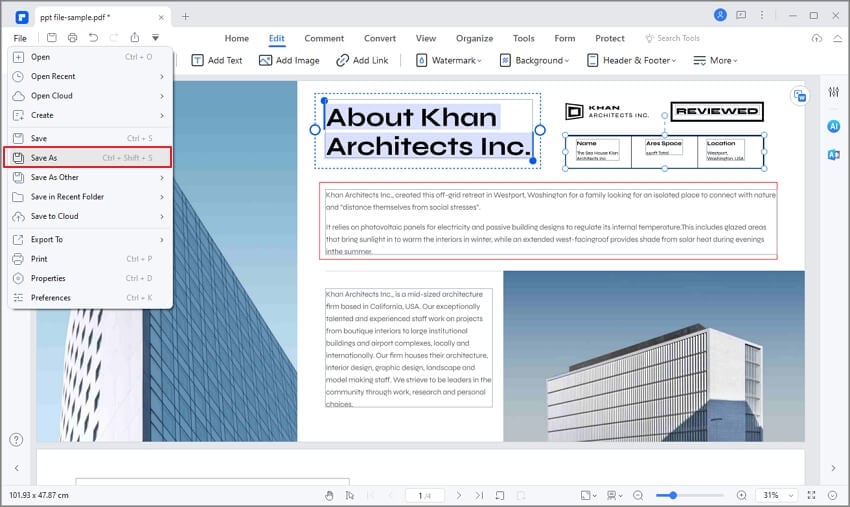
Wondershare PDFelement - PDF Editor Wondershare PDFelement Wondershare PDFelement provides PDF editing, OCR, tagging, navigation, and document editing tools that can help you correct accessibility issues found during a PDF audit.
Instead of treating an editor and an accessibility checker as the same tool, use them together: first identify potential problems, fix the document, and then validate the revised PDF.
Step 1 Open the PDF and Make the Text Searchable
Open the PDF in PDFelement. If the document was created from scanned pages or images, apply OCR first. OCR converts image-based text into machine-readable text, which is essential for search, text selection, and many screen-reader workflows.


 G2 Rating: 4.5/5 |
 100% Secure
Step 2 Review the PDF Structure
Check whether the document has a clear structure that assistive technologies can interpret. Review headings, tags, lists, bookmarks, links, and the logical reading sequence. If a screen reader follows the wrong order, reorganize the structure so the content is presented in a meaningful sequence.
Step 3 Fix Common Accessibility Problems
- Add Alternative Text: Add useful descriptions to informative images, charts, and graphics so screen-reader users can understand their purpose.
- Review PDF Tags: Make sure headings, paragraphs, lists, tables, and other structural elements are represented appropriately.
- Correct Reading Order: Check that headings, body text, captions, and other content are read in a logical sequence.
- Apply OCR to Scanned PDFs: Convert image-only text into searchable and selectable text.
- Improve Table Structure: Use clear headers and logical table organization so rows and columns are easier to understand.
- Label Form Fields: Give interactive fields meaningful labels and instructions.
- Add Navigation: Use descriptive links and bookmarks where they help users move through longer documents.
- Improve Readability: Use readable font sizes and sufficient contrast between text and its background.
Step 4 Run the Accessibility Checker Again
After editing the PDF, test the updated file with a dedicated PDF accessibility checker. Rechecking is important because fixing one issue can sometimes affect document structure elsewhere.
If you are working specifically with U.S. federal accessibility requirements, see our guide on how to make a PDF Section 508 compliant. You can also learn more about what makes a PDF accessible.
G2 Rating: 4.5/5 |100% Secure
2. Check PDF Accessibility with Adobe Acrobat Pro

Adobe Acrobat Pro includes a built-in PDF accessibility checker. It can scan a document, report potential accessibility failures, identify items that require manual review, and help you locate issues before remediation.
The exact interface can vary by Acrobat version, but the general process is:
Step 1 Open the Accessibility Tools
Open the PDF in Acrobat Pro and find the accessibility or “Prepare for accessibility” tools.
Step 2 Start the Accessibility Check
Select the option to check accessibility. Choose the pages and categories you want to test, then start the scan.
Step 3 Review the Accessibility Report
Acrobat organizes the results into items that pass, fail, or require manual checking. Review issues related to document structure, alternative text, tables, forms, navigation, and other accessibility requirements.
Step 4 Fix and Recheck the PDF
Correct the identified issues and run the checker again. Some items, such as whether alternative text accurately describes an image or whether the reading order is meaningful, still require human judgment.
3. Validate a PDF with PAC PDF Accessibility Checker

PAC, short for PDF Accessibility Checker, is a dedicated tool for validating accessible PDFs. PAC 2026 checks documents against PDF/UA requirements and WCAG accessibility criteria and also includes additional quality checks.
PAC is particularly useful when you want a detailed accessibility report after editing or remediating a document. It can help identify technical problems with PDF structure that may prevent a document from working correctly with assistive technologies.
A practical workflow is:
- Prepare or edit the PDF.
- Run the document through PAC.
- Review failed checks and warnings.
- Correct the relevant issues in your PDF editor.
- Run PAC again.
- Complete a manual accessibility review for items that automated tools cannot judge reliably.
Part 3. PDF Accessibility Checklist: What Should You Check?
A good PDF accessibility checker evaluates more than whether text is visible on the page. Use the following PDF accessibility checklist when reviewing a document.
1. Searchable, Machine-Readable Text
- Text should be selectable and readable by assistive technology.
- Image-only or scanned PDFs should use OCR.
- Important information should not exist only as an image of text.
2. PDF Tags and Document Structure
- Headings, paragraphs, lists, tables, and other elements should have a meaningful structure.
- Heading levels should follow a logical hierarchy.
- Decorative elements should not interrupt the reading experience.
3. Logical Reading Order
- Content should be read in the same logical sequence a sighted reader would follow.
- Multi-column layouts, sidebars, captions, and floating elements should not cause confusing reading order.
4. Alternative Text for Images
- Informative images should have meaningful alternative text.
- Charts and diagrams may need descriptions that communicate the information shown visually.
- Decorative graphics should not create unnecessary screen-reader output.
5. Accessible Tables
- Tables should have identifiable headers.
- Rows and columns should have a logical relationship.
- Avoid unnecessarily complex merged cells when a simpler structure can communicate the same information.
6. Accessible Forms
- Form fields should have clear labels.
- The tab order should be logical.
- Instructions, required fields, buttons, checkboxes, and error messages should be understandable without relying only on visual cues.
7. Document Language, Title, and Navigation
- Set the primary language of the document where possible.
- Use a meaningful document title.
- Add bookmarks to long documents when they improve navigation.
- Use descriptive link text instead of vague labels such as “click here.”
8. Color Contrast and Readability
- Use sufficient contrast between text and the background.
- Do not rely on color alone to communicate important information.
- Use readable fonts and avoid unnecessarily small text.
No automated checker can confirm every accessibility requirement. For example, software may detect that an image has alt text but cannot always decide whether that description is useful. Automated testing should therefore be followed by manual review and, where relevant, testing with assistive technology.
Part 4. How to Fix Common PDF Accessibility Issues
Once an accessibility checker identifies a problem, the next step is remediation. The fix depends on the type of issue found.
Scanned PDF Has No Readable Text
Run OCR to create a searchable text layer. After OCR, review the recognized text for errors, especially in headings, tables, numbers, and forms.
Missing or Incorrect PDF Tags
Add or correct structural tags so headings, paragraphs, lists, tables, and other content can be interpreted in context. Learn more about how tagged PDFs work in our guide to accessible PDFs.
Incorrect Reading Order
Review the document structure from beginning to end. Rearrange content when necessary so a screen reader follows headings, paragraphs, lists, captions, and related content in a logical order.
Images Have No Alternative Text
Add concise alt text that explains the purpose or information conveyed by each meaningful image. Avoid repeating nearby text or describing purely decorative elements unnecessarily.
Forms Are Difficult to Navigate
Add clear labels and instructions to form controls. Check keyboard navigation and make sure the tab order follows the expected sequence.
Poor Navigation in Long PDFs
Use meaningful headings, bookmarks, and descriptive links to make longer documents easier to navigate. This helps both screen-reader users and people who need to locate specific information quickly.
Accessibility Check Passes but the PDF Is Still Hard to Use
A technical pass does not always mean the document provides a good user experience. Test important PDFs manually, including reading order, link purpose, form instructions, image descriptions, and navigation. When possible, test the document with a screen reader. See our guide to screen readers for PDF documents for more details.
For information about PDFelement's own accessibility support, assistive-technology testing, and accessibility documentation, visit the PDFelement Accessibility page.
Conclusion
A PDF accessibility checker helps identify technical barriers that can make documents difficult to use with screen readers and other assistive technologies. Key checks include searchable text, PDF tags, reading order, alternative text, headings, tables, forms, navigation, document language, and readability.
For the most reliable workflow, use a dedicated checker such as PAC or Adobe Acrobat to identify issues, fix the document in a capable PDF editor, and then validate the revised PDF again. PDFelement can help with remediation tasks such as OCR, document editing, tagging, reading order, alternative text, forms, bookmarks, and other changes that improve PDF accessibility.
Accessibility is not only about receiving a pass from an automated tool. The final PDF should also be understandable and practical for real people using assistive technologies.




