

Mind mapping software required users to organize every idea before starting. Text2MindMap follows this approach, turning structured outlines into clear visual mind maps. Users type text, add indentation, and watch the mind map appear instantly. However, it cannot understand unstructured documents or organize lengthy content automatically itself.
AI tools now make text-to-mindmap creation easier for longer documents. This review covers Text2MindMap’s strengths, limitations, and a more capable AI alternative.


 G2 Rating: 4.5/5 |
 100% Secure
In this article
Part 1. Best Use Cases for a Mind Map From Text
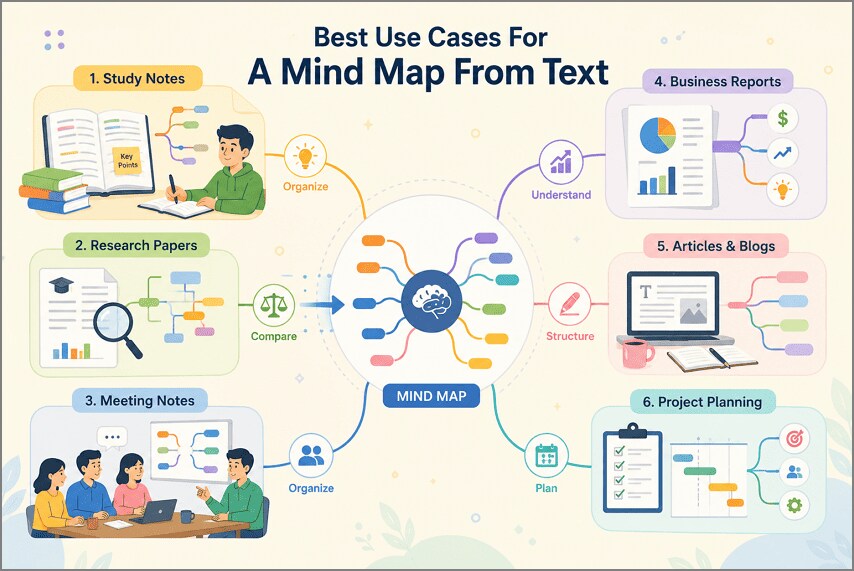
Different tasks can benefit when you create a mind map from text for clearer understanding. Now, let's explore six common situations where mind maps can make information easier visually:
- Study Notes: Organizing terms and definitions into branches makes studying easier and improves information recall. Cornell University notes that visually mapping relationships between ideas can support deeper learning and better retention.
- Research Papers: Mapping different research papers helps compare key findings, arguments, and supporting evidence easily.
- Meeting Notes: Separating decisions, responsibilities, and questions helps teams understand important meeting outcomes more clearly.
- Business Reports: Turning report details into branches makes important findings and connections much easier to understand.
- Articles and Blogs: Mapping ideas before writing helps spot content gaps and build a clearer structure.
- Project Planning: Organizing project steps visually makes the whole project easier to plan and manage.
Part 2. What Text2MindMap Is and How It Works
Text2MindMap is a simple browser-based tool that turns structured text into visual diagrams quickly. This text-to-mind-map generator works online without requiring any account or installation. Users can type or paste an outline, then organize ideas using simple indentation levels. The mind map updates instantly as users add, remove, or rearrange their written content.
Key Features of Text2MindMap
- Drag-and-Drop Branches: Users can move individual branches around the canvas to improve overall map layout.
- Node Color Controls: Individual nodes can receive different colors, helping separate topics and related information visually.
- Branch Repositioning: Users can rearrange existing nodes manually without rebuilding the complete mind map structure.
- Instant Structure Preview: Hierarchy changes appear immediately, helping users check branch relationships while adjusting their outline.
- Image Export: Completed mind maps can be saved as images for presentations, notes, or sharing.
How to Create a Mind Map with Text2MindMap
Creating a map requires a prepared outline because text-to-mindmap AI is unavailable. Now, follow the simple steps below to turn your prepared outline into branches:
Step 1. Enter Your Text
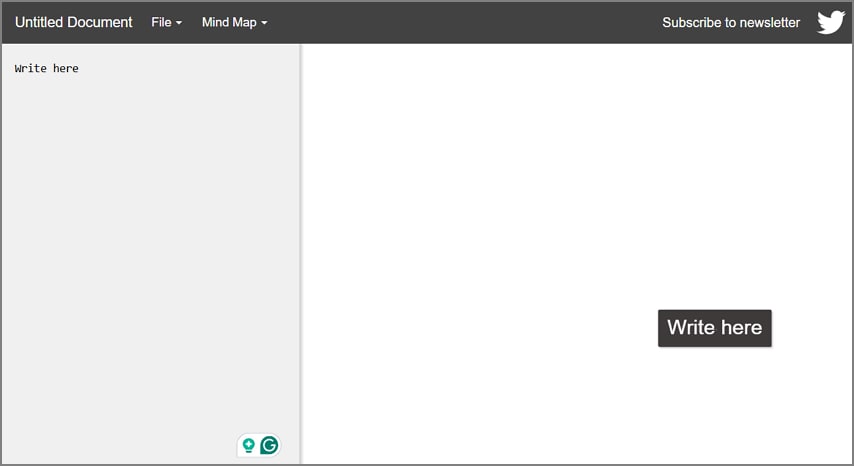
Once you open Text2MindMap in your browser, enter the content in the left panel. Write each idea in a separate line.
Step 2. Indent Related Ideas
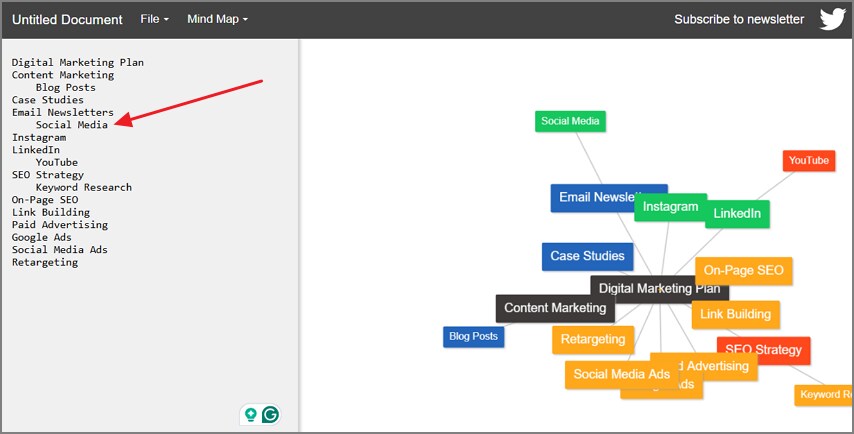
After you enter the text, place the cursor after a line and press the “Tab” key to indent that line.
Step 3. Adjust Map Preferences
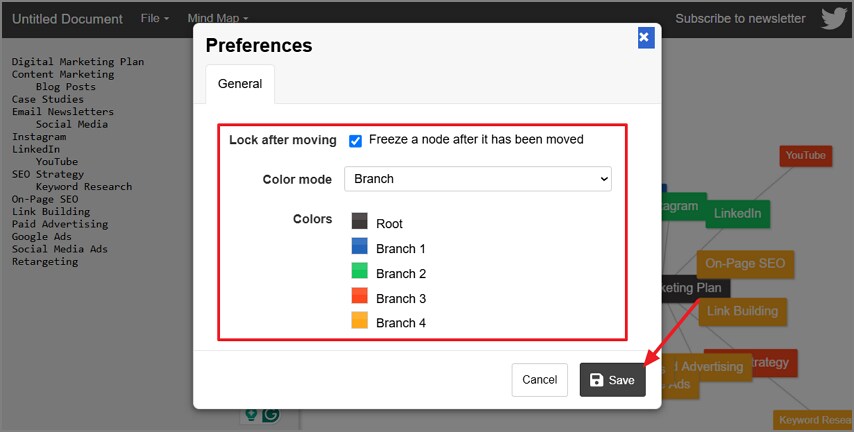
Next, choose the “Mind Map” option in the top bar and press “Preferences.” Afterward, choose a color for nodes and click “Save.”
Step 4. Save the Mind Map
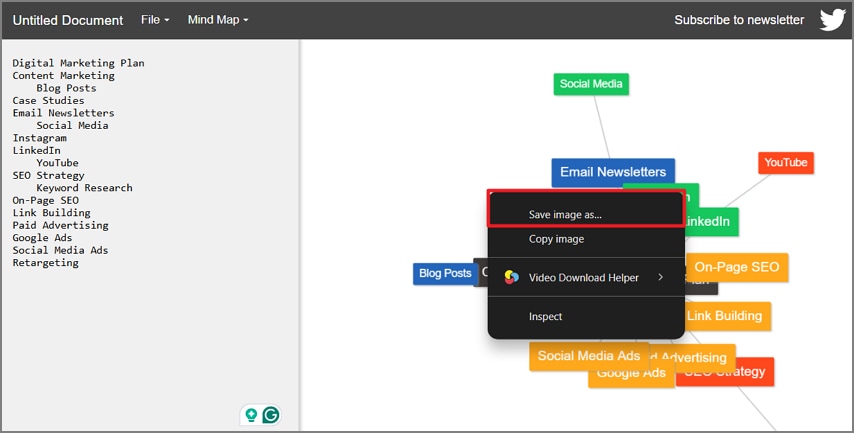
Save the mind map image to your PC via any image saving method.
Part 3. The Best Alternative: Wondershare PDFelement
Long documents often contain complex ideas that take significant time to organize into branches manually. PDFelement simplifies this process by providing powerful AI tools for understanding lengthy document content. Its AI Sidebar lets users analyze documents and identify important topics and supporting details.
The Sidebar can summarize lengthy content before organizing key information into a clearer visual structure. This text-to-mindmap AI approach reduces manual work when handling reports and detailed documents. PDFelement also supports broader PDF tasks, making mind mapping part of complete document management workflows.
Key Features
- Multiple File Support: Create mind maps from PDFs, Word documents, PowerPoint files, or text.
- AI Topic Extraction: Automatically finds main topics and supporting points from lengthy document content.
- Smart Content Analysis: AI understands relationships between ideas and organizes them into meaningful branches.
- Multiple AI Outputs: Turn the same document into mind maps, summaries, notes, and other formats.
How to Create a Mind Map with PDFelement
PDFelement automatically organizes document content into clear mind maps without manual structuring beforehand. To create your own organized mind map, use the simple steps below:
Step 1. Create a New Space in PDFelement
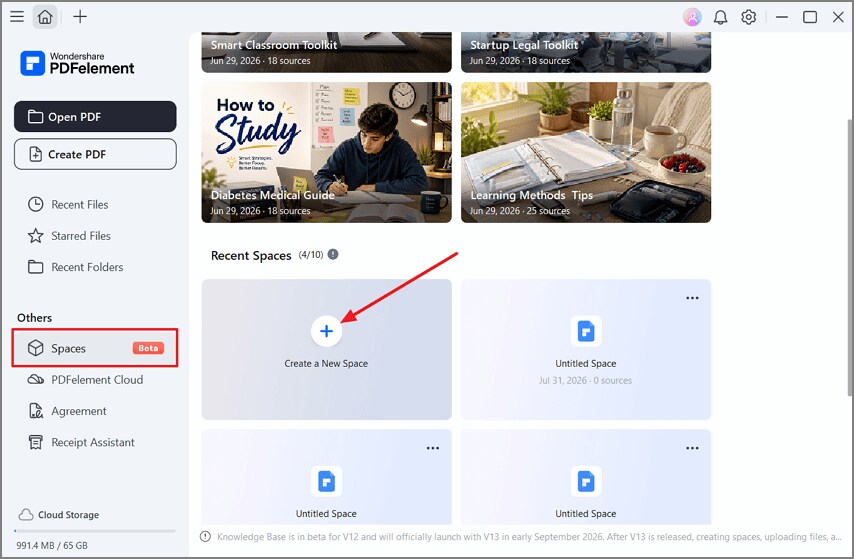
After you open PDFelement, press the “Spaces” option in the left side panel and choose “Create a New Space.”
Step 2. Add Your PDF to Space
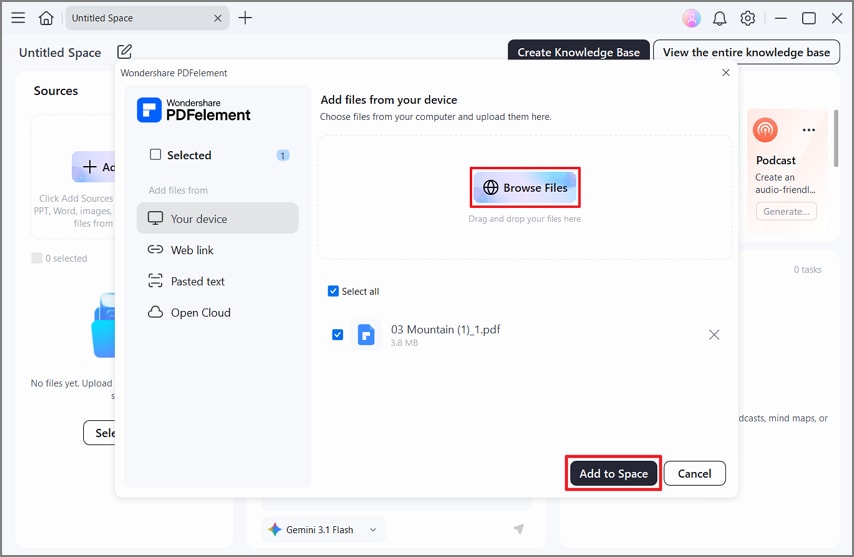
Next, press the “Browse Files” option and choose the PDF file you want to add. Or press "Pasted text"to paste your text directly.Following that, press the “Add to Space” button.
Step 3. Create a Mind Map
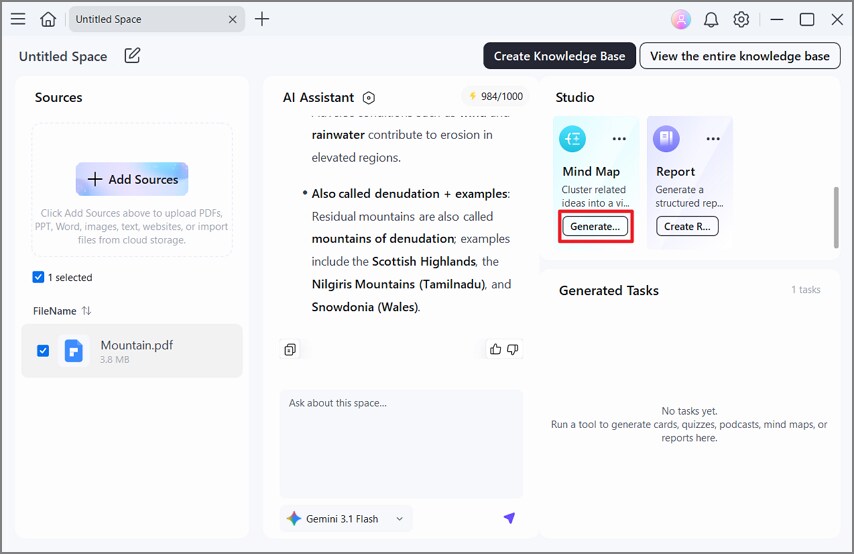
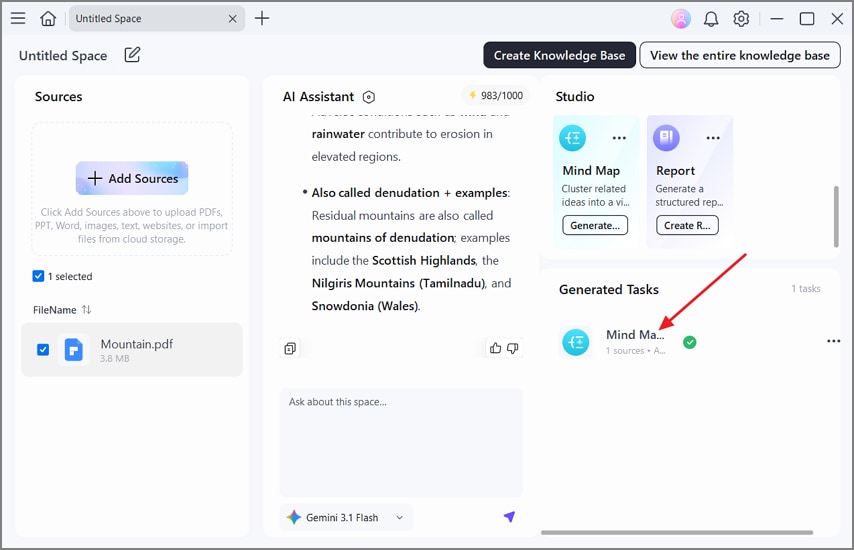
Afterward, chat with the PDF if you have any queries and press the “Generate” button under the “Mind Map” option in the “Studio” section.
Step 4. Review the Generated Mind Map
Lastly, in the “Generated Tasks” section, you’ll see the mind map. Choose the output to open and review it.
G2 Rating: 4.5/5 |100% Secure
Part 4. Text2MindMap vs. PDFelement
Text2MindMap and PDFelement use different approaches to create a mind map from text. The table below compares their main features, capabilities, limitations, and best uses side by side:
| Point of Comparison | Text2MindMap | PDFelement |
| Input Accepted | Typed or pasted text only | Text, PDF, Word, and PowerPoint files |
| Structuring | Manual, through tab indentation | Automatic, through AI extraction |
| Long Documents | Unusable past a short outline | Handled without preparation |
| Summarizing | Not available | Included alongside the map |
| Access | Browser, no installation | Desktop application |
| Cost | Free for basic use | Paid plan for full AI features |
Part 5. How to Create Better Mind Maps From Text
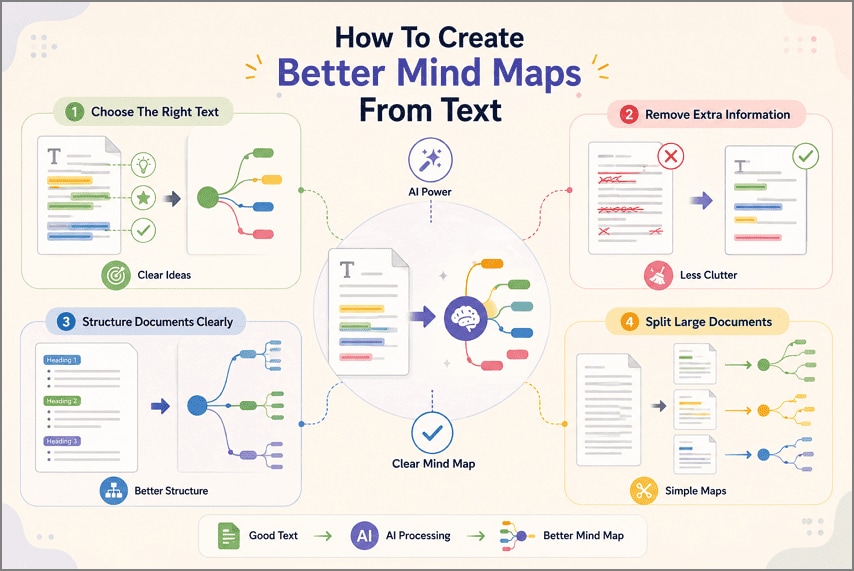
Better results from Text2MindMap depend on the content you provide before creating maps. Let's explore 4 simple ways to prepare your text for clearer mind map results:
Choose the Right Source Text
Content with connected ideas and clear arguments works best for visual mapping. Avoid glossaries or price lists because their information forms useful, connected branches.
Remove Unnecessary Information
Extra details can create unwanted branches and make your final map harder to follow. Delete repeated text, disclaimers, cover pages, and anything unrelated to your main topic.
Use Well-Structured Documents
Clear headings and lists help mapping tools understand relationships between your main ideas. Proper formatting also reduces mistakes when identifying topics, sections, and their supporting information. Research indexed by the National Library of Medicine describes concept mapping as useful for organizing ideas and identifying knowledge gaps.
Break Long Documents into Sections
Large files often create crowded maps with too many branches and deeper levels. Splitting them into smaller sections keeps each generated map clear and easier to understand.
Frequently Asked Questions
Is Text2MindMap free?
Text2MindMap offers free basic use without requiring users to create accounts. Paid plans may provide additional storage, export options, and other useful features.
Can Text2MindMap create a mind map from a PDF?
Text2MindMap cannot create mind maps from uploaded PDF documents. PDFelement can process PDFs and organize their content into mind maps.
Do AI mind map tools work with unstructured text?
AI mind map tools can identify important ideas within unstructured text. PDFelement analyzes content and organizes related information into clear branches.
Final Takeaway
Text2MindMap works well for short outlines when users already know their structure. However, longer and unstructured documents require more manual effort before creating useful mind maps. PDFelement makes text-to-mindmap creation easier by automatically finding and organizing important topics. Choosing clear source content also helps produce cleaner, simpler, and more useful mind maps.
G2 Rating: 4.5/5 |100% Secure




