

In this article
For most Windows users who need more than basic PDF viewing, the best PDF app is the one that matches the work you actually do. Wondershare PDFelement is a strong all-round choice for editing, OCR, batch processing, redaction, signing, and AI-assisted document work, while Adobe Acrobat Pro, Foxit PDF Editor, Nitro PDF Pro, and PDF-XChange Editor are better fits for specific enterprise, business, Office-oriented, or Windows power-user workflows.
Windows 11 and Windows 10 can open PDFs in Microsoft Edge, but a dedicated PDF application for PC is still useful when you need to edit existing text, OCR scanned pages, convert files, redact sensitive information, compare documents, or work with AI. This 2026 guide compares five established PDF apps for Windows by editing depth, OCR, security, AI workflows, Windows support, and practical fit so you can choose based on your real workflow rather than feature count alone.
Quick Comparison: Best PDF Apps for Windows in 2026
If you want the recommendation first, use this table to compare the best PDF applications for Windows by workflow, current Windows support, and the features that matter most in 2026:
| PDF Application | Best For | Key Features | Operating Systems |
|---|---|---|---|
| Wondershare PDFelement | Balanced editing + AI workflows | Edit, OCR, batch tools, Smart Redact, eSign, AI chat/summarize/translate | Windows 11/10/8/7 |
| Adobe Acrobat Pro | Advanced PDF + Adobe ecosystem | Edit, OCR, compare, redaction, eSign, AI Assistant, PDF Spaces | Windows 11/10 (64-bit) |
| Foxit PDF Editor | Business PDF workflows | Edit, OCR, forms, security, eSign, AI Assistant on subscription plans | Current Windows releases |
| Nitro PDF Pro | Microsoft-oriented teams | Edit, convert, OCR, redaction, signing, Office-oriented workflow | Windows 11/10 |
| PDF-XChange Editor | Windows power users | Editing, OCR, annotation, page tools, extensive desktop controls | Windows 10 and later |


 G2 Rating: 4.5/5 |
 100% Secure
The 5 Best PDF Apps for Windows 11 & 10 in 2026
The five apps below solve different Windows PDF problems. The best choice depends on whether you prioritize balanced everyday editing, enterprise document control, business licensing, Microsoft-style workflows, or deep Windows-specific customization.
1. Wondershare PDFelement - Best Balanced PDF App for Windows
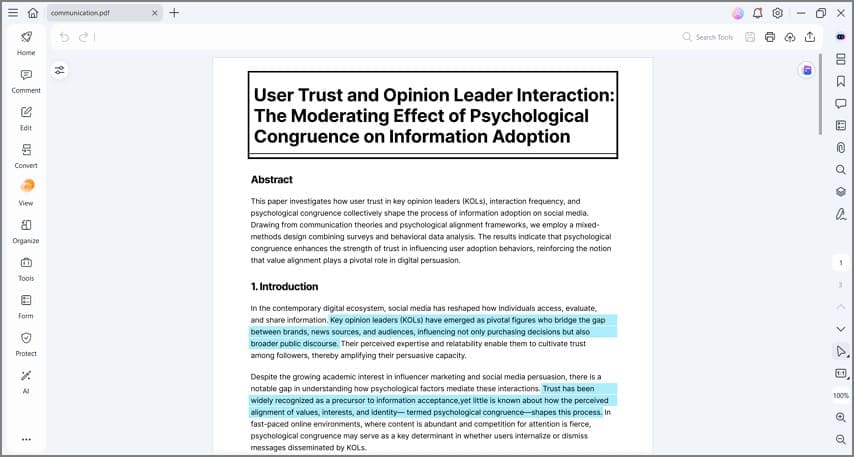
Wondershare PDFelement is the strongest all-round option here for Windows users who want traditional PDF editing and newer AI-assisted document workflows in one app. Its AI PDF tools sit alongside editing, conversion, forms, signing, OCR, page organization, batch processing, redaction, and document protection.
That combination matters when a PDF task starts with reading but does not end there. A scanned contract may need OCR before editing; a long report may need summarizing before review; several related documents may need to be compared or questioned together; and the finished file may still need redaction, signing, or conversion before it can be shared.
For AI-assisted work, PDFelement supports document chat, summarization, translation, rewriting, and multi-document analysis. V13 also expands the workflow around AI Knowledge Space so related files can be organized and understood together instead of being handled one at a time. These features are most useful for students, researchers, legal and finance professionals, and teams that regularly move between reading, extracting, editing, and protecting PDF content.
PDFelement also supports OCR and batch workflows for scanned or repetitive document tasks. Choose it if you want one PDF app for PC that covers everyday editing and document AI without making either workflow feel like a separate product.
G2 Rating: 4.5/5 |100% Secure
2. Adobe Acrobat Pro - Best for Advanced PDF and Adobe Workflows
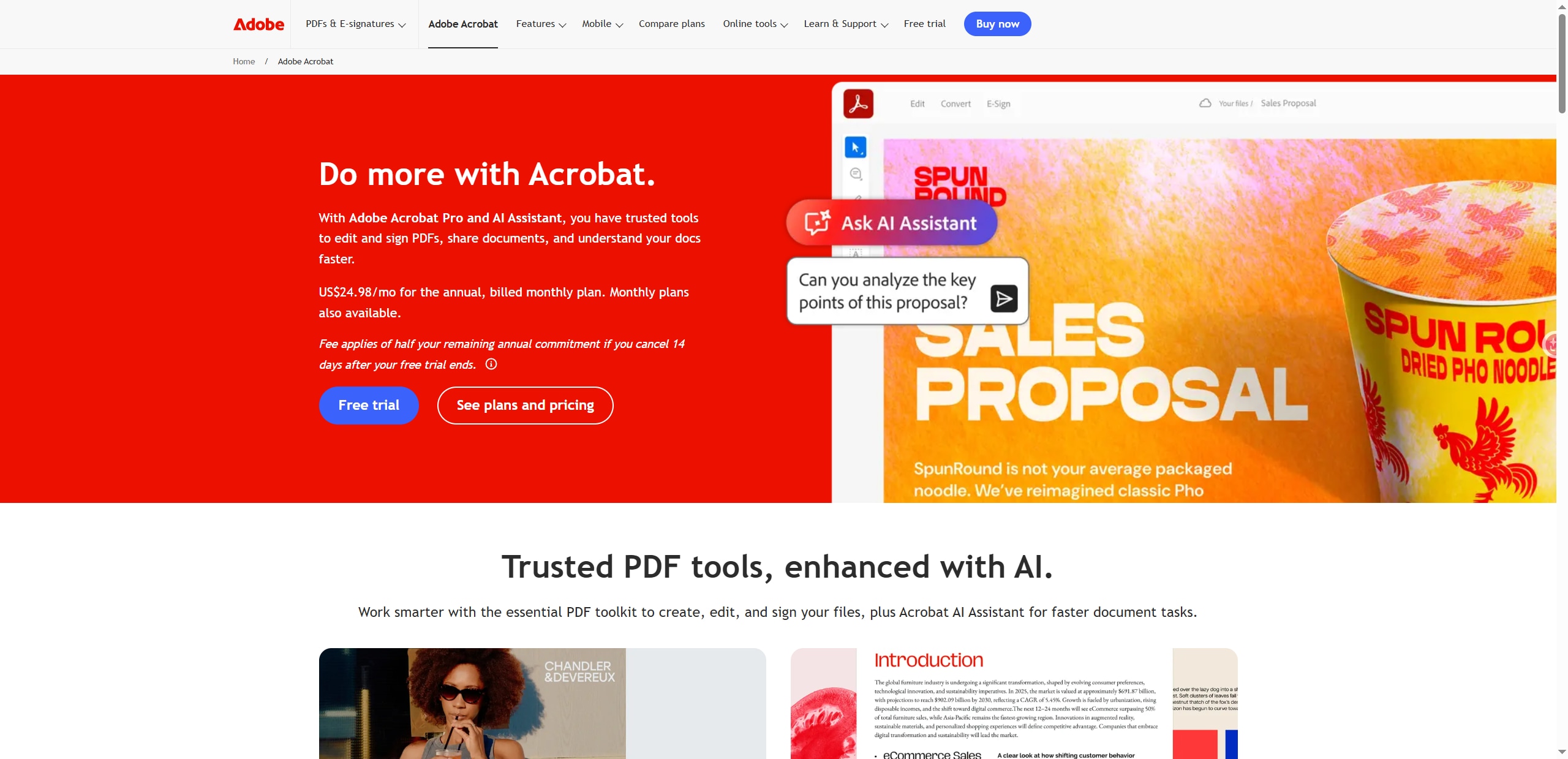
Adobe Acrobat Pro is the strongest fit for organizations already standardized on Adobe or users who need advanced PDF workflows such as OCR, permanent redaction, document comparison, accessibility, forms, and structured signing.
Adobe Acrobat also combines traditional PDF editing with AI-assisted document work. Current Acrobat AI Assistant can answer questions with source references, while PDF Spaces can bring multiple PDFs, links, and text into one workspace for cross-file questions and analysis.
Acrobat Pro is particularly relevant for enterprise teams that value Adobe integrations, document standards, advanced review and protection tools, and centralized workflows. Current desktop requirements focus on 64-bit Windows 11 and Windows 10 rather than legacy Windows versions.
The trade-off is complexity and ongoing cost. Users who only need routine editing, OCR, or conversion may not use enough of Acrobat Pro's enterprise-oriented feature set to justify making it their default PDF software for Windows.
3. Foxit PDF Editor - Best for Business PDF Workflows
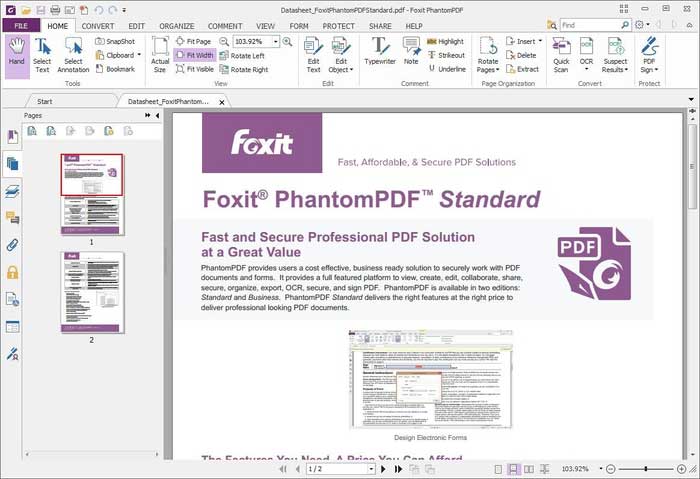
Foxit PDF Editor is a practical choice for business users who want a mature Acrobat-style desktop workflow with editing, OCR, forms, security, redaction, signing, and flexible licensing.
Current Foxit plans support Windows desktop editing and searchable-PDF OCR, while subscription offerings add cloud services and AI Assistant capabilities. Foxit also continues to offer a perpetual desktop license for users who prefer a one-time purchase, although that license does not include the same AI and cloud features as current subscriptions.
Foxit is a good fit for teams that value a familiar ribbon-style interface, document security, business deployment, and a choice between subscription and perpetual licensing. Its AI Assistant can support PDF summarization, translation, and document Q&A on eligible plans.
Choose Foxit when business PDF management and licensing flexibility matter more than having the simplest interface. If you only need to view, annotate, fill, or sign PDFs, Foxit PDF Reader remains the lighter option.
4. Nitro PDF Pro - Best for Microsoft-Oriented Teams
Nitro PDF Pro is a strong fit for Windows teams that prefer a Microsoft Office-style interface and spend most of their time editing, converting, reviewing, signing, and standardizing business documents.
Its ribbon-based interface makes common controls familiar to Word and Excel users. Nitro PDF Pro for Windows supports Windows 11 and Windows 10 and covers core tasks such as text and image editing, Office conversion, OCR, redaction, page organization, forms, and digital signatures.
Nitro is most compelling when established business-document workflows and Microsoft integration matter more than an AI-first research workspace. It is also no longer accurate to describe Nitro as Windows-only: the broader Nitro PDF Pro product family includes macOS and iOS offerings, although features can vary by platform.
5. PDF-XChange Editor - Best for Windows Power Users
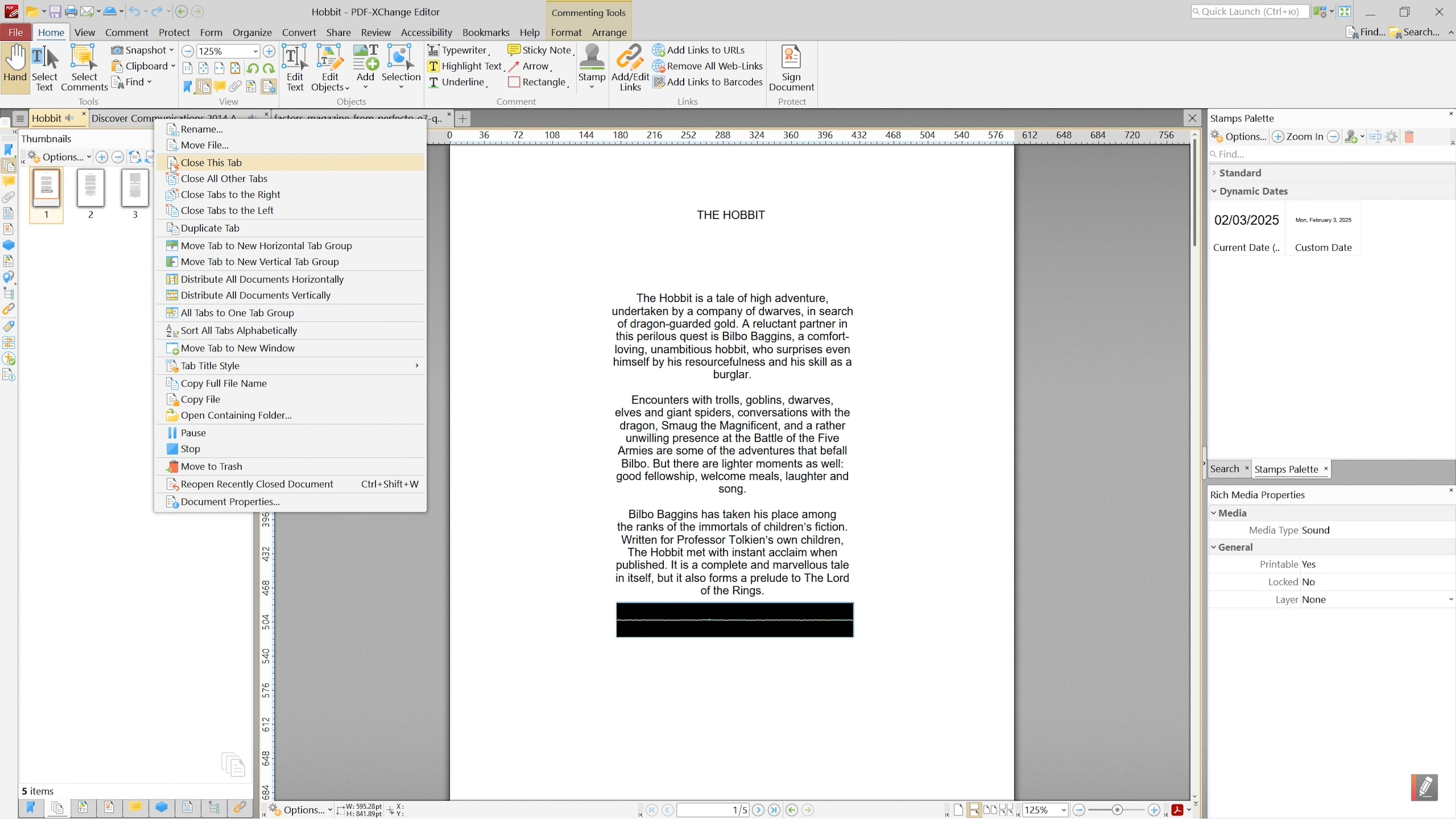
PDF-XChange Editor is best for Windows power users who want a dense desktop toolset, extensive customization, and strong traditional PDF controls. Current stable releases focus on Windows 10 and later, so older claims that the newest Editor supports XP, Vista, Windows 7, or Windows 8 should not be used for a 2026 buying decision.
The editor supports PDF viewing, text and object editing, annotation, OCR, page operations, digital signatures, and a large set of manual controls. PDF-XChange states that more than 70% of Editor features can be used without a license; using license-required features without one can add watermarks to the document.
Choose PDF-XChange if you value Windows-specific customization and traditional desktop controls more than cloud-first or AI-first workflows. Its interface exposes many tools directly, which experienced users may appreciate but newcomers can find busy.
How to Edit a PDF in PDFelement on Windows
To edit a PDF in PDFelement on Windows, open the file, switch to Edit mode, change the text or images you need, and save the result. The three steps below keep the original workflow and screenshots while making the instructions more direct and easier to follow.
G2 Rating: 4.5/5 |100% Secure
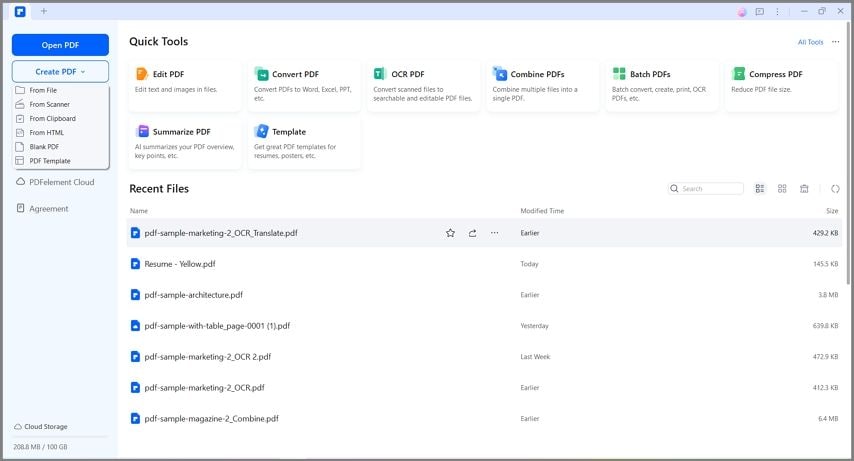
Step 1Open the PDF in PDFelement
Launch PDFelement and click "Open PDF" on the home screen. You can also choose "File" > "Open", browse to the PDF on your computer, and open it in the workspace. If the file is a scanned image rather than selectable text, run OCR before editing the recognized content.
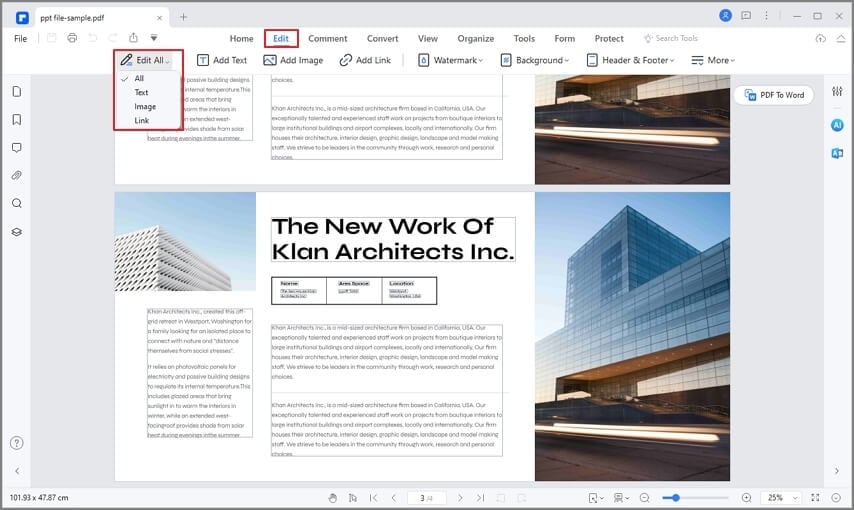
Step 2Edit PDF Text and Images
Open the "Edit" tab and click the text you want to change. You can replace or delete text and adjust formatting such as font, size, and style. Work from the existing document layout so you can check the result in context as you edit.
To edit an image, stay in the "Edit" tab and select the image. Depending on the object, you can resize, rotate, move, replace, or delete it. Use "Add Image" when you need to insert a new graphic into the PDF.
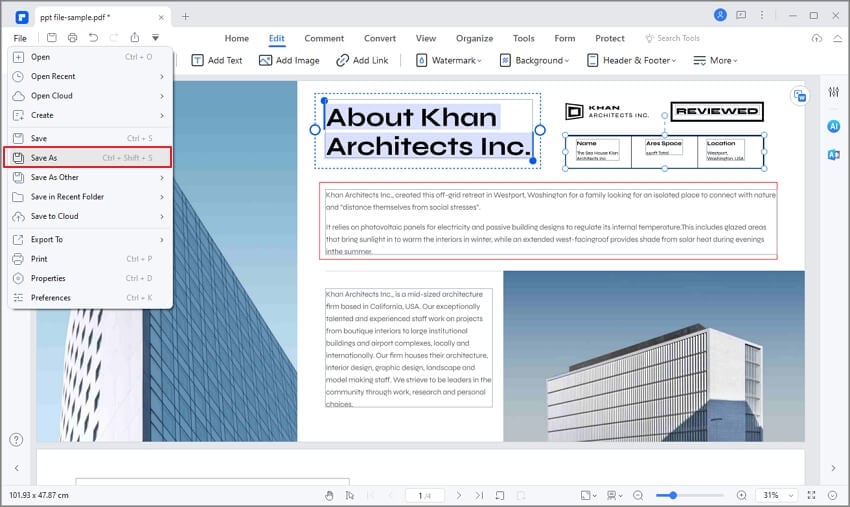
Step 3Save the Edited PDF
When the edits are complete, choose "File" > "Save" to update the current document. Choose "Save As" if you want to keep the original PDF unchanged and create a separate edited copy. Reopen the saved file and quickly check the edited pages before sharing it.
How to Choose the Right PDF Software for Windows 11 & 10
G2 Rating: 4.5/5 |100% Secure
Frequently Asked Questions (FAQ)
-
Does Windows 10 have a built-in PDF application?
Windows 10 and 11 use Microsoft Edge as the default PDF viewer. While Edge allows you to open, read, highlight, and draw basic lines on PDFs, it does not allow you to edit existing text, replace images, or utilize OCR technology. For those tasks, you need a third-party application. -
What is the best free PDF application for PC?
For purely viewing and basic markup, Foxit Reader is widely considered one of the best free PDF applications for PC. However, if you need to actually edit the text of a PDF for free, you will often face watermarks or severe feature limitations. -
Can I edit a PDF without Adobe Acrobat?
Yes, absolutely. While Adobe Acrobat is the most famous PDF software, many robust alternatives like Wondershare PDFelement, Nitro PDF, and Foxit PDF Editor allow you to edit PDF files easily and often at a more affordable price point.




