When it comes to taking important notes of such documents, there is usually not enough time to write down all important points. Under such circumstances, the need to snapshot PDF is the best option that can save time for you. This article features some of the best methods that can be adapted to capture PDF using the snapshot tools.
- PDFelement: Open the PDF in PDFelement, use the Capture tool to select the area you want, and save the screenshot to your device.
- Shortcut keys on Windows or Mac: Open the PDF on your screen, use the appropriate keyboard shortcut to capture the full screen or a selected area, and then save or paste the screenshot as needed.
- Chrome with GoFullPage: Open the PDF in Chrome, use the GoFullPage extension to capture the visible page or full scrolling content, and download the screenshot in your preferred format.
- Lightshot: Launch Lightshot, select the part of the PDF you want to capture, and then edit, save, or share the screenshot directly from the tool.
Wondershare PDFelement
Easily edit PDF text, image forms with PDFelement, an intuitive and powerful PDF Editor.

In this article
Part 1: How to Screenshot a PDF
There are multiple options that can be considered while taking a screenshot of your PDF. Wondershare PDFelement - PDF Editor Wondershare PDFelement Wondershare PDFelement, however, provides one of the simplest options amongst all possibilities to capture PDF. The following steps guide users on how to screenshot a PDF using PDFelement.
Step 1Import PDF Document
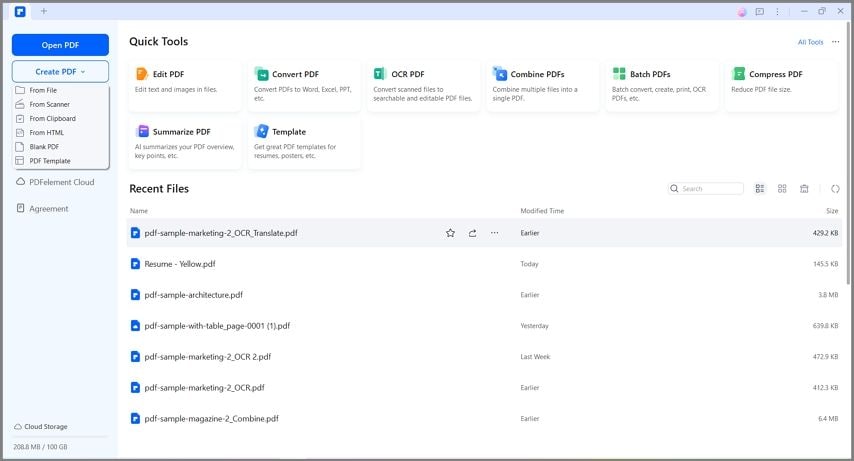
Initiate by downloading and installing Wondershare PDFelement across your device. Proceed to import the document by clicking on “Open Files” from the homepage.
Step 2Capture PDF
After importing the document, proceed to the “Tool” section to access a set of different management tools. Select “Capture” from the available options and mark the complete region that is to be captured by using the mouse.
Once you are done marking the region, tap on the “Save” icon at the bottom right to save the screenshot of the PDF.
Watch the video below and learn how to take a screenshot of a PDF.
Part 2: How to Take a Screenshot in PDF Using Shortcut Keys
1. Screenshot PDF on Windows
Windows users are offered a variety in taking a screenshot of their current screen with the availability of different shortcut combinations. While looking into the possibilities, Windows users should be aware of the following options while taking a screenshot in PDF.
- Print Screen (PrtScn Button): This button exists across the Windows keyboard as the primary method to take a screenshot of the screen. On tapping this button, the screenshot of the current screen is saved in the clipboard. The user can print it across any editing tool for saving it.
- Windows + PrtScn: This combination is more direct and absolute in taking screenshots. Users can utilize this combination to save the screenshot to the “Screenshots” folder on the device. The screenshots are automatically saved for this combination.
- Alt + PrtScn: This combination takes a quick screenshot of the current screen and saves it across the clipboard. The screenshot can be easily pasted across any editing platform, as desired.
2. Screenshot a PDF on Mac
Just like Windows users, Mac users have their own combinations to screenshot in PDF. Users who are searching for details of all the combinations should look at the following information.
- Shift + Command + 3: This combination takes a complete screenshot of the entire Mac screen. The screenshot is saved for further editing across the device.
- Shift + Command + 4: The use of this keyboard combination uses the crosshair tool for taking a screenshot of a specific screen. Users can utilize the trackpad for this purpose. Drag across the required screen to take a specific screenshot.
- Shift + Command + 6: If the Mac has a Touch Bar screen, this combination takes a screenshot of the particular screen.
Part 3: How to Take a Screen Capture in PDF on Chrome
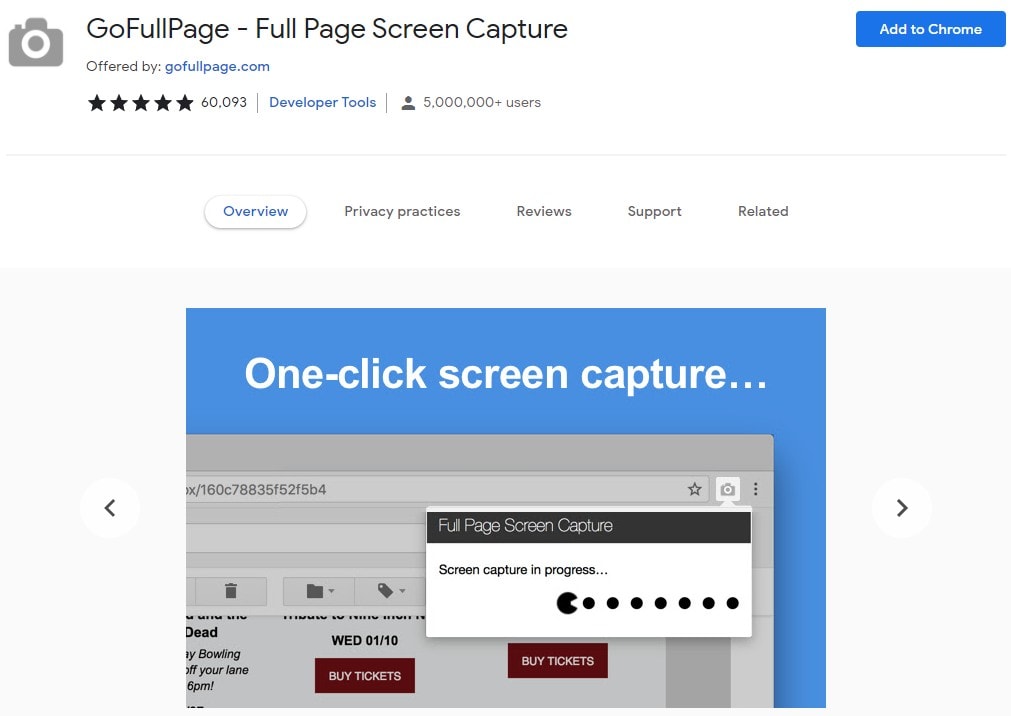
People who generally work across Chrome Browser for most of their time require such screenshot tools that take the snapshot of the particular screen that the user is working on. Rather than using the built-in combinations for taking the complete screenshots of the entire screen, which are to be cropped for usage, the user can consider working with GoFullPage, a browser extension available for Chrome users to take a screenshot.
The user can add this extension as a fast alternative for taking snapshots of the screen. Along with that, the tool ensures the privacy of the user by exempting all extra permissions for operation. Users can have the option of downloading the screenshots in different file formats, which makes it an intuitive and better option in the existing methods.
Part 4: How to Take a Screenshot in PDF with a Screen Capture Tool - Lightshot
Using a screen capture tool is another appropriate method to consider while taking a screenshot in PDF. The Lightshot tool is a proficient option for carrying out this procedure. To understand how to take a screenshot in the Lightshot tool, you need to look across the following steps.
Step 1Launch Lightshot
Open the Lightshot tool and select the area that you wish to consider in the screenshot.
Step 2Take a Screenshot of a PDF
After selecting the area, the user is provided with a variety of options to work on. They can not only edit the captured screen but save it across the device in an appropriate format. Along with that, the image can be directly shared across different social networks, as desired.
While utilizing the built-in shortcut keys, there are several dedicated screenshot tools that allow users to make important screenshots to save time in cropping and editing. Taking a snapshot of a PDF is simple when you use the right method for your device and needs. Whether you choose PDFelement, PDF Reader, keyboard shortcuts, Chrome extensions, or Lightshot, each option helps you capture PDF content quickly, clearly, and conveniently for work, study, or sharing.